AI Multi-Episode Series Workflow
A successful ai multi episode series workflow relies on using a single, evolving project file to maintain continuity across episodes. This process involves adding new scripts to the existing project, which automatically carries over character models, assets, and settings. This core principle ensures characters and locations look the same from one new episode to the next. Instead of starting fresh for each installment, you build upon a single, evolving project. This approach, combined with specific prompting techniques like using a continuity lock, is essential for preserving the series' visual identity when you generate the next part of your story. This guide outlines the practical steps for a complete ai multi episode series workflow, from project setup to scene generation.
Starting a New Episode in Your AI Multi Episode Series Workflow
To add a new episode to an existing AI series, you must upload the new script directly into the existing project file. Avoid creating a new, separate project or timeline. This single action is fundamental to an effective ai multi episode series workflow because it ensures all previously generated assets, character models, and settings are carried over automatically. Starting a new project for each episode severs the connection to your established assets, forcing you to regenerate everything from scratch and making visual consistency nearly impossible to achieve.
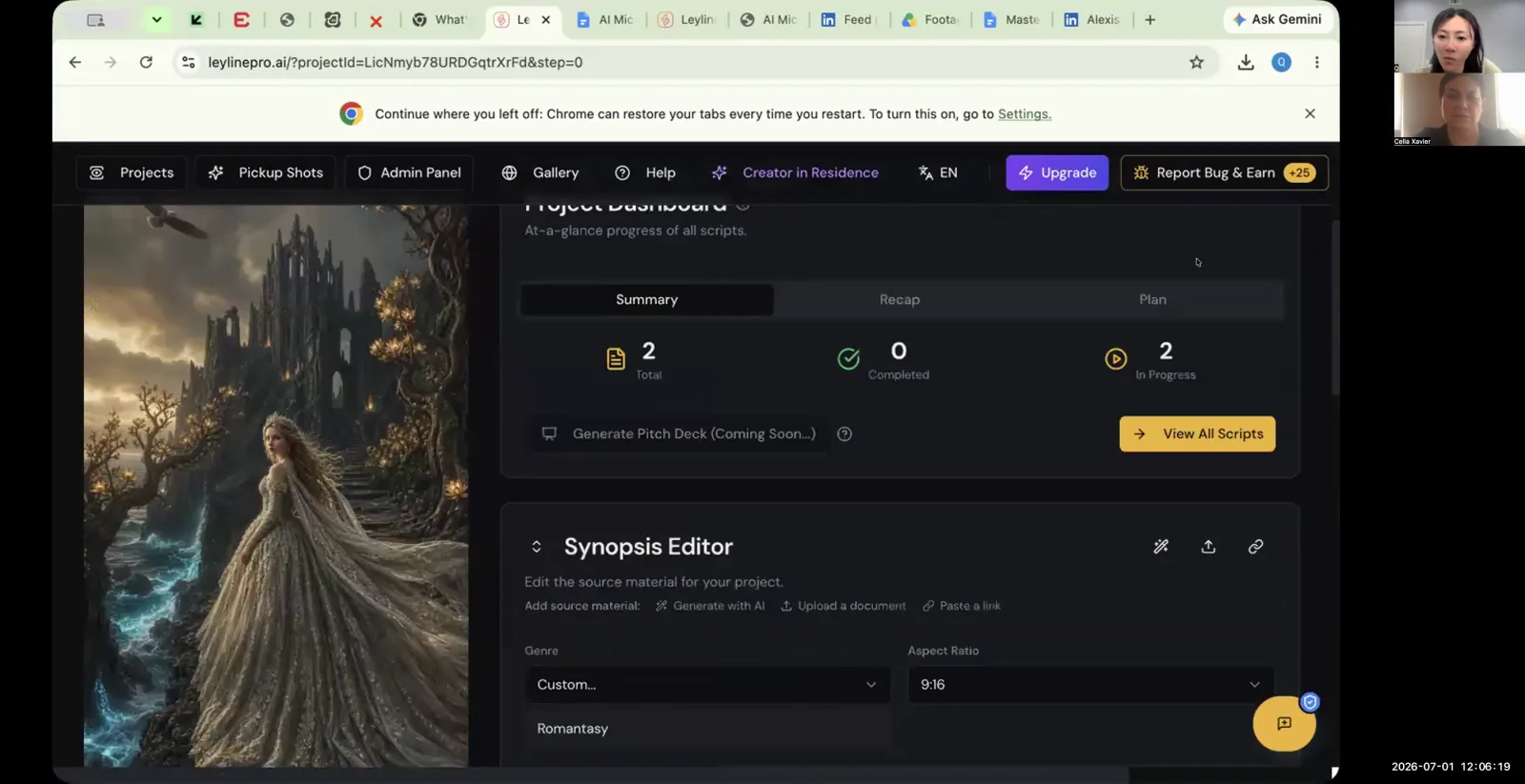
Leyline founder Qiushi (Q) Zhang outlines a clear process for this. The workflow for adding a new episode can be broken down into these steps:
- Open Your Existing Series Project: Navigate to the project that contains your previous episodes.
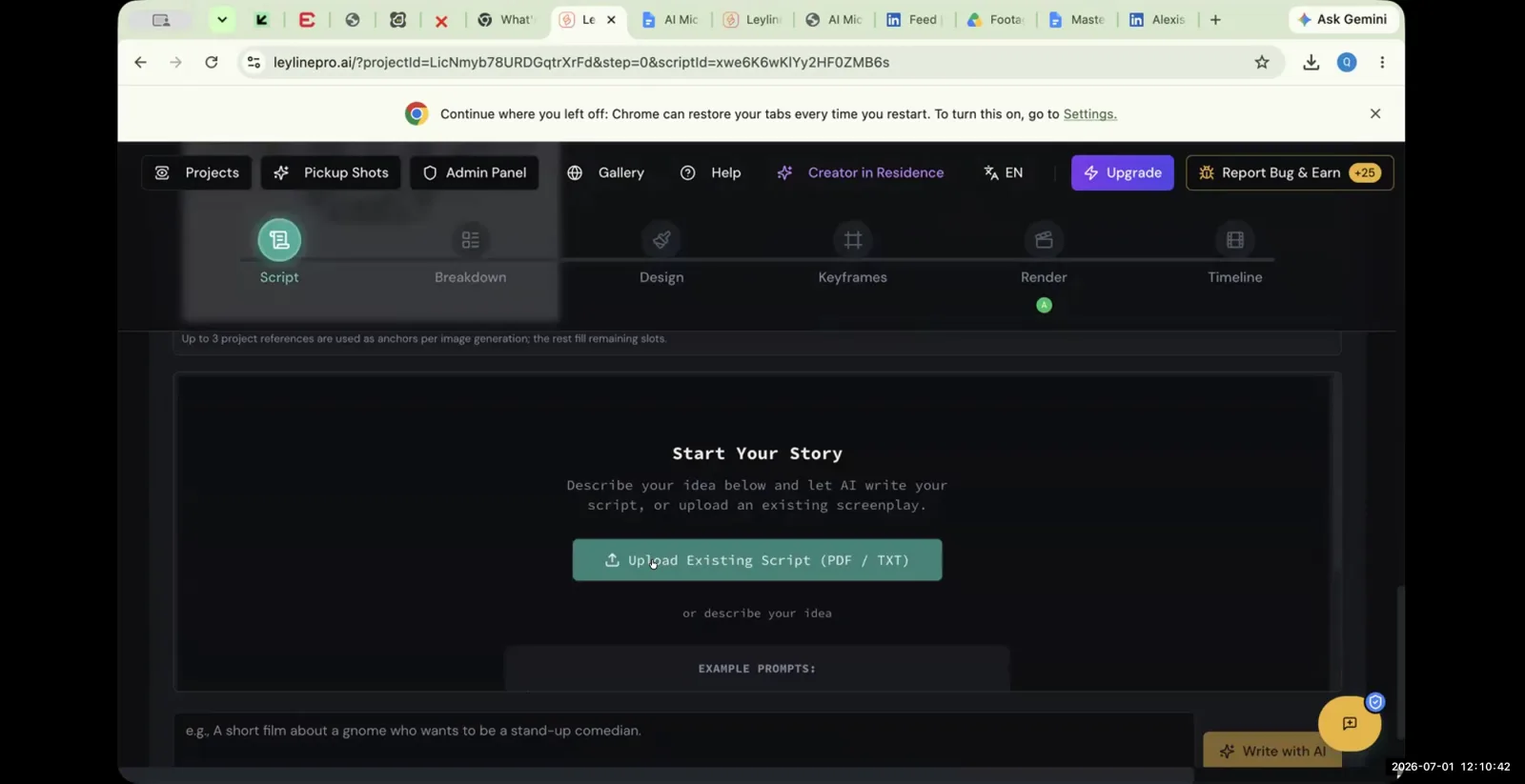
- Add the New Script: Within the project, find the option to add a new script. For example, if your project already contains "EP1 the vows," you would initiate the process to add "episode two."
- Title the New Episode: Give the new script a descriptive title, such as "Val wakes up."
- Upload the Screenplay: The platform will prompt you to "upload existing script." Select and upload your screenplay file for the second episode.
This procedure integrates the new episode directly into the project's existing structure. It keeps all narrative components organized and, more importantly, connected to the same pool of visual assets. This is the foundational step in building a continuity that holds up across multiple episodes.
How This Workflow Maintains Asset Continuity Between Episodes
This single-project ai multi episode series workflow maintains continuity by automatically making assets from previous episodes available for new ones. When you add a new episode script to an existing project, the platform is designed to reference and reuse the same character models, props, and locations. This feature is critical for the unique demands of series production.
An attendee asked whether the new script would use the same assets; Q answered, "Same assets. Yes." This means that after you establish a character's appearance or a specific location in episode one, those generated assets are immediately accessible for episode two. You do not need to recreate them or use complex prompts to describe them again.
The benefits of this automatic asset reuse are significant:
- Visual Consistency: Characters and environments look identical across the entire series, which is the primary goal.
- Time Savings: You avoid the time-consuming process of trying to regenerate a character to look the same as they did before.
- Credit Efficiency: You reduce the number of generations needed, saving on generation credits, as you are not iterating on character creation for every new episode.
This direct reuse of assets is the primary mechanism that solves one of the biggest challenges in AI filmmaking: maintaining a continuity of appearance over a long-form narrative. The workflow is designed to treat the entire series as one cohesive whole, with a shared library of visual elements.
What is a Continuity Lock and How Is It Used?
A continuity lock is a specific text command or descriptive phrase added to every generation prompt to force the AI model to maintain a consistent appearance for a character. To ensure a character looks the same across different shots and episodes, you must use a continuity lock on their face, their overall image, and their wardrobe. This is a manual but essential part of any professional ai multi episode series workflow.
This technique is not an automated feature but a manual instruction that you provide to the AI for each generation. As one participant explained, they put a specific continuity lock prompt in "every single time I prompt." This disciplined approach is necessary to prevent the AI from introducing subtle (or significant) variations in a character's appearance, which would break the narrative illusion.
Here is how to effectively use a continuity lock:
- Develop Your Lock Phrase: Create a highly specific, descriptive phrase for your character. You can use a large language model (LLM) to help you brainstorm a detailed description. It might look something like this for a character named Val:
[Val: woman, 30s, sharp jawline, blue eyes, blonde hair in a messy ponytail, wearing a worn red leather jacket, white t-shirt]. - Apply It Rigorously: Paste this exact phrase into every single prompt where that character appears. Consistency is key.
- Lock Multiple Elements: A good continuity lock addresses the face, body type, and wardrobe separately if needed to ensure every element remains stable.
Developing and applying a continuity lock requires discipline. It is a foundational skill for anyone serious about creating a believable multi-episode series with current AI video generation tools. It provides the control needed to generate the consistent visuals that a story demands.
A Practical Method for Generating Consistent Scenes
A practical method for generating consistent scenes within an episode is to break a single complex shot from your script into smaller, manageable "beats." You generate the first beat, download the successful clip, and then generate the next beat within the very same prompt window or "shot box." This technique reuses all the existing asset and prompt information, which significantly improves consistency from one moment to the next.
An attendee in the masterclass detailed this effective micro-workflow. For a single shot, like "shot number 10," they would break it into three distinct actions or beats. The process is as follows:
- Generate the First Beat: Write the prompt for the first part of the action in the shot box and generate it.
- Download Usable Footage: Even if only one or two seconds of the generated clip are usable, download it.
- Generate the Next Beat in the Same Box: Without creating a new prompt or shot box, modify the prompt to describe the next beat of the action. Because you are using "that same shot box... it already has all the elements in it, the assets in it."
- Repeat as Needed: Continue this process—generating a beat, downloading, and modifying the prompt for the next beat—until you have all the pieces for your complete shot.
This user found this was the "only way I can get consistency with the people's faces and their wardrobe," especially when combined with a continuity lock in the prompt. This method works because the generation tool often retains some memory of the previous generation within the same session or prompt box, including compositional elements and character details. This makes it a crucial technique in your ai multi episode series workflow for maintaining intra-scene continuity.
AI Multi Episode Series Workflow: A Summary
To execute a successful ai multi episode series workflow, you must follow a structured process focused on project management and prompting discipline. Each step builds on the last to create a cohesive final product where characters and settings remain consistent. This workflow is essential for moving beyond single clips to produce narrative content.
Here is a summary of the complete workflow:
- Use a Single Project: The entire series should live within one project file. This is the most important rule for maintaining a continuity of assets.
- Add Episodes Sequentially: When it's time to create a new episode, upload the script into the existing master project. Do not create a new project.
- Leverage Automatic Asset Reuse: The platform will automatically make characters, props, and locations from previous episodes available for the new one. This ensures everything looks the same.
- Implement a Continuity Lock: For every shot featuring a main character, include a specific, descriptive "continuity lock" phrase in your prompt to stabilize their appearance. This is a manual but critical step.
- Generate Scenes in Beats: For complex shots, break the action into smaller beats. Generate each beat sequentially within the same prompt box to improve consistency within a single scene.
Following this structured ai multi episode series workflow provides a reliable framework for producing longer-form content and overcoming the common challenges of visual inconsistency in AI video generation.
Frequently asked questions
Do I need to start a new project for each episode in an AI series?
No. The recommended ai multi episode series workflow requires you to add the script for the next episode directly into your existing project. This keeps all your assets and settings in one place, which is the most effective way to maintain continuity across episodes.
Will adding a new episode script reuse my character assets?
Yes. According to Qiushi (Q) Zhang, when you add a new episode script to an existing project on a platform like Leyline, it will automatically use the same assets. This ensures your characters and environments remain consistent for each new episode.
What is the purpose of a "continuity lock"?
A continuity lock is a specific phrase or command you must add to every prompt to direct the AI to maintain a consistent look for a character. It is used to lock in the appearance of a character's face, clothing, and overall look across multiple shots, forming a critical part of a continuity strategy.
How can I generate a complex scene with multiple actions consistently?
Break the scene down into smaller parts, or "beats." Generate the first beat, download the successful footage, and then generate the next beat within the same prompt box. This method reuses the initial setup and assets, which helps improve visual consistency within the scene.
Keep learning
This guide is part of the Troubleshooting Video Generation and Multi-Episode Workflows masterclass lesson.
Related guides:
Comments
Sign in with your Leyline account to join the conversation.