Troubleshooting Video Generation and Multi-Episode Workflows
Cohort 9, Session 9 — taught by Qiushi (Q) Zhang, founder of Leyline.
To make a film with AI, you generate video clips from a script using various models. Practical filmmaking requires troubleshooting, such as cycling through different AI models like Veo Fast or Seedance when a generation fails. For sensitive content, you must use creative prompting with euphemisms to bypass safety guardrails. To ensure character consistency across complex shots, break them into smaller 'beats'.
What you will learn
- Add a new episode script to an existing project in Leyline.
- Troubleshoot failed video generations by systematically trying different AI models.
- Modify prompts with alternative wording (e.g., 'stain' for 'blood') to bypass model safety guardrails.
- Apply a 'continuity lock' prompt to maintain character and wardrobe consistency across shots.
- Implement a workflow for generating multiple 'beats' from a single shot description to improve control and consistency.
- Understand the trade-offs between different video models like Seedance, Veo, and Kling regarding speed, quality, and content restrictions.
Add a New Episode Script to a Leyline Project
This workflow demonstrates how to add a script for a new episode into an existing Leyline project. Following these steps ensures you can maintain asset and character continuity across a series.
Step 1. From the project's main page, locate and click the 'View all your scripts' link.
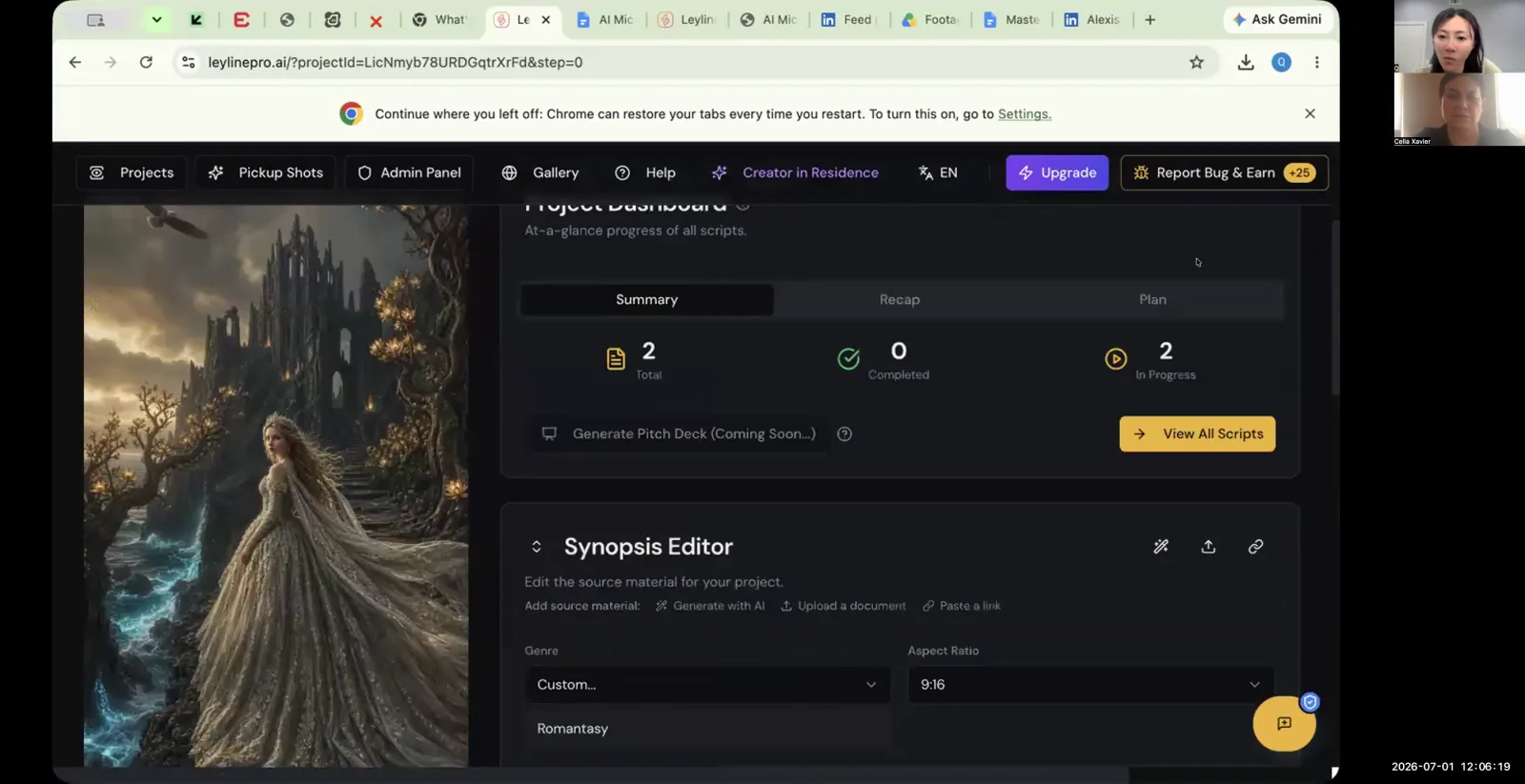
From the project dashboard, locate the "View All Scripts" button.
Step 2. Click the 'Add script' button.
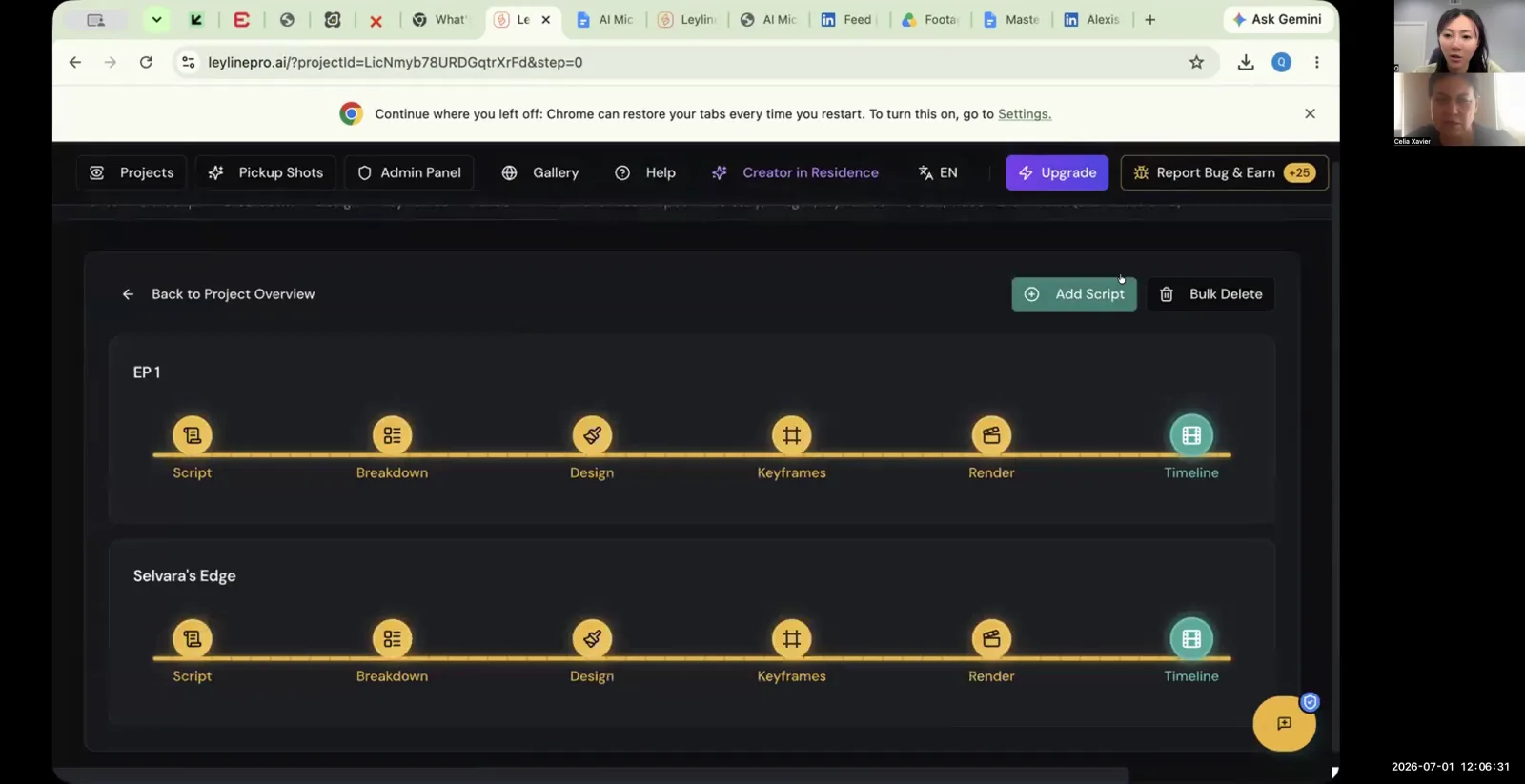
Click the 'Add Script' button to begin a new project.
Step 3. Enter a name for the new episode, such as 'Episode 2', and click 'Create script'.
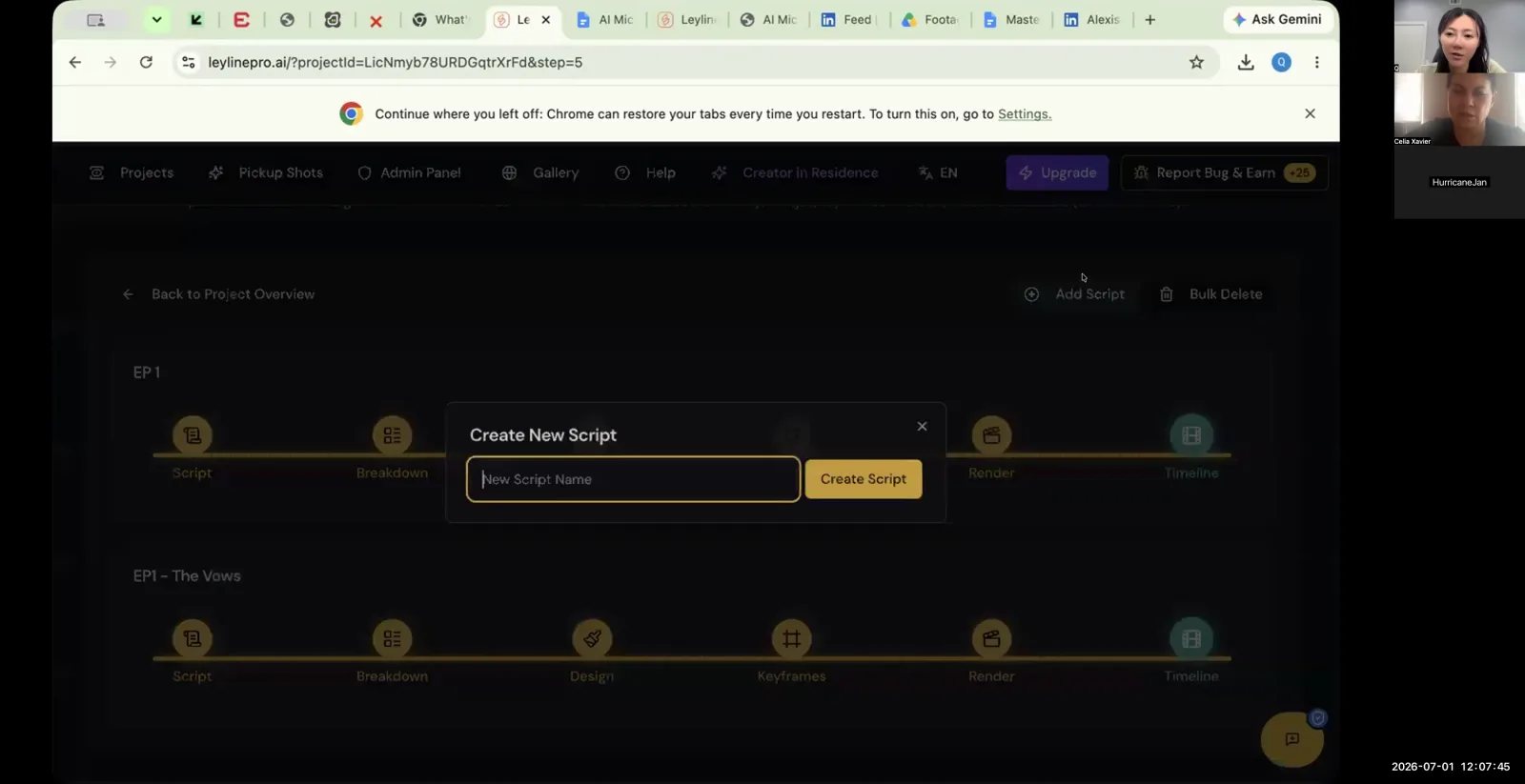
Name your new script in the pop-up window and click 'Create Script'.
Step 4. Click into the newly created episode script, which will open the Script Editor.
Step 5. In the Script Editor, select the 'Upload existing script' option and upload your screenplay file.
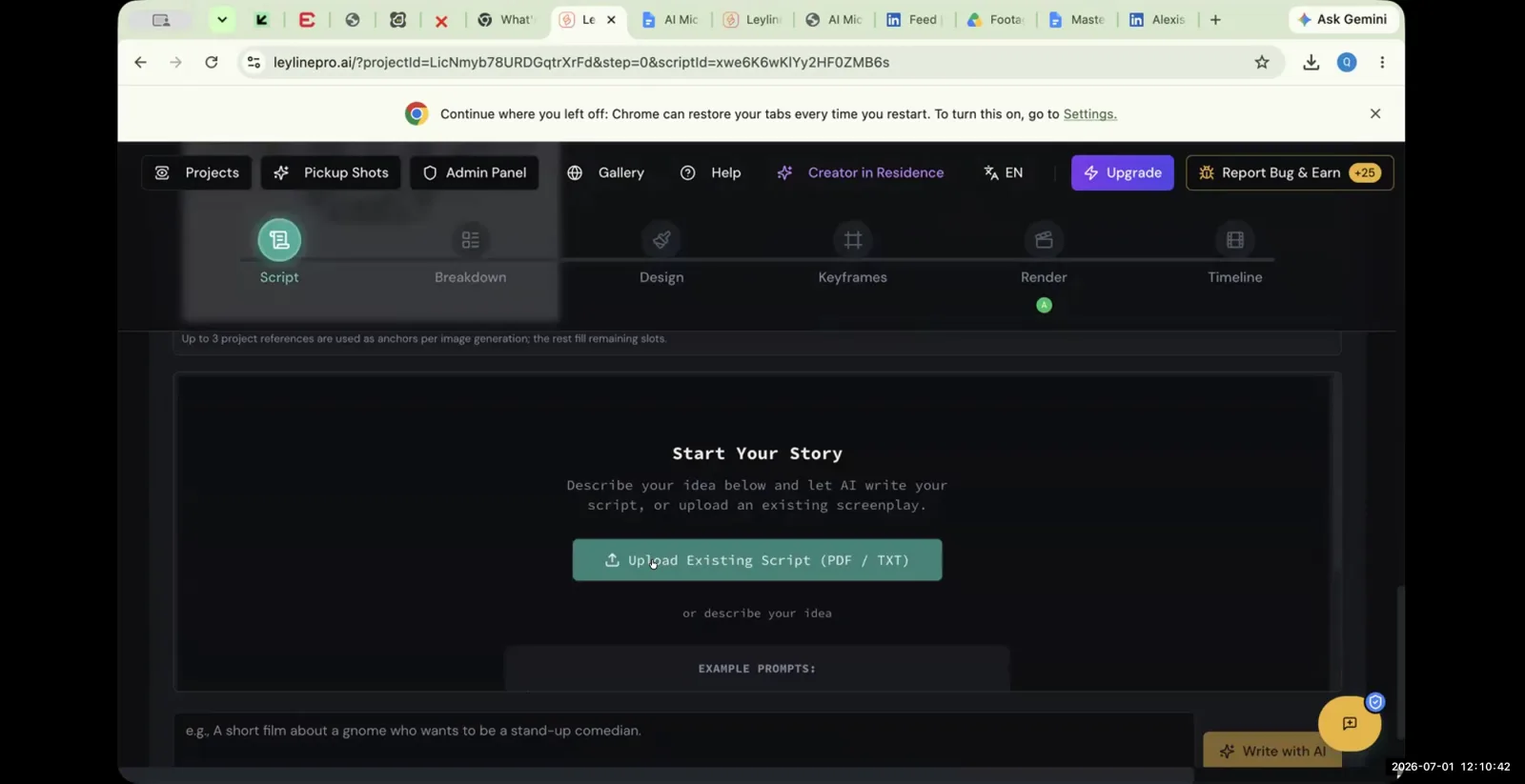
In the Script editor, click the "Upload Existing Script" button to import your screenplay.
Troubleshoot a Failed Video Generation
When a video clip fails to generate due to an error or a safety guardrail, you need a reliable troubleshooting process. This workflow shows how to cycle through different AI models to get a successful result.
Step 1. Navigate to the Render step and locate the shot that failed to generate.
Step 2. From the 'Generation Model' dropdown, select a different model than the one that failed (e.g., switch from 'Seedance' to 'Veo Fast').
Step 3. If the failure was due to a safety guardrail violation (e.g., an error mentioning 'blood'), edit the video prompt to use alternative wording, such as 'stain' or 'red liquid'.
Step 4. Click to generate the video again with the new model and/or prompt.
Step 5. If it fails again, repeat the process by systematically trying every available model in the list (e.g., Kling, Hailuo).
The instructor notes that it can take many tries with different models to get a successful render.
Generate a Multi-Beat Shot for Consistency
Generating a complex shot with multiple actions can confuse the AI and lead to inconsistencies. This workflow explains how to break down a shot into smaller 'beats' to maintain character and asset continuity.
Step 1. In the shot's render box, write a prompt for only the first 'beat' or action of the scene.
Also include a 'continuity lock' phrase in the prompt to help maintain character appearance.
Step 2. Generate the video for the first beat.
Step 3. If satisfied with the result, download the generated clip to your computer.
Step 4. In the exact same shot box, without creating a new shot, delete the previous prompt and write a new one for the second beat.
Reusing the same shot box ensures all the original assets and character references are still loaded.
Step 5. Generate and download the clip for the second beat.
Step 6. Repeat this process for all remaining beats in the shot, then assemble the downloaded clips in an external video editor.
Key terms
Multi-Episode Project. A single project in Leyline that contains multiple scripts, one for each episode of a series, allowing for the reuse of assets and characters.
Generation Model. The underlying AI system used to create video clips from text prompts and images. Examples discussed include Seedance, Kling, Veo, and Hailuo.
Safety Guardrails. Built-in restrictions within AI models that prevent the generation of content deemed inappropriate, such as violence, blood, or unauthorized likenesses, often resulting in an error message.
Vertex AI. Google's AI platform, whose usage guidelines were cited in an error message for a failed video generation, indicating a safety guardrail was triggered.
Prompt Evasion. The technique of altering words in a prompt to bypass AI safety guardrails. For example, using 'stain' or 'red liquid' instead of 'blood'.
Grok. An AI model associated with Elon Musk, mentioned as being less restrictive and capable of generating 'rowdy stuff' like adult content or blood that other models block.
Continuity Lock. A specific phrase or set of instructions added to every prompt to force the AI model to maintain consistency in a character's face, images, and wardrobe across different shots.
Shot Beats. Smaller, distinct actions or moments within a single, larger shot description. A workflow is discussed where a shot is broken down into multiple beats, which are then generated individually to improve AI comprehension and consistency.
Seedance. A popular AI video generation model noted for its quality but also for having a maximum resolution of 720p and sometimes adding unwanted text artifacts to videos.
Veo Fast. A Google AI video generation model praised for its extremely fast generation times (around one minute), making it useful for quickly testing if a shot concept works.
Kling. An AI video generation model mentioned as one of the options to try when troubleshooting failed renders.
Hailuo. An AI video generation model recommended as another alternative for generating shots when other models fail.
Rough Cut. A first assembly of video clips in sequence, without final editing, sound design, or color correction. Participants are expected to have a rough cut of their first episode ready for feedback.
Common mistakes to avoid
- Not knowing how to add a script for a new episode to an existing project.
- Giving up on a failed shot after only trying one or two AI models instead of cycling through all available options.
- Using explicit words like 'blood' in prompts, which triggers safety guardrails, instead of using euphemisms like 'stain' or 'red liquid'.
- Trying to generate a complex shot with multiple actions in a single prompt, which can confuse the AI, rather than breaking it into smaller 'beats'.
- Forgetting to use a 'continuity lock' prompt, leading to inconsistent character faces and clothing between shots.
- Not realizing that different models have different strengths, weaknesses, and content restrictions.
Frequently asked questions
What should I do if my AI video generation fails in Leyline?
If a video generation fails, cycle through the different available AI models, such as Seedance, Veo Fast, Kling, or Hailuo. Each model has different capabilities and restrictions, so one may succeed where another fails. Don't give up after trying only one or two models.
How to get around AI safety filters for content like blood or violence?
To bypass safety guardrails that block explicit terms, use creative prompting with euphemisms. Instead of words like 'blood,' try descriptive phrases like 'red liquid' or 'stain.' This prompt evasion technique helps generate the intended imagery without triggering the model's built-in content filters.
How to maintain character and wardrobe consistency in AI-generated video?
Use a 'continuity lock' prompt to specify key character details in every shot. For complex scenes, break the action into smaller 'beats' and generate each part separately, reapplying the same continuity prompt to each one. This ensures the character's face and clothing remain consistent across clips.
What is the best workflow for creating complex scenes with AI video tools?
For complex scenes with multiple actions, the best workflow is to break the shot into smaller, sequential 'beats.' Generate each beat as a separate clip while using a 'continuity lock' prompt. This method prevents the AI from getting confused and produces more consistent, controllable results.
How to manage a multi-episode series within a single AI filmmaking project?
To manage a multi-episode series in Leyline, add the script for each new episode directly into your existing project. This approach allows you to continue working on the same timeline, which helps maintain the continuity of your established assets and characters across the entire series.
From the session
“Whenever I get some kind of error message, I would just switch models and then it would I'd be able to generate something.”
— Participant
“We could not generate this video because the input images violate Vertex AI using guidelines.”
— Gail
“Different models have different security guard rails.”
— Instructor
This tutorial was produced from the Leyline Masterclass recording (Cohort 9, Session 9, 2026-07-01). Screenshots are captured directly from the session.