How to Maintain Continuity in AI Video
To maintain continuity in AI video, creators must use a combination of targeted prompt engineering and a structured workflow. Without specific controls, AI models can produce variations in a character's appearance, clothing, and environment from one shot to the next. This breaks the narrative illusion and undermines the story. The key to solving this is instructing the AI to reuse specific visual assets and adhere to defined parameters for characters and scenes. This guide outlines the practical methods you need to ensure a character looks the same across different shots and episodes.
These techniques, including the use of a continuity lock and specific project workflows, are essential for anyone looking to move from single, disconnected clips to cohesive storytelling. By implementing these strategies, you can successfully maintain continuity in AI video productions.
What is a continuity lock in AI video prompting?
A continuity lock is a specific text command added to every prompt that instructs an AI model to maintain consistency in a character's face, wardrobe, and other visual elements. This is a fundamental technique to maintain continuity in AI video, helping to preserve a character's appearance across different shots. According to one workshop participant, you must use a continuity lock on a character's face, their images, and their wardrobe for any AI model you use.
This lock is not a built-in feature but a piece of custom-written text that you repeatedly include in your prompts. The participant explained that they had two written descriptions they used every time. They noted, "You can ask chat to make your own." This means you can use a large language model to help formulate a precise command that fits your project's needs. The core principle is repetition; the continuity lock must be part of every prompt you generate for that character to encourage continuity.
When creating a continuity lock, consider defining these key elements:
- Facial Features: Specify consistent details about the character's face.
- Wardrobe: Describe the exact clothing, including color, style, and texture.
- Reference Images: Mention any reference images used to define the character's look.
- Overall Style: Include notes on the visual style to ensure it remains consistent.
How to Maintain Continuity in AI Video for a Single Complex Shot
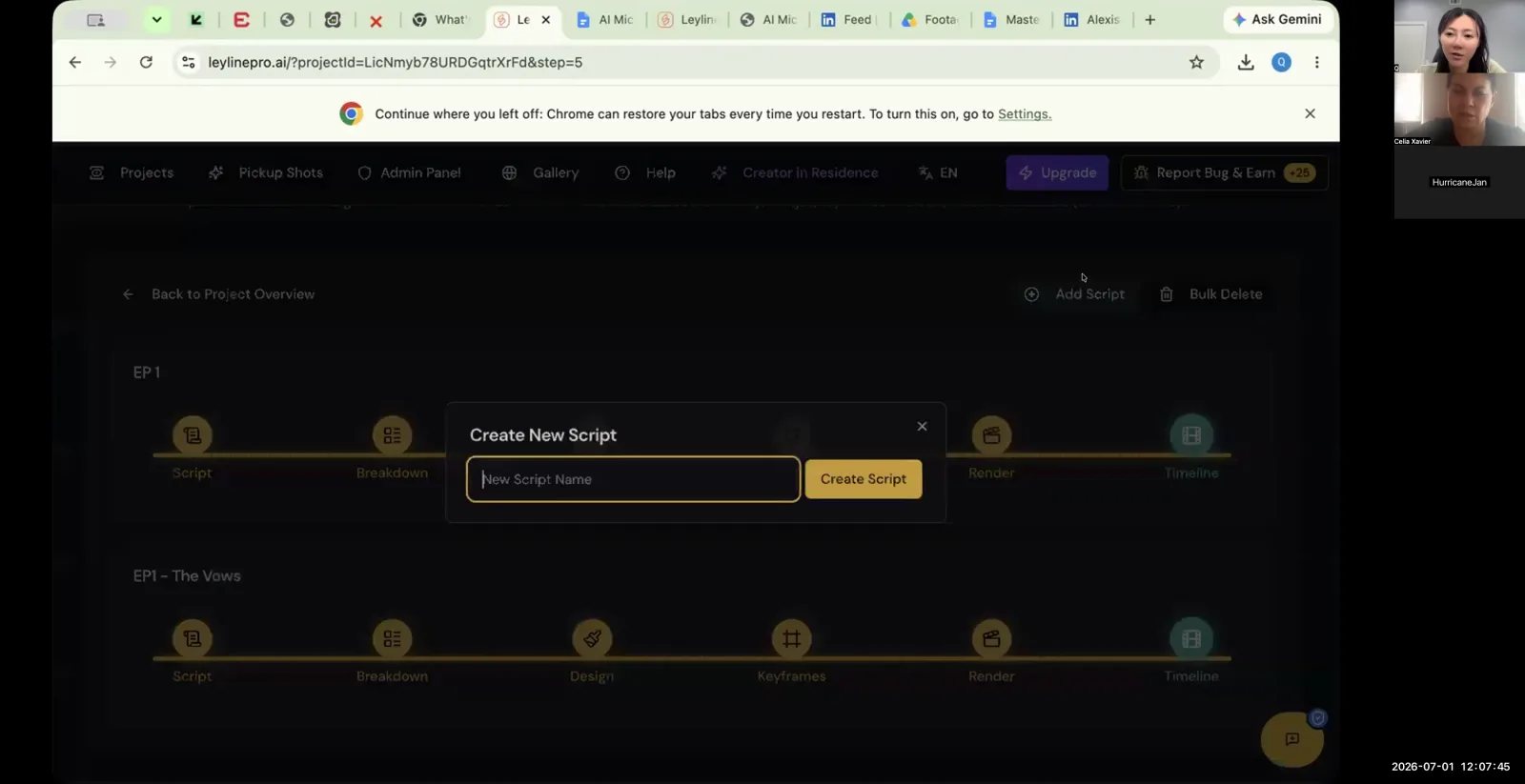
To maintain consistency across multiple actions, or "beats," within one shot, you should generate the first beat, download it, and then reuse the exact same project container or "shot box" to generate the next beat. This workflow ensures the AI uses the same assets for the character's face, wardrobe, and setting. This method prevents the model from regenerating the character from scratch for each part of the action, which is a common cause of continuity errors.
A workshop participant outlined a specific, repeatable process for this:
- Generate the First Beat: Create the first part of your action within a new shot.
- Download the Clip: Once you are satisfied with the result, download the video file.
- Reuse the Shot Box: Do not create a new shot for the next action. Use the exact same shot box you used for the first beat. the participant noted, "it already has all the elements in it, the assets in it."
- Generate the Next Beat: Create the second part of the action within that same box.
- Repeat as Needed: Continue this process for all subsequent beats in the sequence.
By never leaving the original shot container, the foundational visual data remains consistent. The participant described this as their main way of getting consistency, stating, "I was using the same shot number instead of creating a new and separate shot number for the next beat." This is a direct, practical technique to maintain a character's appearance from one moment to the next.
Does a continuity lock work with all AI models?
No, a continuity lock does not work universally with all AI models. The effectiveness of a continuity prompt depends entirely on the specific model you are using. Some models are designed to interpret and follow such commands for maintaining consistency, while others may disregard them completely. This can result in a lack of a continuity despite your efforts.
The same participant added a warning: "I always put some kind of continuity lock in there. Now, some models just totally ignore that. Right? Um, but some models are good with that." This highlights the necessity for experimentation. Before committing to a model for a large project, you must test its ability to follow your continuity lock prompts.
To do this systematically, consider creating a simple testing process:
- Select a few different AI video models.
- Use the same simple prompt with your continuity lock on each model.
- Generate several clips for each model.
- Compare the results to see which model best adheres to your instructions.
This testing phase is a critical step if you want to reliably maintain continuity in AI video. There is no single solution that works for every platform, so direct testing is the only way to find a tool that fits your workflow.
How do you maintain continuity across multiple episodes?
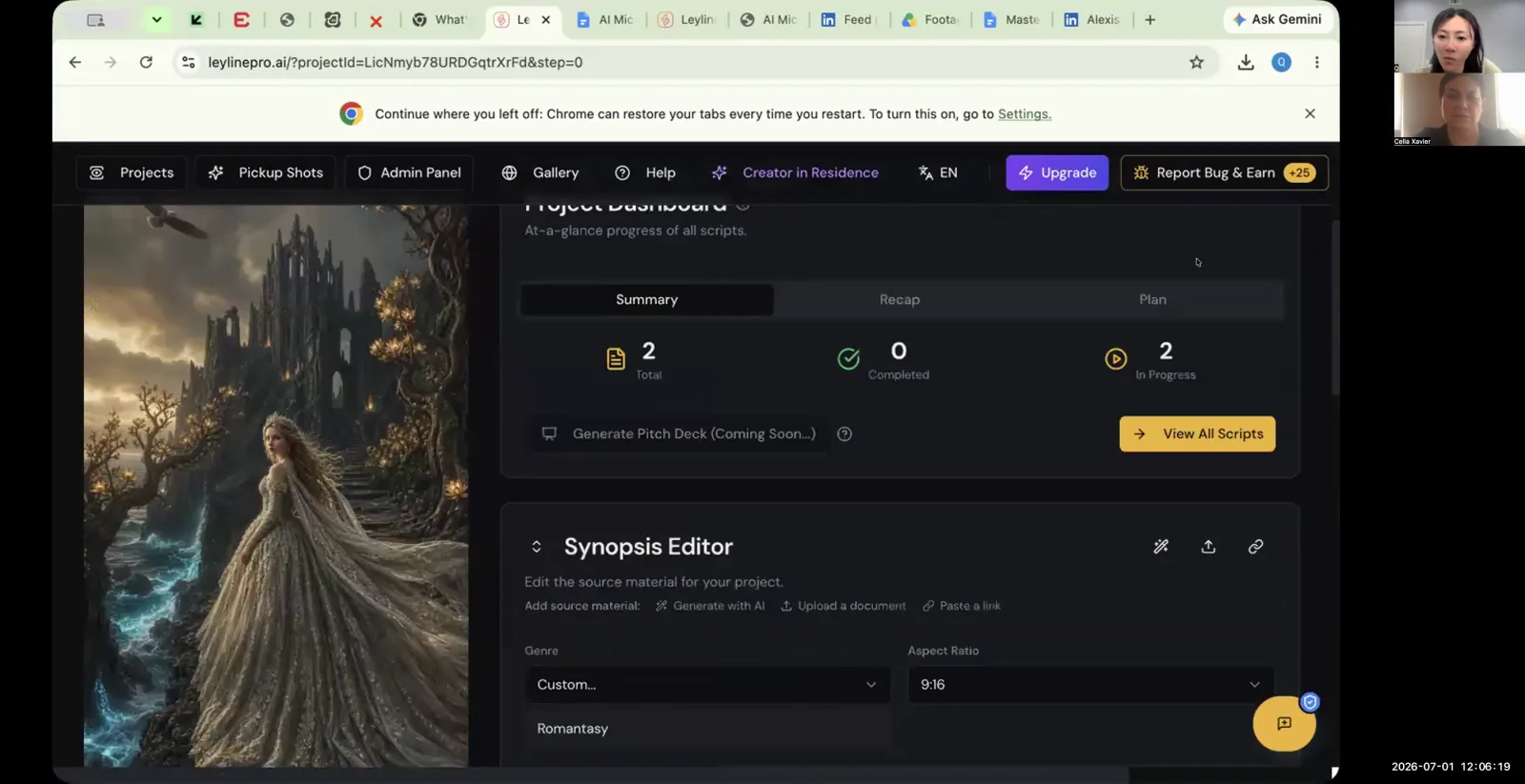
To maintain continuity across multiple episodes of an AI-generated series, you must use the same project file for each subsequent episode. This foundational step ensures the AI platform will use the same character and setting assets that were established in the first episode. By working within a persistent project, you are telling the system to reference the original character models and environments instead of creating new ones.
This workflow is essential for any multi-episode production. Starting a new project for each episode would force the AI to generate new assets, which would almost guarantee a loss of continuity for your main characters and key locations. When asked if using the same project for a new episode would use the same assets, Qiushi Zhang confirmed, "Same assets. Yes." Reusing the project file is the most direct and effective way to maintain a consistent visual world for your series and ensure characters look the same from one episode to the next.
Key Strategies to Maintain Continuity in AI Video
Achieving consistent visuals in AI video requires a deliberate approach. By integrating a few core techniques into your workflow, you can overcome the model's natural tendency to introduce variations. Here are the essential strategies discussed in this guide.
- Use Continuity Locks: Always include specific, custom-written text commands in every prompt for a character. This lock should define the character's face, wardrobe, and other key visual traits to instruct the model to keep them the same.
- Adopt the "Same Shot Box" Workflow: For complex shots with multiple actions, generate each beat within the same project container. This forces the AI to reuse the original assets, preserving the character's appearance throughout the sequence.
- Reuse Project Files for Series: When creating a multi-episode series, build each new episode within the same master project file. This ensures the AI references the established character models and settings from previous episodes.
- Test Your Models and Prompts: Not all AI models respond to continuity locks. You must experiment with different platforms and prompt variations to find a combination that reliably produces consistent results for your project.
Frequently asked questions
What are the most important elements for a continuity lock? According to the participant who shared this technique, a continuity lock must be used for a character's face, their reference images, and their wardrobe. They explained that these are the critical elements to control for maintaining consistency, regardless of the AI model being used.
Can I create my own continuity lock prompt? Yes, you can and should create your own continuity lock prompts. These are not built-in commands but custom text you add to your prompts. You can even use a chatbot to help you write a prompt that is specific to your character's required appearance and wardrobe.
What is the "same shot box" method? The "same shot box" method is a workflow for creating a single, complex shot with multiple actions or beats. You generate the first beat, download the clip, and then use the very same shot container with its existing assets to generate the second beat, ensuring visual consistency.
Why is reusing the same shot number important? Reusing the same shot number for different beats of a single action is important because it leverages the assets already loaded into that shot. This is a direct, practical technique to maintain consistency for a character's face and clothing from one moment to the next within a scene.
Keep learning
This guide is part of the Troubleshooting Video Generation and Multi-Episode Workflows masterclass lesson.
Related guides:
Comments
Sign in with your Leyline account to join the conversation.