AI Video Editing: Prompts and Continuity
AI video editing uses artificial intelligence to generate or change video from text, images, or existing clips. This approach can simplify traditional production, but getting good results requires specific ai video editing techniques. Success depends on how you write prompts, maintain visual consistency, and understand the limits of any given ai model. These strategies help you control the video generation process and produce coherent visual content by describing scenes instead of filming them.
Prompting: A Core AI Video Editing Technique
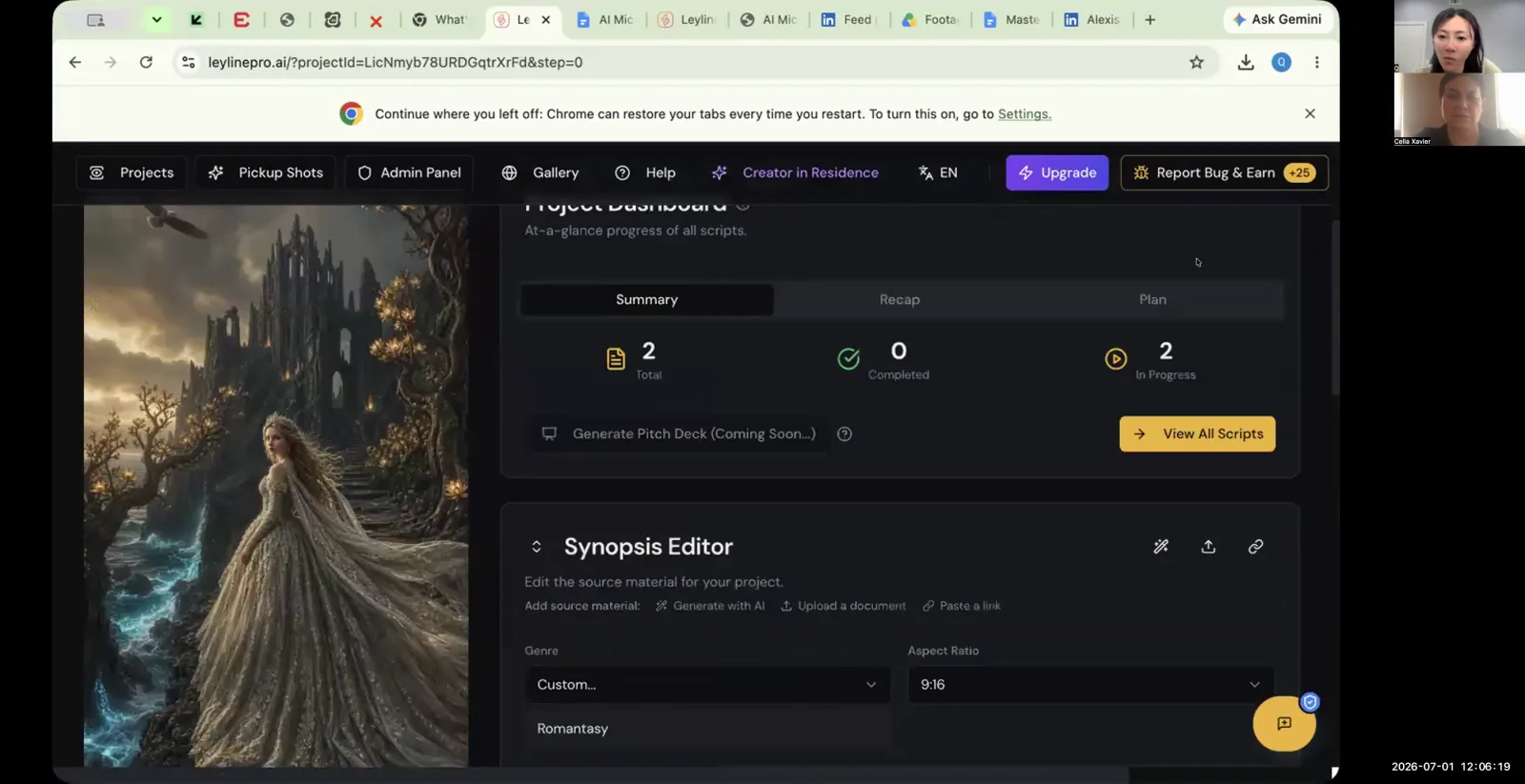
To structure a complex action, break it into a few simple beats and generate them separately. A workshop participant described using three beats for one shot, rather than asking a model to handle every action in a single generation. This is a practical prompting approach to test, rather than a rule that guarantees a successful result.
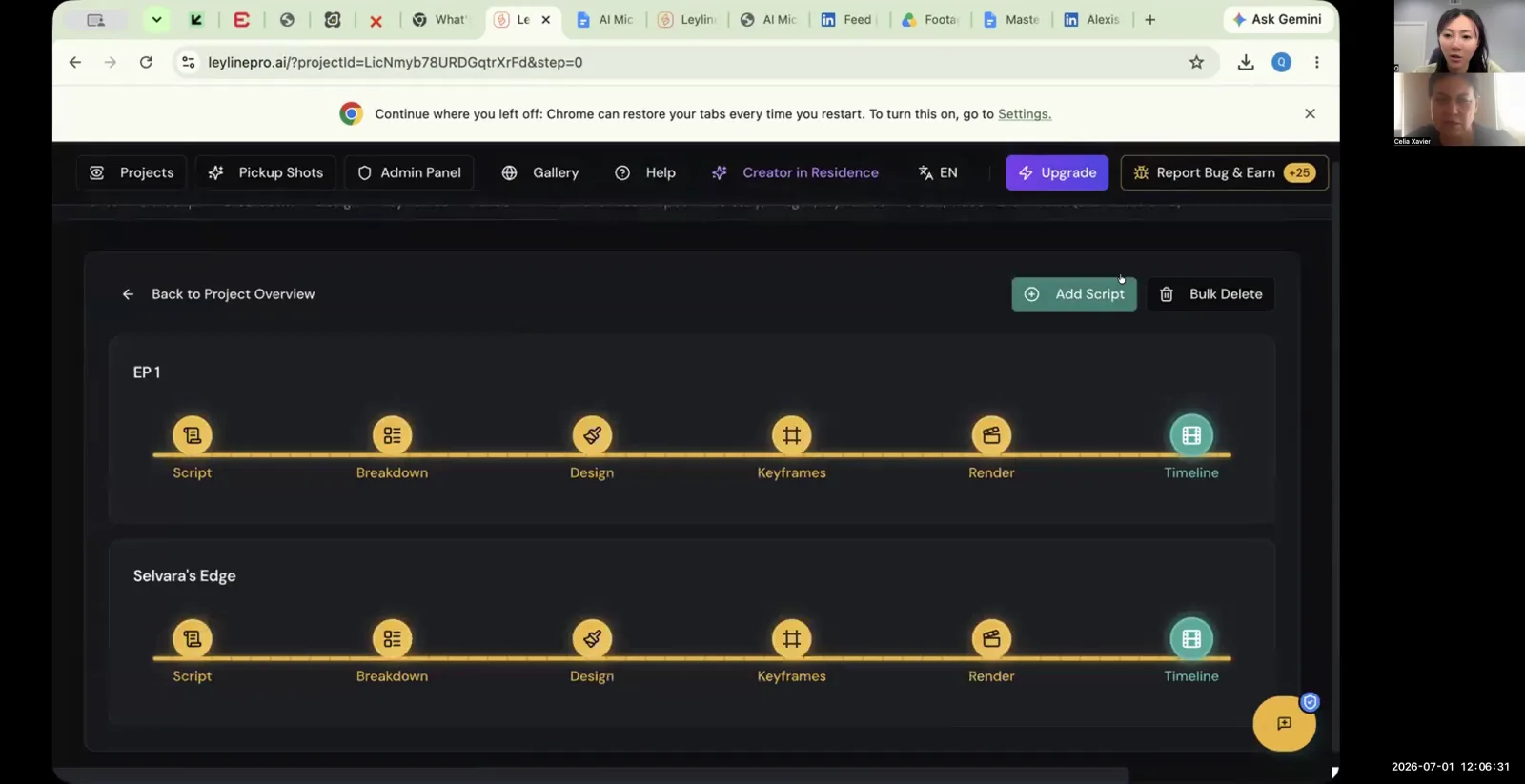
"I've been instead of giving the model, I just really break it down to like three beats for one thing," the participant explained. Their process was to generate and download a useful piece, then write the next beat in the same shot box:
- Generate the First Beat: Write a simple prompt for the first part of the action (e.g., "a person raises a glass").
- Download the Result: Save the generated one or two-second clip.
- Generate the Second Beat: Use the same project setup or “shot box” to ensure the environment and assets remain the same. Write the prompt for the next part of the action (e.g., "a person brings the glass to their lips").
- Generate the Third Beat: Repeat the process for the final part of the action (e.g., "a person lowers the glass").
The participant explained that the same shot box "already has all the elements in it, the assets in it." Keeping those references in place can help with continuity, but each generated result still needs review before the clips are assembled in an editor.
How to Maintain Consistency in AI-Generated Video Clips
For continuity, the workshop discussed repeating a written description of the character's face, wardrobe and other important details in each prompt. The participant called this a "continuity lock." It is text supplied to the model, not a switch to activate in Leyline.
The repeated description gives the model a consistent reference. It can reduce variation, but cannot force a model to preserve every detail. Compare faces, clothing and other important elements after each generation.
One participant recommended repeating the face and wardrobe details in every prompt, then offered to share the text they use. They also warned that some models ignore it. Combine the written description with the same-shot-box workflow, and revise or regenerate any clip that does not match the references.
What to Do When an AI Model Blocks Your Video Generation
When an ai model blocks your video generation due to safety filters, you should try a different model or modify your prompt with less explicit language. Different platforms have varying “safety guard rails,” so a prompt that fails on one might succeed on another. For example, a generation might fail because a model like Kling or Seedance mistakenly identifies an actor’s likeness as a violation, even if it is not.
Gail read an error saying the input images violated Vertex AI usage guidelines. Q explained that different models have different guardrails. Identify whether the failure concerns the input image or the written prompt before making another attempt.
Q suggested avoiding the word "blood" in the prompt; another participant replied, "I've been using stain," and Q acknowledged the example. These are separate speaker turns. This involves replacing trigger words with neutral synonyms that describe the visual without violating the platform's terms. For content that is consistently blocked across multiple platforms, some models are intentionally built with fewer restrictions. Zhang points to an alternative: “There's a model you guys can try. Um, go to Grok... they do like a whole bunch of like really rowdy stuff.”
How AI Video Generation Models Differ
AI video generation models differ in their speed, output resolution, and the presence of visual artifacts. Some models prioritize rapid generation, while others may offer higher quality at the cost of speed or introduce unwanted watermarks. Understanding these differences is one of the key ai video editing techniques for selecting the right tool for a specific task.
A participant compared the models available during the July 2026 recording:
- Veo Fast: The participant described some generations taking about a minute, which made it useful for testing shot ideas. This was their experience, not a guaranteed service time.
- Seedance: The participant described a 720p limit and unwanted text in the version they used then. Check the currently selected model's specifications; this historical observation does not describe every Seedance version.
These practical distinctions highlight the trade-offs you must consider. A fast model like Veo fast might be best for pre-visualization, while another, higher-resolution model might be better for final shots, despite being slower. The choice of ai model directly impacts your workflow and the final quality of the ai video.
A Practical Workflow Combining AI Video Editing Techniques
A successful workflow combines the three-beat prompting method with a consistent continuity lock and careful model selection. This structured process gives you more control over the final output and helps produce a coherent video sequence.
Here is a step-by-step guide to implementing these techniques:
- Conceptualize the Full Shot: Before writing any prompts, clearly define the entire action you want to create, from beginning to end.
- Deconstruct the Shot into Beats: Break the complete action into three simple, sequential parts. For example, a character opening a door becomes: (1) hand reaches for the knob, (2) hand turns the knob, (3) door swings open.
- Select the Right AI Model: Choose your ai model based on the project's needs. If you need to iterate quickly, a model like Veo fast is a good choice. If final quality is paramount, you may need a slower, higher-resolution option.
- Generate Beat 1 with a Repeated Description: Include the character's face, clothing and other important details in the prompt, then review the generated result against your reference images.
- Generate Beat 2 in the Same Context: Reuse the shot box and include the same written description in the second prompt. Check the new clip for changes in appearance.
- Generate Beat 3: Repeat the process for the final action, revising or regenerating any result that does not match.
- Assemble the Clips: Import the selected clips into a video editor and arrange the action on the timeline.
By following this workflow, you apply proven ai video editing techniques that address the common challenges of video generation, such as model confusion and visual inconsistency.
Frequently asked questions
What is the 'three-beat' method in AI video editing? The 'three-beat' method divides a complex action into smaller parts that are generated separately. A workshop participant described this approach as easier to manage than putting every action into a single prompt.
How can I bypass AI safety filters when editing video? To bypass AI safety filters, use less explicit language or euphemisms in your prompts. For instance, Qiushi Zhang suggests using words like “stain” or “red liquid” instead of “blood.” If that fails, try a different model, as some, like Grok, have less restrictive guard rails.
What is a continuity lock in AI video generation? A continuity lock is a repeated written description included in prompts to encourage consistent faces, clothing and other details. It is not a built-in activation control, and models can ignore it; check every result against your references.
Are all AI video models the same? No. Models differ in output formats, speed and how they follow prompts. Participants compared the versions available in July 2026; consult the selected model's current settings rather than treating those observations as permanent limits.
Keep learning
This guide is part of the Troubleshooting Video Generation and Multi-Episode Workflows masterclass lesson.
Related guides:
Comments
Sign in with your Leyline account to join the conversation.