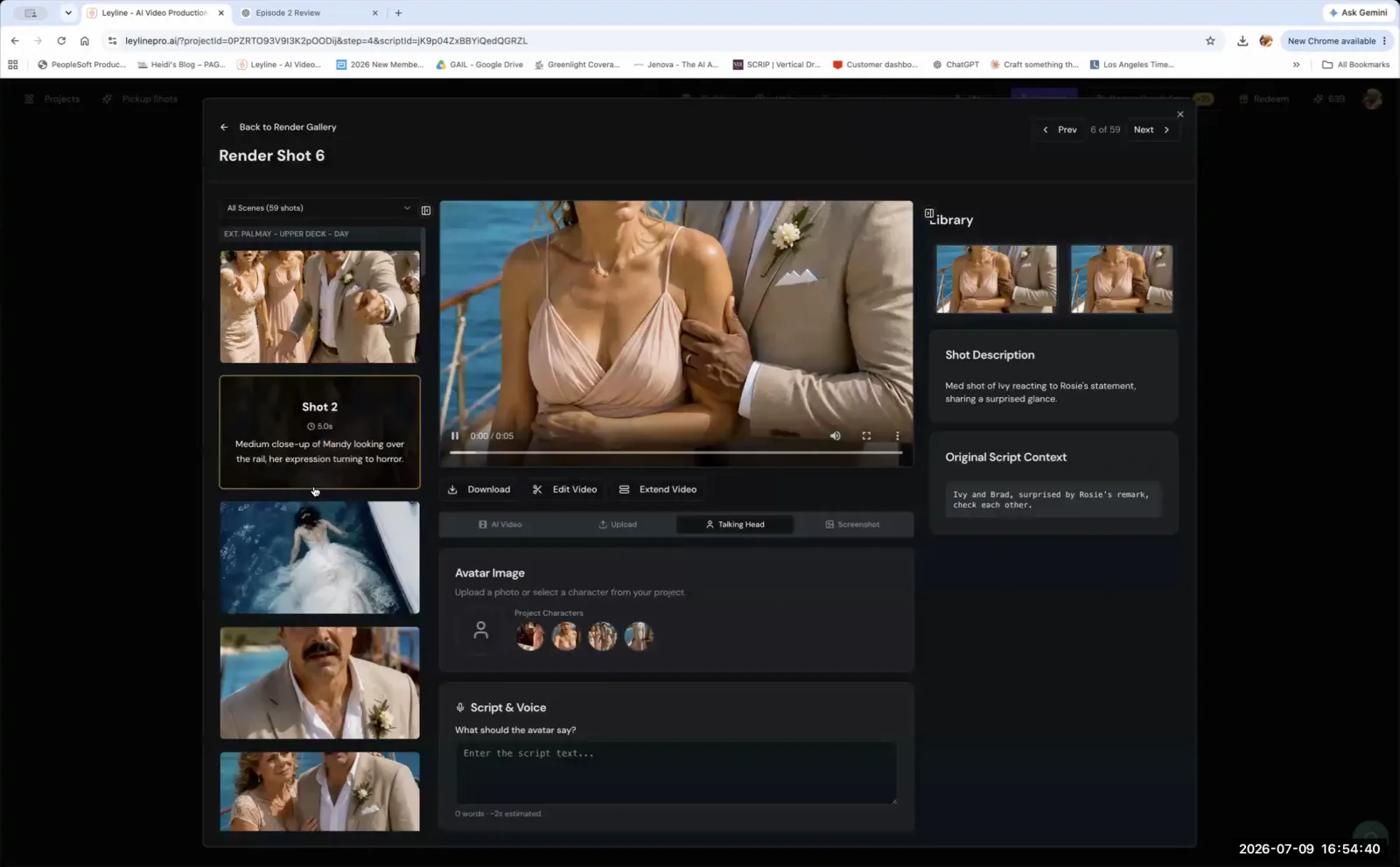
How to AI Enhance Video: 5 Practical Tips for Better Results
To effectively AI enhance video, you must use a series of techniques before, during, and after generation. This process improves the quality, consistency, and accuracy of the final output. It is not a single step but a workflow that uses specific strategies to guide creative AI models toward a desired result. These methods help you control the AI to get the footage you need. This guide covers five practical methods used by AI filmmakers to improve their work, from selecting the right source images to making simple post-production edits.
How can keyframes help you AI enhance video?
The best way to use keyframes to AI enhance video is to choose an image that clearly implies motion. This provides the AI model with crucial directional information, helping it generate a more coherent animation. According to AI filmmaker Austin Zartman, a keyframe showing a person falling is effective because it inherently tells the AI where the action is headed. The model can interpret the physics and direction from that single frame.
In contrast, a static image provides little guidance. An oil painting-style portrait gives the model almost no information about what should happen next. This can lead to unpredictable, stiff, or illogical results. The principle is to give the AI as much context as possible within your starting frame. This is a fundamental technique to AI enhance video from a static image.
Austin Zartman emphasizes that the beginning keyframe is the most important part of the process. A dynamic starting point sets the trajectory for the entire clip. For example, an image of a character winding up for a punch is a better keyframe than one of a character standing still. The first image contains the potential energy and direction of the action. The AI can then extrapolate from that starting point to complete the movement logically. Choosing a strong keyframe is one of the most effective ways to AI enhance video quality from the very beginning.
What is the best way to ensure visual accuracy in AI video?
The best way to ensure visual accuracy in an AI video is to create a precise reference image using 3D software. You can use this image as your input. AI filmmaker Austin Zartman explains that if you need an exact location or object, you can build it in a program like Blender or SketchUp. Then, you take a snapshot and feed that image to the AI. This method provides a strong, unambiguous visual guide. It makes it much easier for the AI to generate the specific scene you need.
This technique is a workaround for a key limitation in current image models. Zartman notes that models like 'model banana,' used on the Leyline platform, and even the model in ChatGPT, are designed for creativity, not accuracy. Their strength is generating new concepts. They struggle to replicate specific, detailed environments consistently. When you provide a 3D-rendered reference, you pre-visualize the scene with perfect accuracy. This leaves the AI to focus on applying the artistic style instead of guessing the composition. This is a powerful method to AI enhance video when precision is critical.
How can you maintain character consistency across different AI shots?
A practical method for maintaining character and scene consistency is to generate all your key static images first. You should use a single, capable image model before animating them. Filmmaker Jen described her workflow during a masterclass. It separates image creation from video generation, giving the creator more control.
Her process follows these steps:
- Create a shot list: Plan every key shot you need for your scene.
- Generate static images: Use a powerful image model, like the one in ChatGPT, to create all shots from your list.
- Animate the images: Once you have a complete set of visually consistent images, upload them into a video platform like Leyline to be animated.
This approach helps solve a common issue where an AI video model changes a character's appearance or background details between shots. By establishing the definitive look of each moment in a consistent image generator, you create a stable foundation. When these images are used as keyframes, the AI has a much stronger reference. The result is a more coherent final film. This workflow is essential to AI enhance video projects that require a continuous narrative.
What should you do if your AI video results are poor?
If you get poor results from an AI video generator, you should try switching to a different model. This is a simple but effective step. AI filmmaker Austin Zartman advises that when a generation isn't working, users should try an alternative model. He specifically suggests, “Try V 3.1 if you can.” Different models are trained on different data and have unique strengths. One may be better suited for your specific prompt or aesthetic than another.
Experimentation is a core part of the AI filmmaking process. Not all models handle motion, style, or subjects in the same way. The model that works perfectly for an abstract animation might fail at creating a realistic human movement. Trying different models is a key troubleshooting technique. It can help you overcome creative blocks or technical failures without completely reworking your concept. This flexibility is important when you need to AI enhance video output that isn't meeting your standards.
How can you fix minor lip sync issues in AI animation?
You can often fix minor lip sync issues in AI-generated animation by slightly adjusting the clip's speed in post-production. This technique, shared by filmmaker Sandy, involves speeding up or slowing down the character's video clip in an editing program. This small change can often be enough to make the mouth movements align better with the audio track. This is especially true for animated content, where viewers are more forgiving of imperfect synchronization.
This is a practical editing trick that improves the final product without another AI generation. It addresses a common problem where AI models fail to create perfect lip sync. This is particularly an issue when using an external voice track from a tool like 11 Labs that was not part of the original video generation. While the AI struggles to create specific accents or sync non-native audio, this post-production tweak offers a simple way to improve the final result and AI enhance video believability.
Frequently asked questions
What tools help control AI video generation?
Certain specialized AI video programs offer more control over the generation process. For example, Austin Zartman mentions that the program 'So choose VO' allows users to set both a beginning and an end frame. This feature provides more explicit direction to the AI, helping to guide the animation from a specific start point to a defined conclusion.
Why do AI models struggle with specific locations or objects?
According to Austin Zartman, current image models like 'model banana' are designed for creativity, not photorealistic accuracy. This is a limitation of the technology today. They are excellent at generating imaginative visuals but find it difficult to reproduce an exact real-world location or a specific object with perfect fidelity across multiple shots.
Can AI generate specific accents or child voices well?
No, current AI voice generation tools often struggle with creating specific, nuanced accents. They also typically have restrictions regarding the creation of child voices. Filmmakers using platforms like 11 Labs have noted difficulty in getting the AI to produce a believable accent or in finding high-quality voice options for younger characters.
What's the best type of image to use as a keyframe for AI video?
The best keyframes for AI video generation are images that strongly imply motion. AI filmmaker Austin Zartman recommends using an image where an action is in progress, such as a person falling or winding up a punch. This gives the AI model clear directional information. Using this type of keyframe is a core strategy to AI enhance video, leading to a more coherent and dynamic animation.
Keep learning
This guide is part of the Troubleshooting and Monetizing Your First AI-Generated Episode masterclass lesson.
Related guides:
Comments
Sign in with your Leyline account to join the conversation.