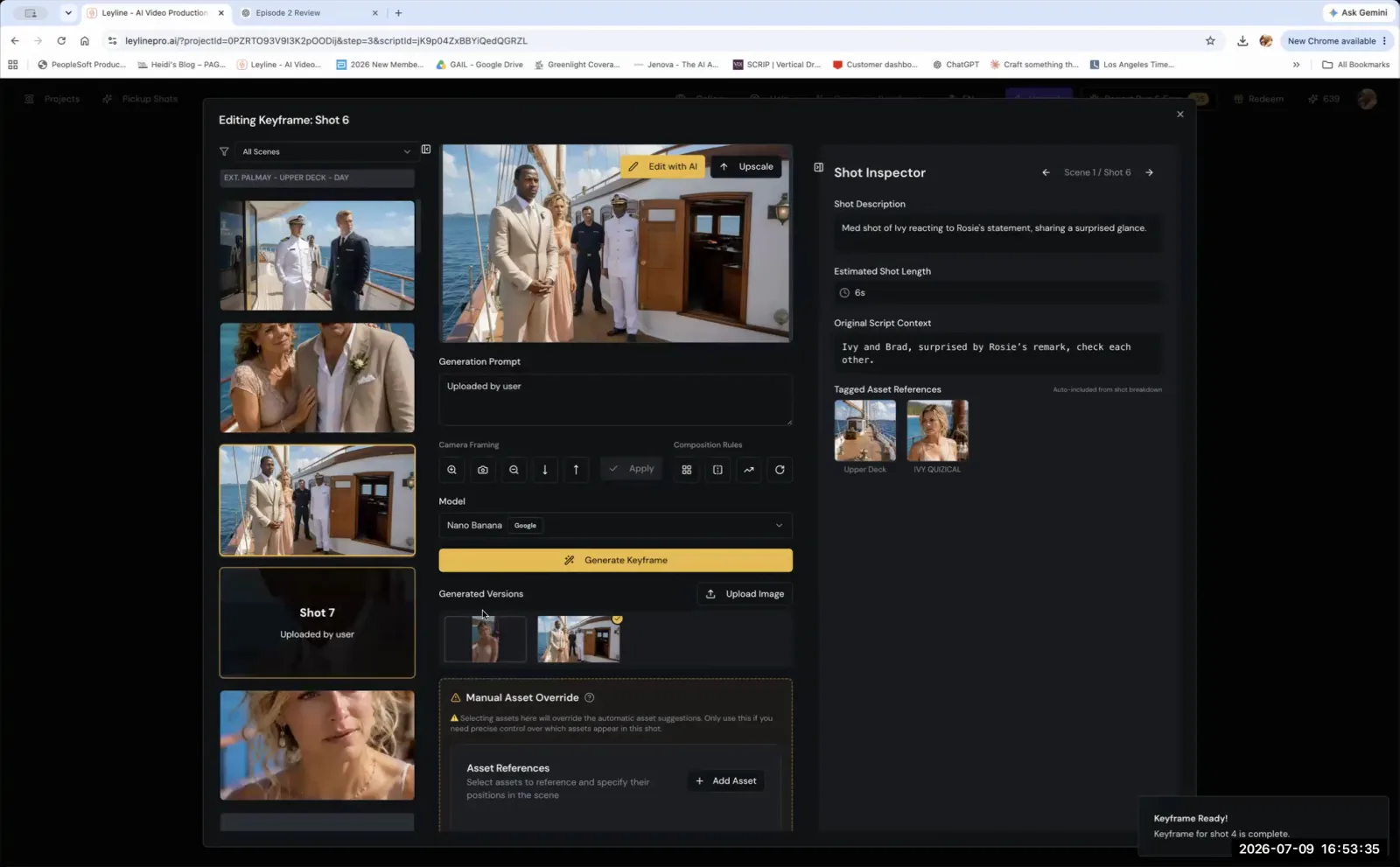
A Practical Guide to Start and End Frame AI Video Generation
In start and end frame AI video generation, specific images are used to define the beginning and, in some cases, the end of a clip. The process for the AI often begins with a single reference image, known as a key frame, which functions as the start frame. This image is the foundational visual from which the AI model animates a sequence of the subsequent frames. Selecting the right start frame is critical for guiding the AI to produce the desired motion and narrative content. Understanding how to leverage a start frame—and when to use an end frame—is essential for controlling the output of your creations.
Is a Key Frame the Start Frame of an AI Video?

Yes, a key frame is effectively the start frame of an AI-generated video clip. This image serves as the explicit first frame from which all subsequent animation is generated. According to AI filmmaker Austin Zartman, creator of the AI film series ASHES, this is "99% true." While minor, almost imperceptible variations can occur during the AI's rendering process, the key frame you select is technically the beginning of the shot.
It is not an image the video keeps in mind as a loose reference; it is the exact moment the video starts. Zartman clarifies the hands-on nature of this process: "When I'm generating key frames, I have to go in and actually get the right shot in that key frame." This selected image then acts as the primary, unchangeable reference for the AI. "You use whichever model that will utilize this as a reference key frame to generate the clip," he explains.
This confirms that the key frame's role is to establish the initial state of the video. The AI model builds directly from that point. It is crucial to understand that this image represents the beginning of the action, not the end. As Zartman states, "It's not the end frame. It's not the end of the shot, it would be the beginning of the shot." The AI generates motion away from the start frame, not towards it, unless an end frame is also specified.
What Makes a Good Start Frame for AI Video?
A good start frame for AI video is one that implies motion. An image that captures a moment of action provides the AI with the necessary data to generate a coherent and dynamic video sequence. Austin Zartman advises filmmakers to "use key frames that are implying motion" because it helps tell the AI model where the action is going next. A dynamic image provides more context for the generation algorithm than a static one.
For example, Zartman suggests that a frame of someone falling is an excellent beginning key frame. This type of image inherently contains directional information that the model can interpret to create a logical sequence. The AI can analyze the posture, direction of gaze, and environmental context to continue the falling motion. In contrast, using a static image like "an oil painting type of portrait" gives the model very few clues about potential movement.
To better understand this, consider the information provided by different types of images:
- Effective Start Frames (High Information):
- A character mid-stride while running.
- A ball just after it has been kicked.
- A car turning a corner.
- A person's expression shifting from neutral to a smile.
- Ineffective Start Frames (Low Information):
- A subject in a static, symmetrical pose.
- A flat landscape with no moving elements.
- An abstract texture or pattern.
The AI will not know how to animate a static subject as effectively because the starting point is inert. By choosing a start frame that captures a moment of action, you provide the necessary information for the AI to generate a more believable video clip.
Which Models Support Start and End Frame AI Video Generation?
The AI video model 'VO' is one program that allows users to input both a start and an end frame to guide generation. This advanced feature provides filmmakers with greater control over the motion in a clip by defining both its origin and its destination. When asked about programs that support this functionality, Austin Zartman identified 'VO' specifically.
Using both a start frame and an end frame fundamentally changes the generation process. Instead of the AI extrapolating motion from a single point, it interpolates the motion between two defined points. This is useful for:
- Precise Camera Movements: Creating a smooth pan from a wide shot (start frame) to a close-up (end frame).
- Object Transformation: Showing an object morphing from one state to another.
- Controlled Character Animation: Defining a character's starting pose and ending pose.
However, not all models have this capability. Zartman advises a general best practice for all creators: "For all these video models, you should be able to see what type of input they support." This means it is essential to check the documentation of any AI video tool to understand its input requirements. Some models may only support a single start frame (key frame), while others like 'VO' offer more advanced controls for defining the beginning and end of the desired animation.
A Practical Workflow for Start and End Frame AI Video
To effectively use key frames, follow a structured workflow that prioritizes clear instructions for the AI. This process ensures your creative intent is translated accurately into the final video clip.
-
Conceptualize the Motion: Before selecting an image, define the exact action you want to see. Is it a fast, chaotic movement or a slow, subtle change? Your goal for the motion will determine what kind of start frame you need.
-
Select a High-Information Start Frame: Based on your concept, generate or find a key frame that strongly implies the desired motion. This image is your primary instruction to the AI. A character leaning into a punch is a better start frame than a character standing still.
-
Define an End Frame (If Applicable): If your concept requires a specific endpoint—like a character landing after a jump—and your model supports it, select an end frame. This step is central to the start and end frame AI video technique, as it provides the AI with a clear destination.
-
Configure and Generate: Input your frame or frames into the AI model. Check for other relevant settings, such as motion strength or camera controls, as these can further refine the output.
-
Review and Iterate: The first result may not be perfect. Analyze the generated clip to see if the motion aligns with your vision. If not, your start frame may have been too ambiguous, or you might need to try a different key frame from the same sequence to get a better result. Iteration is a key part of the creative process.
Frequently asked questions
What is a key frame in AI video?
A key frame is a single, still image that you provide to an AI model as the starting reference point. The AI uses this image to generate a short video clip that begins with, or is heavily inspired by, that specific visual.
Is the key frame the exact first frame of the video?
Technically, yes, about 99% of the time. AI filmmaker Austin Zartman notes there can be slight variations, but for practical purposes, you should consider the key frame as the beginning of your AI-generated shot.
Should I use a static or dynamic image for my start frame?
You should use a dynamic image that implies motion. A frame showing an action in progress gives the AI model better direction for generating the subsequent frames, compared to a static portrait which can be ambiguous.
Can I set an end frame for my AI video?
Some models allow this. Austin Zartman identifies 'VO' as one model that supports both a beginning and end frame input, giving you more control over the generated animation. Always check the specific model's supported inputs to see if this feature is available.
Keep learning
This guide is part of the Troubleshooting and Monetizing Your First AI-Generated Episode masterclass lesson.
Related guides:
Comments
Sign in with your Leyline account to join the conversation.