Troubleshooting and Monetizing Your First AI-Generated Episode
Cohort 1, Session 7 — taught by Austin Zartman, creator of the AI short-film series ASHES.
To make a film with AI, you generate keyframes to guide video models, then use traditional post-production to solve common problems like poor lip-sync and visual inconsistency. Rather than perfecting shots in-platform, filmmakers export clips to external editing software for sound design, adding custom voiceovers, and editing. Monetization can be tested using strategies like creating mock commercials for direct-to-consumer merchandise before manufacturing.
What you will learn
- Apply the 80/20 rule to prioritize completion over perfection in AI filmmaking.
- Troubleshoot common issues with keyframe generation and video rendering in AI tools.
- Implement post-production techniques to fix lip-syncing and audio issues.
- Develop strategies for maintaining visual consistency across shots, including using reference images and 3D models.
- Formulate an initial monetization plan for an AI-generated series, including merchandise and distribution.
Correcting a Keyframe in Layline
This workflow demonstrates how to review multiple AI-generated keyframes for a single shot and select the one that best captures the intended motion before rendering the final video.
Step 1. Navigate to the shot with the incorrect keyframe in the keyframe editing mode.
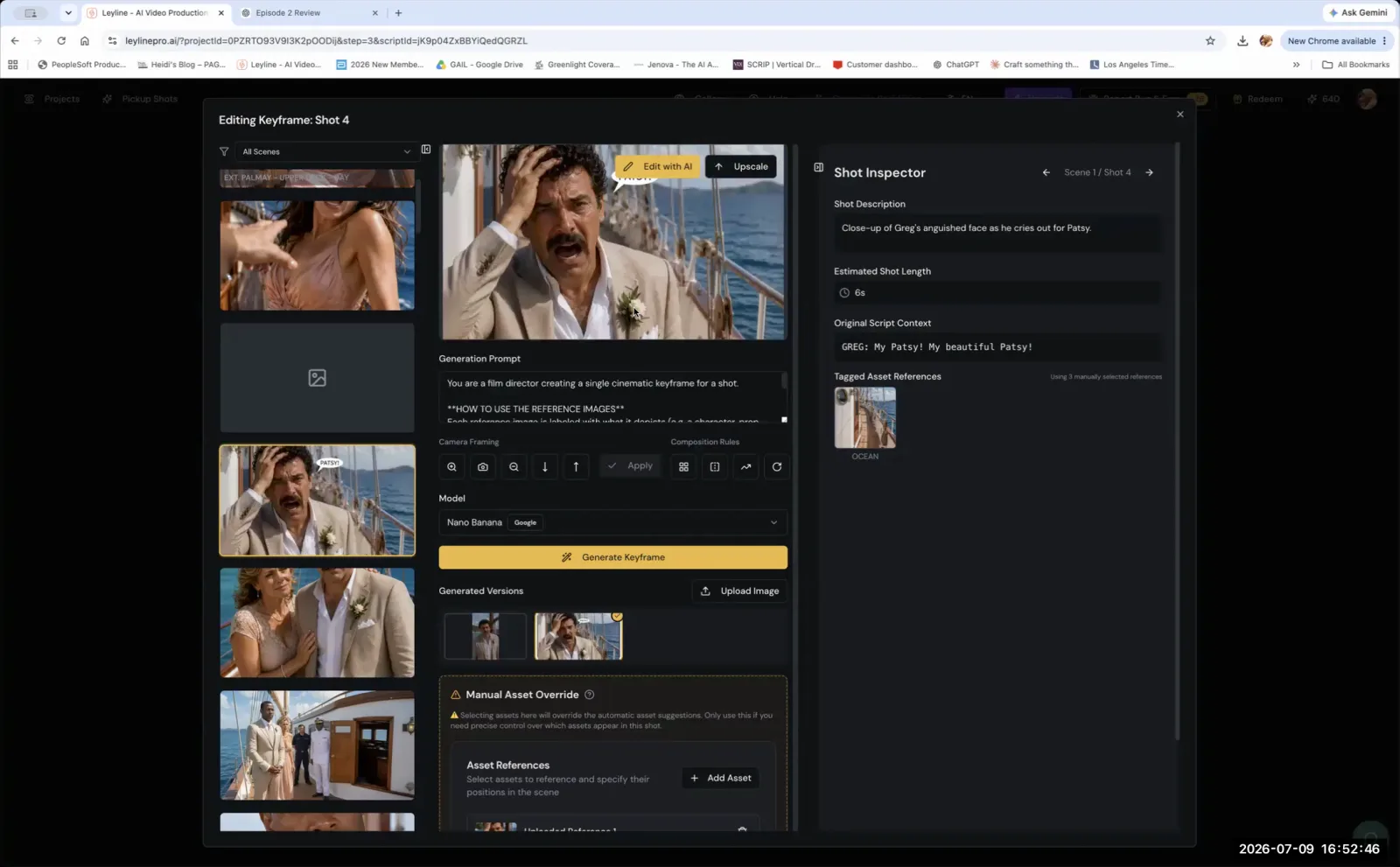
The keyframe editor displays the incorrect, comic-style keyframe for Shot 4.
Step 2. Under 'Generated Versions', click to select the desired keyframe image. This will make it the active keyframe.
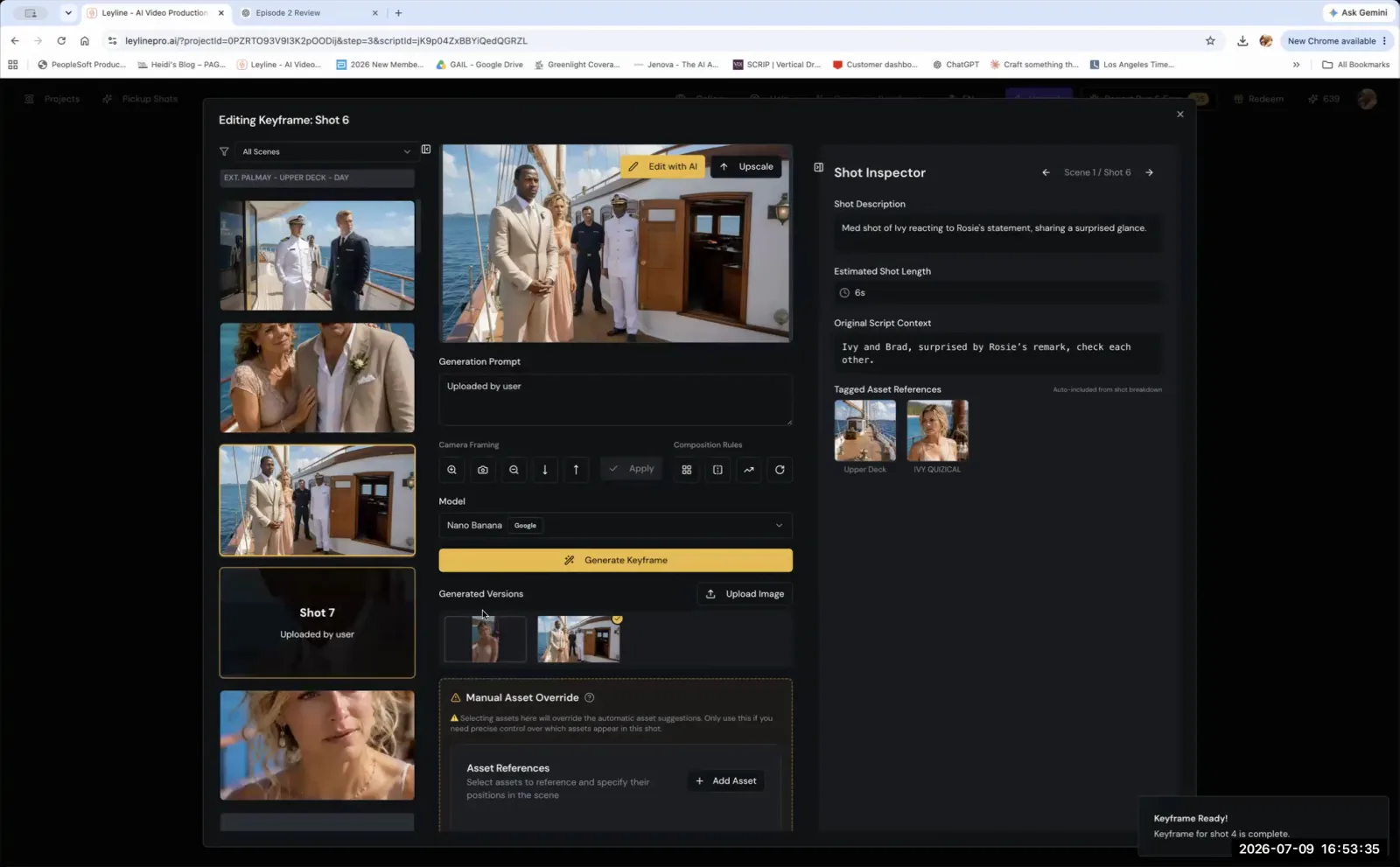
Click on a thumbnail under 'Generated Versions' to select it as the new keyframe for the shot.
Step 3. Close the keyframe editing window.
Step 4. Navigate to the 'Render' step at the top of the timeline.
Step 5. Select the correct shot and click 'AI Video' below the preview window.
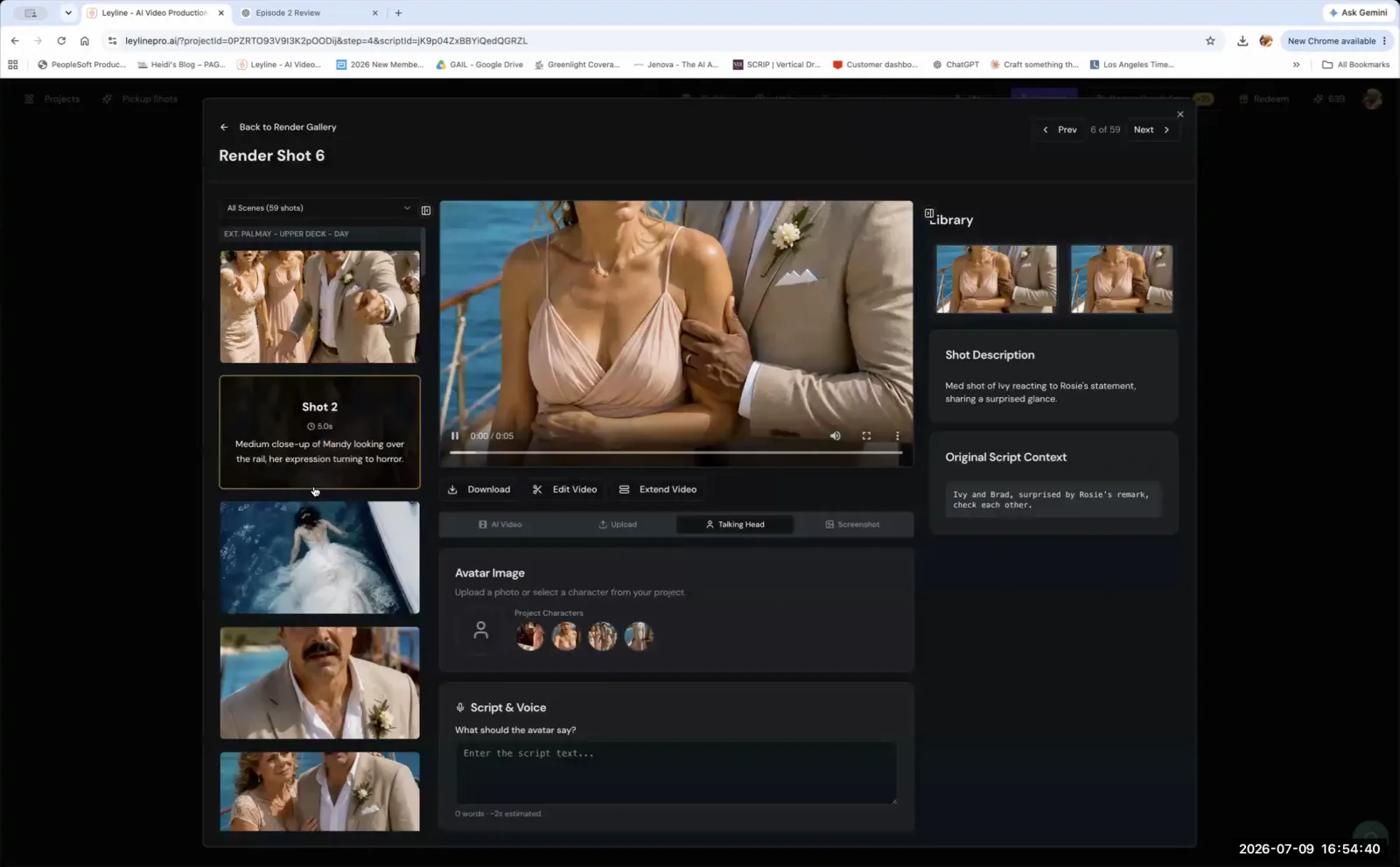
With the correct shot selected in the gallery, click the 'AI Video' button to proceed.
Step 6. Confirm that your selected keyframe appears in the settings, choose a video model, and click 'Generate Video'.
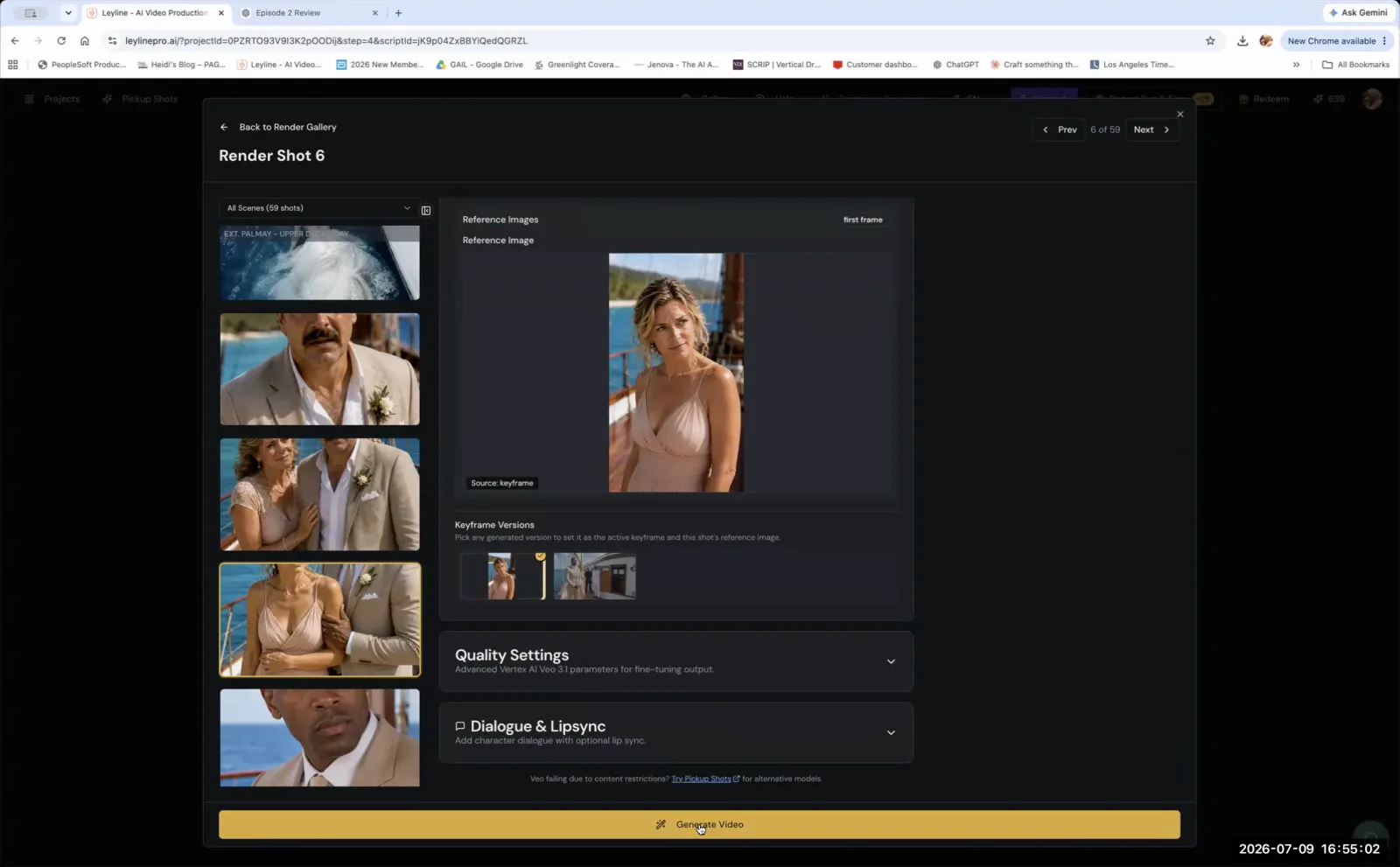
With the keyframe confirmed as the reference image, click 'Generate Video' to render the shot.
Replacing AI Audio with a Custom Voiceover
After generating a video clip with default AI audio, this process shows how to export it and bring it into a separate video editor to add a custom voiceover track.
Step 1. Record your custom voiceover dialogue, trying to match the timing and cadence of the original AI-generated speech.
Step 2. Import the AI-generated video clip and your custom audio recording into a video editing software like Adobe Premiere.
Step 3. Separate the original audio track from the video clip.
Step 4. Delete or mute the original audio track and place your new custom voiceover track on the timeline.
Step 5. Adjust the timing of the new audio or slightly speed up/slow down the video clip to achieve the best possible lip sync.
If perfect sync is impossible, consider cutting away to a different shot during the dialogue to hide the mismatch.
Pre-selling Merchandise with a Mock Commercial
This strategy involves creating a fictional commercial for in-show merchandise to gauge audience demand and collect pre-orders, validating the product before manufacturing.
Step 1. Based on e-commerce data for popular product categories, identify a potential merchandise item related to your show (e.g., a hat, t-shirt, mug).
Step 2. Create a short, 15-30 second 'mock commercial' for this item using characters and themes from your show.
Step 3. Distribute the commercial on social media platforms like TikTok.
Step 4. Use the commercial to drive traffic to a pre-order page and start collecting orders.
Step 5. Once a certain number of orders is reached, use the collected funds to manufacture and ship the merchandise.
Key terms
80/20 Rule. A principle suggesting that 80% of results come from 20% of the effort. In this context, it means focusing on getting a project done rather than striving for perfection on every detail, and fixing unsolvable shots in post-production.
Keyframe. A reference image that serves as the starting point for an AI-generated video clip. It dictates the initial visual composition, style, and content of the shot.
Start and End Frame. Inputs used by some video generation models (like VEO) to define both the beginning and ending visual of a clip, giving the AI more control over the motion and transformation within the shot.
Lip Syncing. The process of matching a character's lip movements to spoken dialogue. This can be a challenge when replacing AI-generated audio with a custom voiceover.
Fix it in Post. A common filmmaking phrase referring to the practice of solving problems during the editing phase (post-production) rather than during production or generation. This includes cutting away from bad shots, adjusting timing, or hiding visual errors.
Mock Commercial. A fake commercial created for a product related to a show's IP. It's used as a low-risk way to gauge audience interest and collect pre-orders for merchandise before manufacturing.
Direct-to-Consumer. A business model where creators build their own audience and sell their content and merchandise directly to them, bypassing traditional distributors and studios.
Story-led IP. Intellectual property where the primary value and audience connection comes from the narrative and characters, as opposed to a toy or product.
Toy-led IP. Intellectual property that originates from a physical product, like a toy, with a show or story created afterward to support it.
Production for Hire. A service model where a creator or small studio uses their AI filmmaking skills to produce content for other clients, such as authors who want to adapt their books.
Reference Image. A specific image provided to an AI model to guide its generation process, ensuring greater consistency in style, character design, or location.
Blender. A free and open-source 3D computer graphics software toolset used for creating animated films, visual effects, art, and 3D-printed models. It can be used to create accurate 3D environments for AI reference.
Upres. Short for 'up-resolution,' the process of increasing the pixel dimensions of an image to make it higher quality. Very large upscaled files can exceed upload limits, so compress or resize before re-using them.
Behind-the-Scenes (BTS). Content that documents the making of a project. The platform has the capability to automatically generate a 'making of' story based on a user's actions and learning process.
Common mistakes to avoid
- Getting stuck on perfecting a single shot instead of cutting away or choosing a different one in editing.
- Aiming for a perfect first episode instead of focusing on completion and learning from the process.
- Apologizing for a rough cut before showing it to an audience, which can negatively bias their feedback.
- Trying to achieve precise spatial consistency with text prompts alone, which is a known limitation of current image models.
- Not using a highly accurate reference image or 3D model when generating complex and consistent environments.
- Using static, portrait-like keyframes which give the AI video model less information about intended motion.
- Thinking about monetization and merchandising too early, which can compromise the quality of the story.
- Attempting to replace audio in-platform instead of exporting the video to a dedicated editing software for post-production sound work.
Frequently asked questions
How do I fix bad lip sync in AI-generated videos?
Instead of perfecting lip sync within the AI tool, export the video and 'fix it in post.' In a dedicated editor, you can cut away to a different shot to hide the mouth or replace the default AI-generated audio track entirely with a custom voiceover for precise control.
What is the 80/20 rule for creative projects like AI filmmaking?
The 80/20 rule encourages focusing on project completion over perfection. For AI filmmakers, this means not getting stuck on a single imperfect shot. It's better to finish the episode and learn from the process rather than aiming for a flawless first attempt, which is essential for progress.
How can I maintain character and location consistency in AI animation?
Text prompts alone are often insufficient for achieving precise consistency. To maintain it, especially for complex environments, use a highly accurate reference image or a 3D model created in a program like Blender. This provides the AI with a stronger, more consistent visual guide for each generation.
Can I replace the audio in an AI video with my own voiceover?
Yes. The recommended method is to avoid replacing audio within the AI platform. Instead, export the generated video clip and import it into a dedicated video editing program. There, you can easily remove the original audio and sync your own custom voiceover track to the visuals.
In the instructor’s words
“Done is better than perfect.”
“You can't fix something that doesn't exist.”
“It's cheaper than film school, it's faster than film school and then you're actually going to get it made.”
This tutorial was produced from the Leyline Masterclass recording (Cohort 1, Session 7, 2026-07-09). Screenshots are captured directly from the session.