Advanced AI Filmmaking Workflow and Troubleshooting
Cohort 1, Session 6 — taught by Austin Zartman, creator of the AI short-film series ASHES.
To make a film with AI, you generate video clips from text prompts and reference images, then assemble them in an editor. The process involves creating a "Creative Bible" to maintain character consistency, upscaling keyframes to ensure high-quality video output, and using sketches to guide composition. It requires adapting your workflow to the AI's tendencies, troubleshooting model limitations, and exporting final clips for external editing.
What you will learn
- Troubleshoot common AI video generation issues like model unavailability and inconsistent outputs.
- Understand how to use different AI models (like C-dance, Veo, Helua) for varied results.
- Learn the importance and process of upscaling keyframes to improve video quality.
- Effectively use sketches and reference images to guide AI art generation.
- Manage and reuse assets across multiple episodes using a 'Creative Bible'.
- Prepare and export generated video clips for editing in external software like CapCut.
- Learn techniques for structuring dialogue and splitting shots for multiple speakers.
- Develop strategies for working with the AI, rather than against it, to achieve desired results.
Troubleshooting an Unavailable Video Generation Model
When a specific video generation model is unavailable, you can switch to another available model to continue your work. Experimenting with different models is a key part of the troubleshooting process.
Step 1. In the video generation interface, locate the model selection dropdown menu.
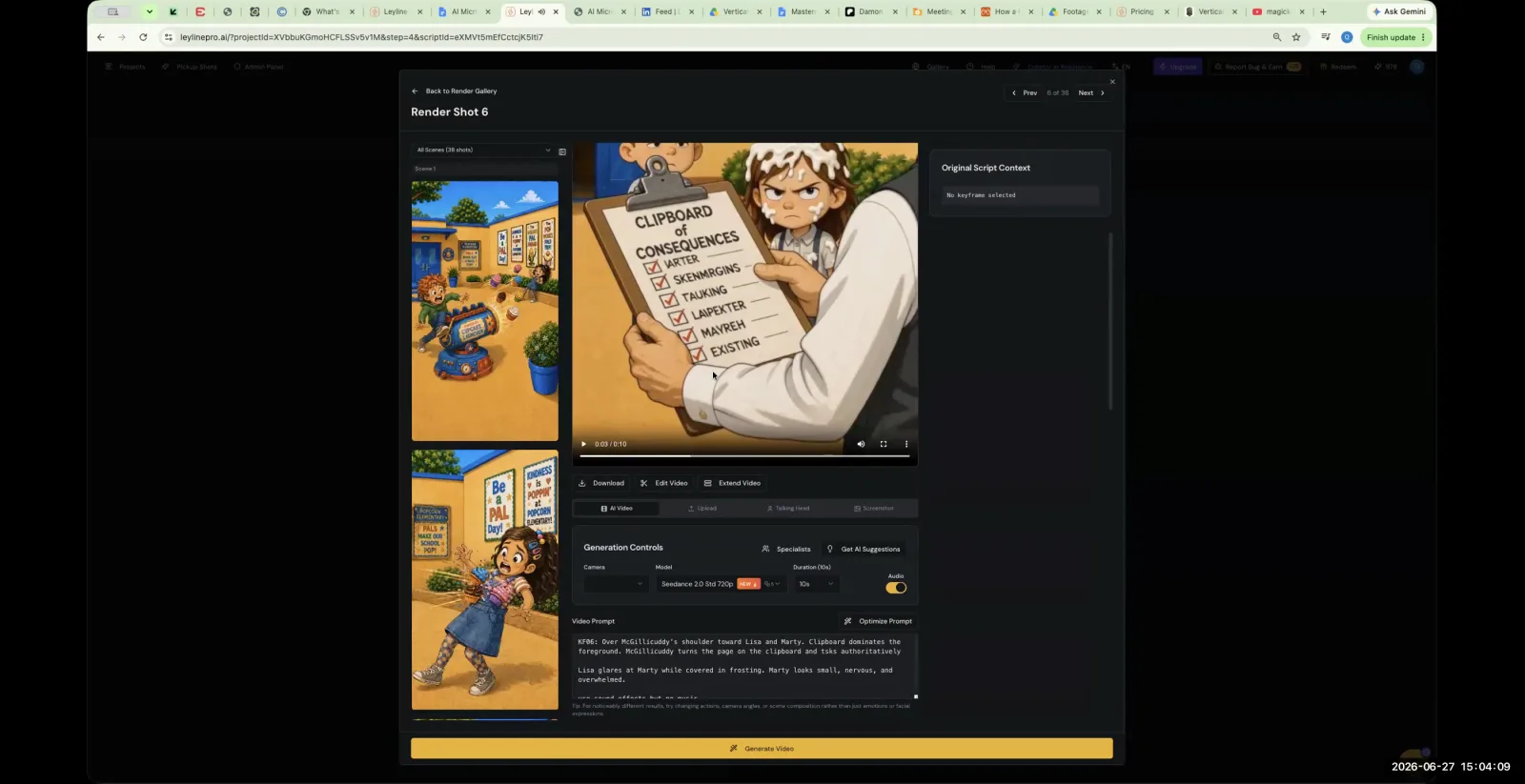
Under Generation Controls, locate the Model dropdown menu to try a different AI model for your shot.
Step 2. Click the dropdown and select a different model from the list, such as Veo, Helua, or Claim.
The instructor suggests treating the models like different actors, each with their own strengths. If one doesn't work, try another.
Step 3. Attempt to generate the video again with the newly selected model.
Exporting Clips for External Editing
After generating all your video clips, you can download them from the platform. These files can then be imported into an external video editing program like CapCut for final assembly.
Step 1. Once all shots are generated, download each video clip individually.
The clips are automatically numbered according to the shot list, which helps with organization.
Step 2. Open your preferred video editing software (e.g., CapCut, Premiere, DaVinci).
Step 3. Import all the downloaded video clips into the editor's timeline to begin assembling your scene.
Upscaling a Keyframe for Higher Quality Video
To avoid pixelated or blurry video, you can upscale a keyframe image before generating the video clip. This process increases the image's resolution, resulting in a much sharper final animation.
Step 1. Navigate to the 'Upscale' feature within the platform.
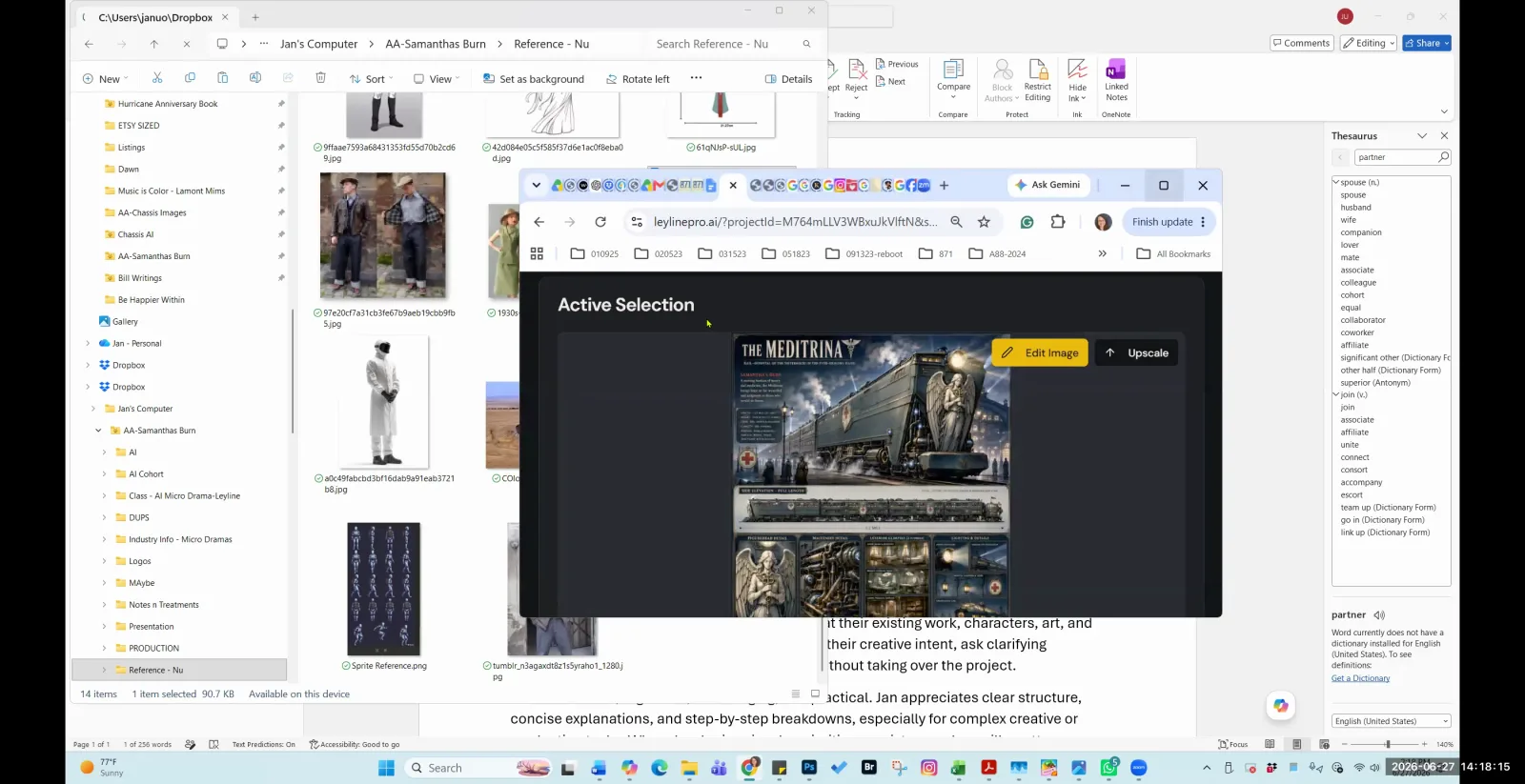
After selecting an image, click the 'Upscale' button to enhance its resolution.
Step 2. Upload the low-resolution image you want to enhance.
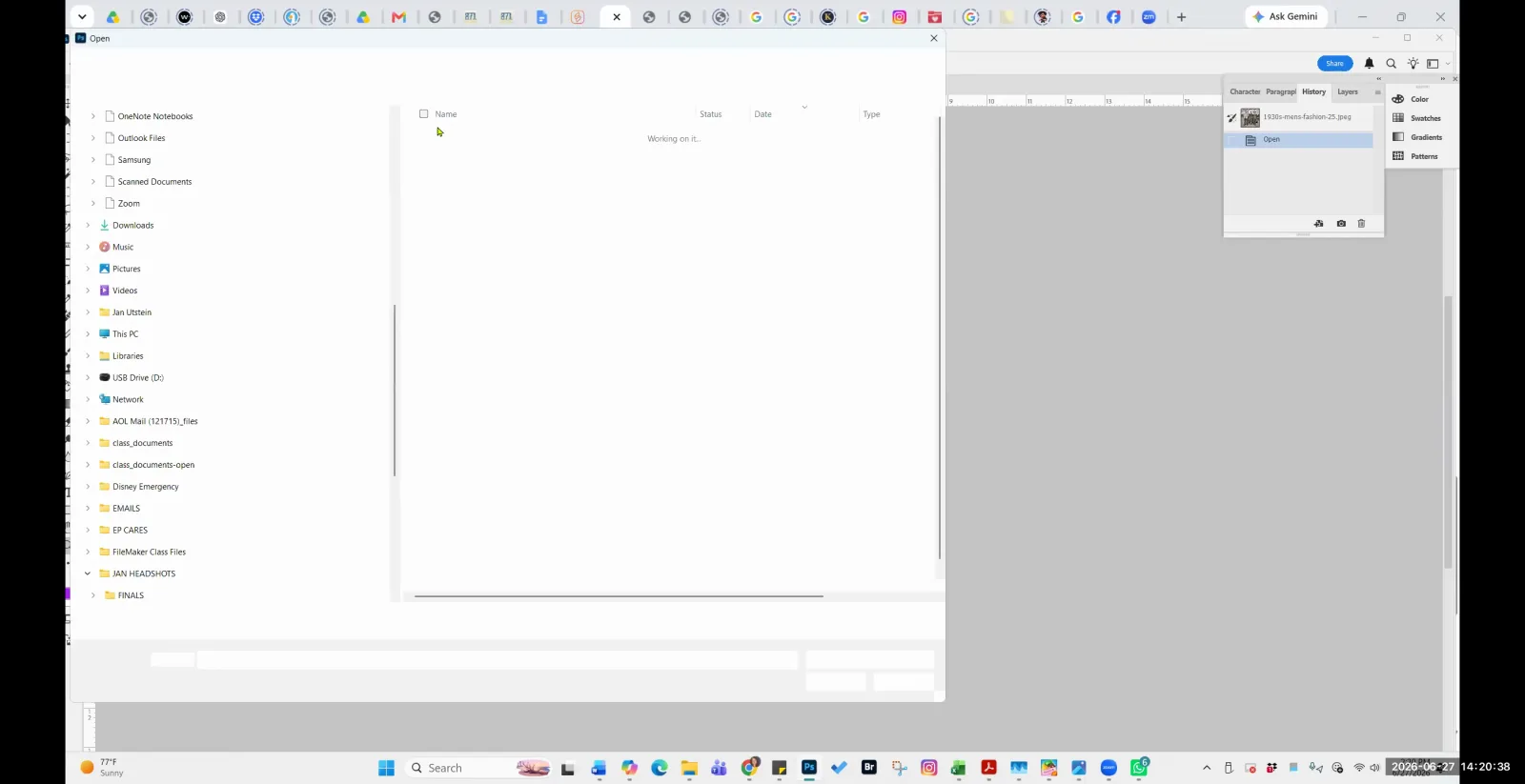
Use the 'Open' dialog box to navigate to the location of your low-resolution image.
Step 3. Allow the tool to process the image. It will generate a new, much larger file with significantly more detail.
The participant noted a 2MB file became an 11MB file, allowing for extreme zoom-ins without pixelation.
Step 4. Use this new, upscaled image as your keyframe or reference for video generation.
Using a Sketch as a Reference Image
You can guide the AI's visual output by uploading a simple sketch as a reference image. This helps the AI understand the desired composition and character placement for the shot.
Step 1. Create a sketch of the character, object, or scene you want the AI to generate. It can be loose and messy.
Step 2. Scan or photograph the sketch to create a digital image file.
Step 3. Upload the sketch image as a reference for the desired asset or keyframe.
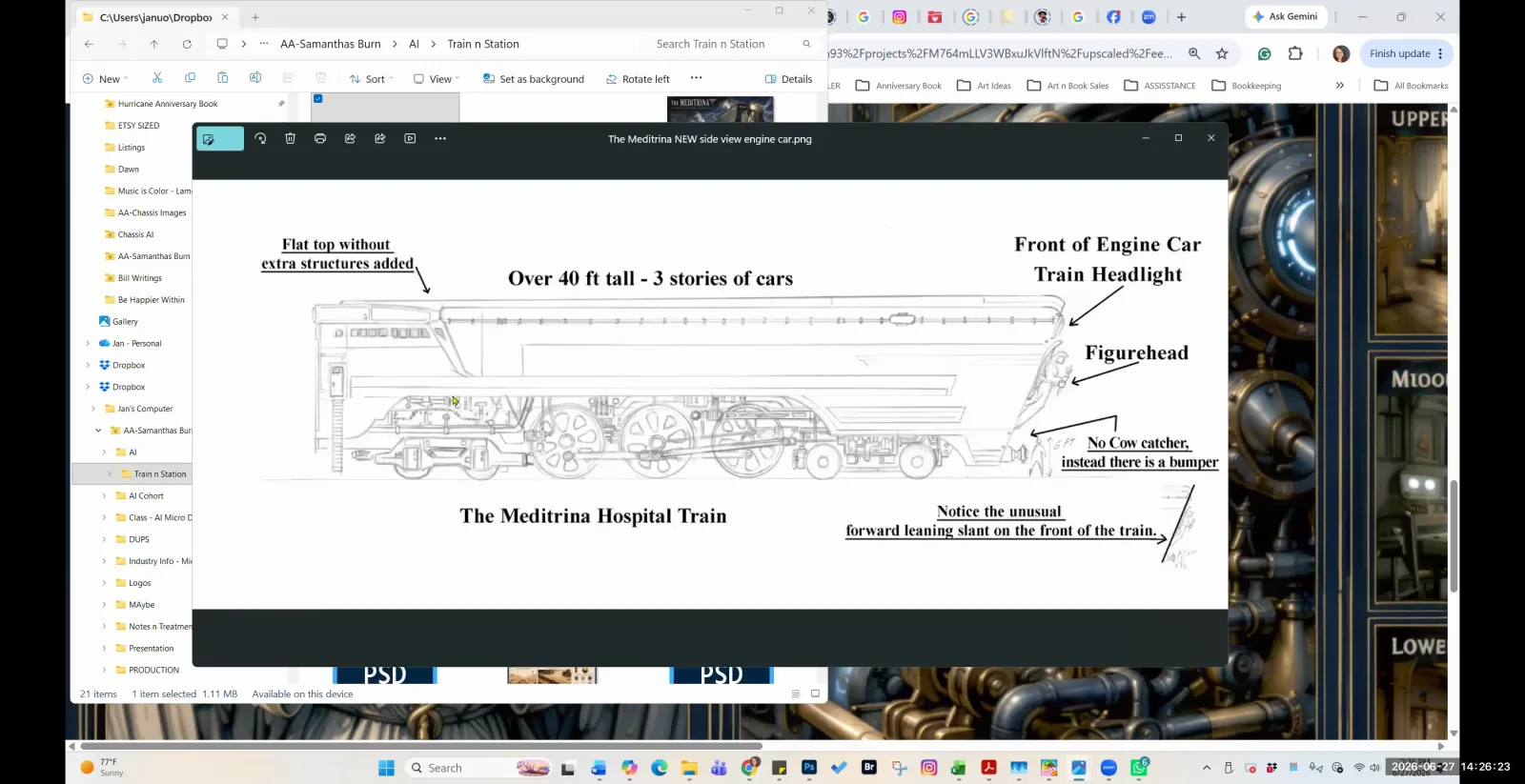
Select a detailed sketch to use as a reference image for the AI model.
Step 4. Combine the sketch with a descriptive text prompt to guide the AI's interpretation and styling.
The participant also fed the AI real-life photos of trains and stations to complement their sketch.
Splitting a Shot with Multiple Speakers
If a single shot contains dialogue from multiple characters, it must be split correctly. This ensures the AI's voice generation assigns the right lines to the right speaker.
Step 1. In the script breakdown view, identify a shot where more than one character has dialogue.
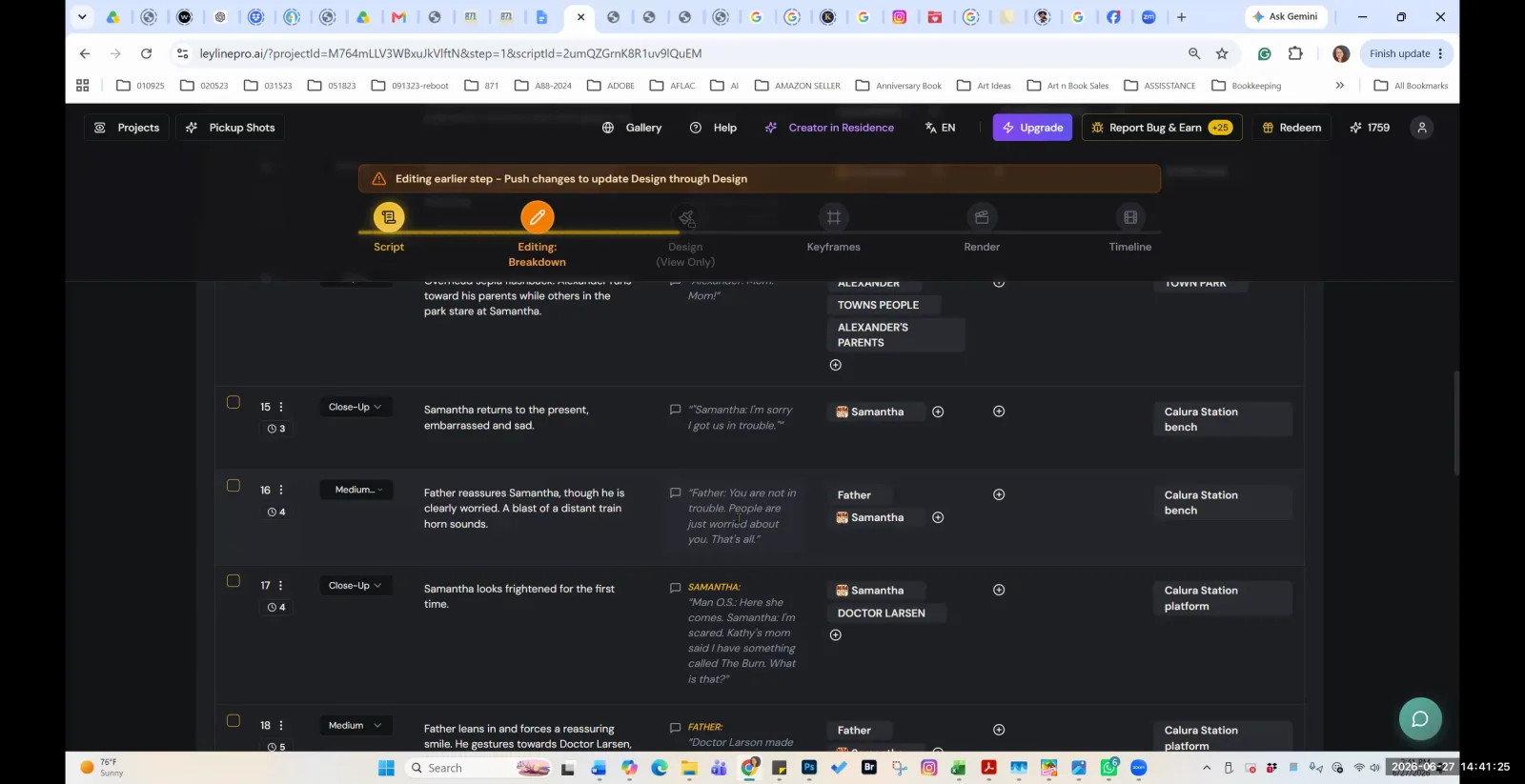
In the script breakdown, shot 17 includes dialogue from both an on-screen and an off-screen character.
Step 2. Click the 'Split by dialogue' button associated with that shot.
Step 3. The system will automatically create a new, subsequent shot, moving the second character's dialogue into it.
This is necessary because AI models can get confused and produce incorrect voice IDs if multiple people speak in the same shot.
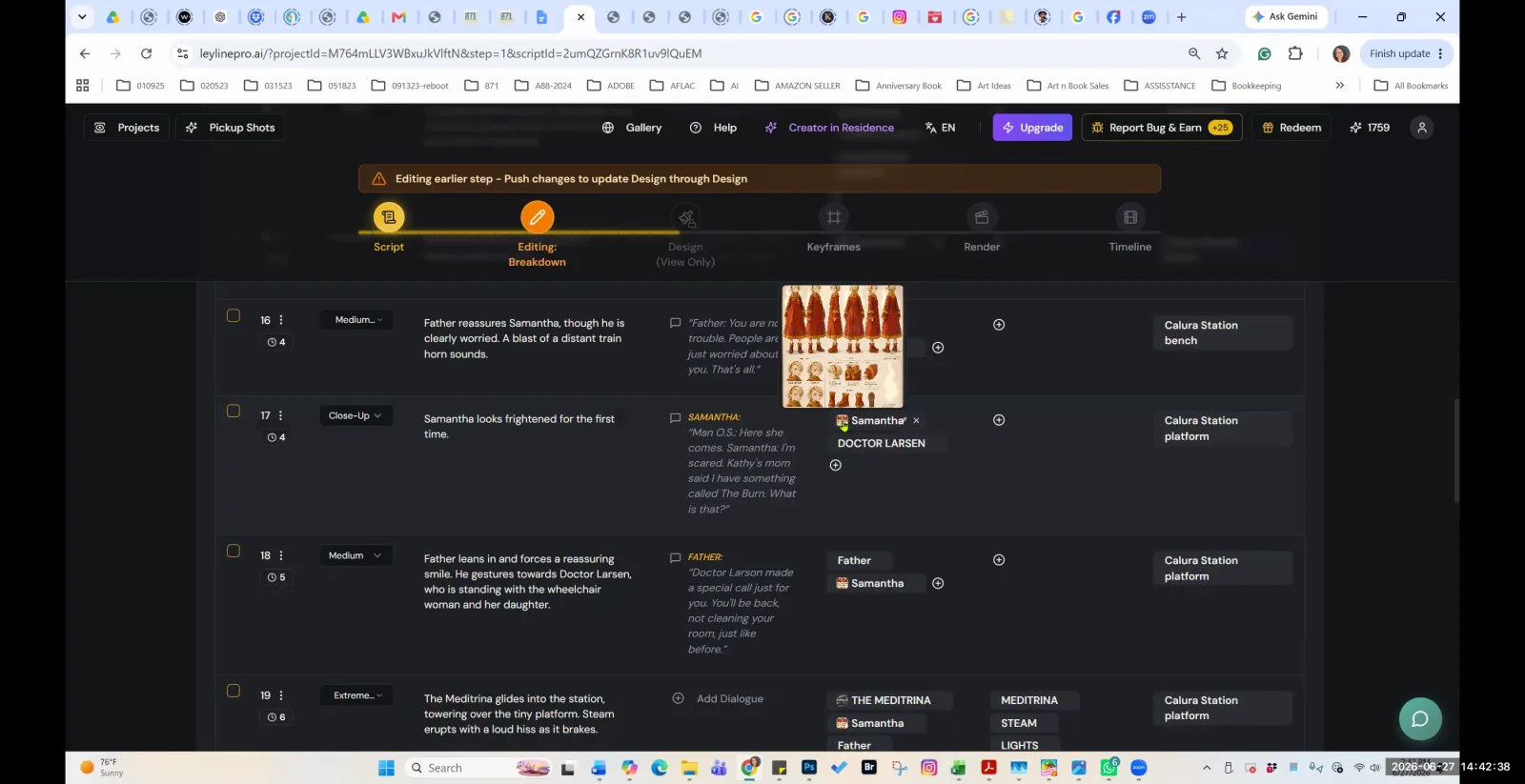
The script breakdown shows separate, sequential shots for each character's dialogue.
Managing Assets with the Creative Bible
The Creative Bible is a central repository for your project's assets, like character designs and props. Using it helps maintain visual consistency across multiple shots and episodes.
Step 1. Navigate to the project-level 'Creative Bible'.
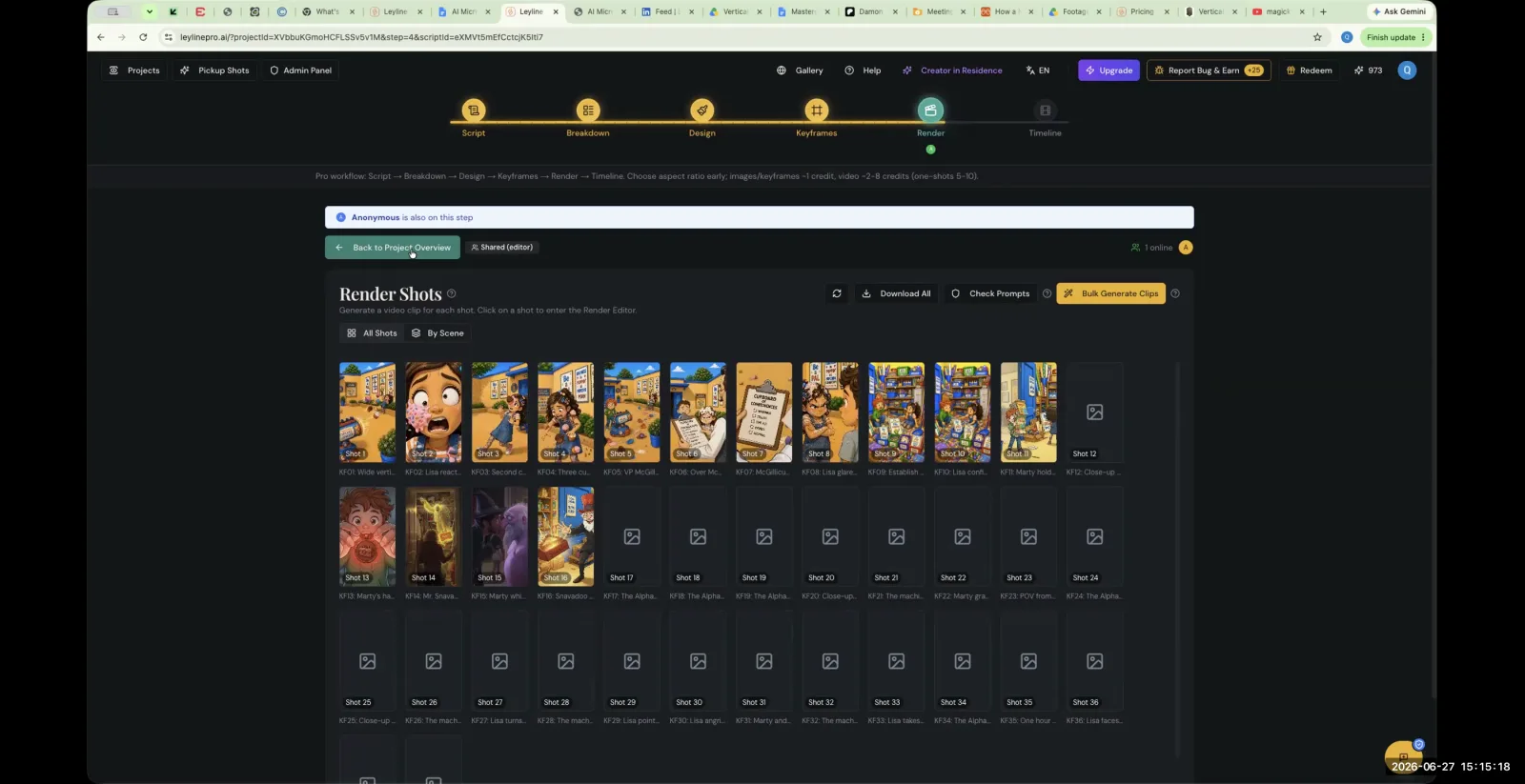
From the Render Shots page, click "Back to Project Overview" to return to the main project dashboard.
Step 2. Upload all your core assets, such as character turnarounds, location designs, and key props, into the Bible.
You can also use the 'Upscale' feature directly within the Bible to enhance your assets.
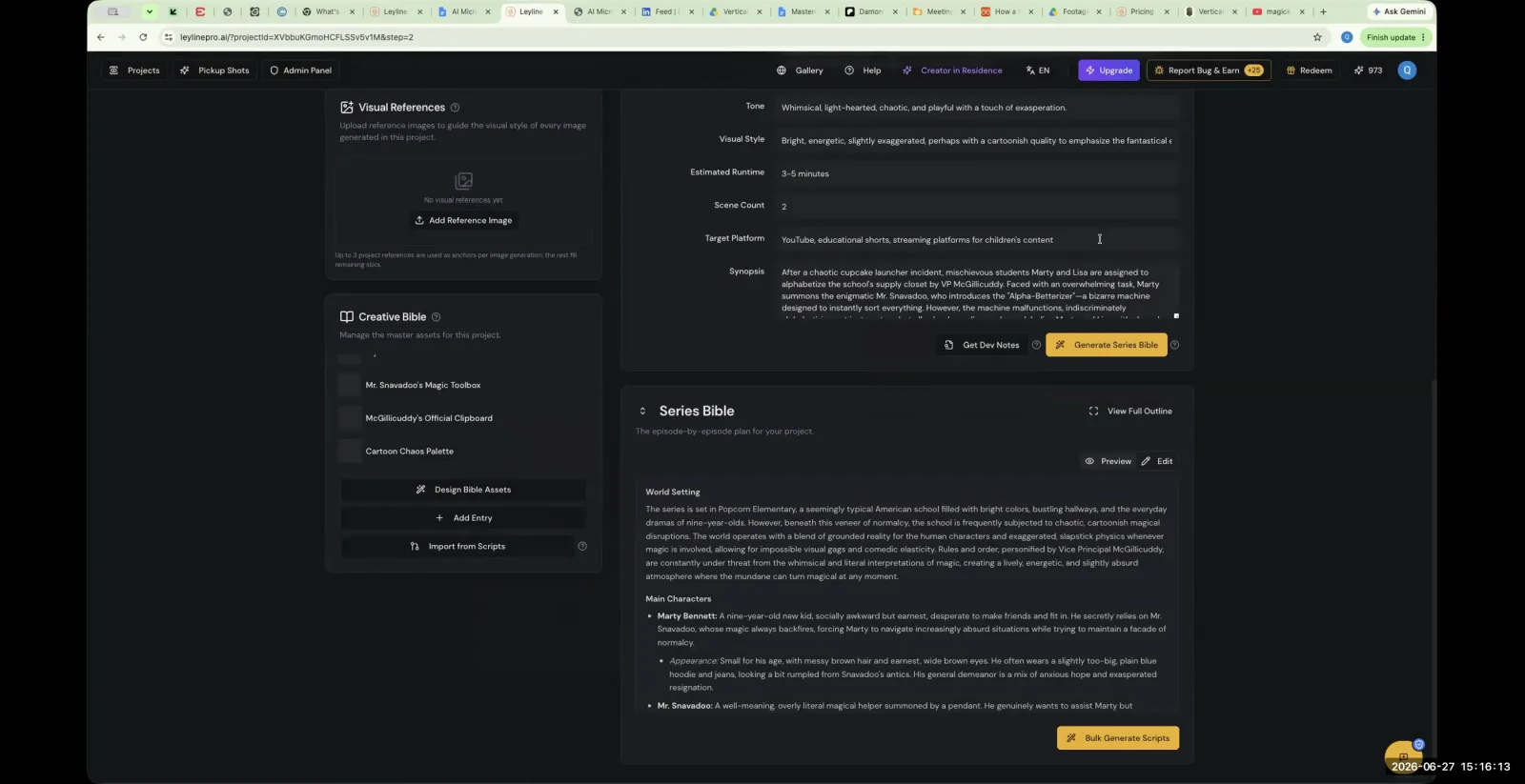
Populate the Creative Bible with your project's core assets, like props, palettes, and character designs.
Step 3. When working on a new episode, go to the 'Design' stage.
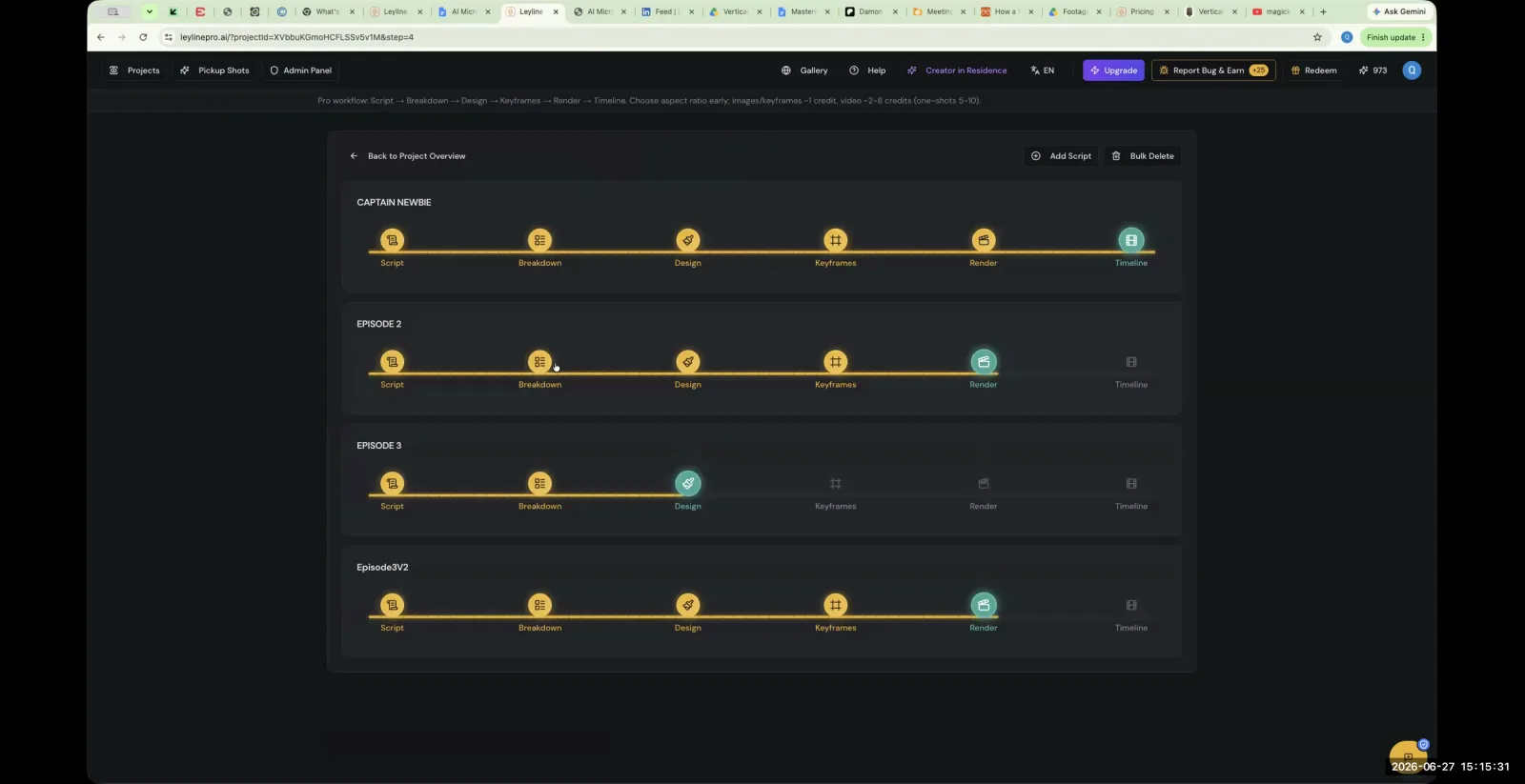
From the project overview page, navigate to the 'Breakdown' step for the episode you want to work on.
Step 4. Use the 'Import from Bible' function to pull the necessary assets into your current episode's breakdown.
This saves you from having to upload the same assets for every single episode.
Key terms
AI Detox. A colloquial term for taking a break from intensive, prolonged work with AI tools to avoid burnout and mental fatigue, a common phenomenon among dedicated users.
Continuity Lock. A prompt or setting used during AI generation to help maintain consistency of characters, wardrobe, and settings across different shots or frames.
Video Generation Models. Different AI systems available within the platform for generating video, each with unique strengths and characteristics, referred to as 'actors' good at different things. Examples mentioned include C-dance, Veo, and Helua.
Generation Methods. Different ways to input information for video generation, such as using a starting keyframe, or both a starting and an ending keyframe, which can produce varied results.
Masking (in AI Edit). A feature for editing an already generated video clip by selecting an area (masking) to alter or remove elements, such as an extra person or incorrect wardrobe.
Shooting Script. A version of a script that is written with the specific shots, camera angles, and practical production needs in mind, as opposed to an initial writer's script which is more focused on story and dialogue.
Upscaling. A process that increases the resolution and detail of an image, turning a smaller, potentially pixelated file into a larger, crisper one. This is crucial for generating high-fidelity video from keyframes.
Pixelation / Jaggies. Visual artifacts in a digital image that occur when it is enlarged beyond its original resolution, causing it to look blurry, blocky, and lose detail.
Turnaround Sheet. A set of drawings or images showing a character or object from multiple angles (front, side, back) to ensure its design is consistent when recreated by an artist or AI.
Reference Image. An existing image, sketch, or photograph provided to the AI to guide the generation of a new image or video, influencing style, composition, and content.
Kodo Momuki Gothic Anime Steampunk. A unique, combined style prompt developed by a participant by mixing different genres (childish anime, gothic, steampunk) to create a distinct and consistent visual language for their project.
Mood Board. A collection of images, colors, and textures that serve as a visual reference to define the overall style, tone, and aesthetic of a project.
Script Breakdown. The process of analyzing a script to identify all the essential elements needed for production, such as characters, props, locations, and shots.
Split by Dialogue. A feature in the software that automatically splits a single shot containing dialogue from multiple characters into separate, sequential shots, one for each speaker, to avoid confusing the AI.
Negative Prompt. A text instruction given to an AI model specifying what to avoid including in the generated image or video, such as 'no text on screen'.
Creative Bible. A central, project-level repository for all key creative assets, such as character designs, location references, and prop designs. This allows for easy import and consistent use of assets across multiple episodes.
Production Pipeline. A structured workflow for creating a film or series, encompassing all stages from script to final edit. In this context, the software acts as a pipeline for managing assets, versions, and episodes.
Common mistakes to avoid
- Spending unhealthy amounts of time (17-18 hours a day) working with AI without taking breaks.
- Expecting every AI model to produce the same results; failing to experiment with different models when one isn't working.
- Over-editing an already generated AI video clip, which can degrade its quality, instead of regenerating a better clip from the keyframe.
- Using low-resolution or blurry keyframes, which leads to low-fidelity video output.
- Providing the AI with too much information in a single reference image, which can confuse it.
- Having more than one character speak in a single shot, which can confuse the AI's voice generation.
- Forgetting to 'push changes' from one stage (like Keyframe) to the next (like Render), causing outdated assets to be used.
- Not providing specific reference images for recurring characters or props, leading to inconsistency between shots.
- Trying to fight the AI or force a traditional workflow instead of adapting to the AI's strengths and tendencies.
Frequently asked questions
How to maintain character and wardrobe consistency in AI-generated video?
Use a "Creative Bible" to store and reuse character designs and other key assets. Providing specific reference images, such as a character turnaround sheet, for each shot also ensures the AI generates consistent visuals across your project and prevents unwanted variations between scenes.
How to fix blurry or low-quality AI video animations?
To fix low-quality AI video, upscale the keyframe image to a higher resolution before generating the video. Using a low-resolution or blurry keyframe directly causes pixelated output. It is better to regenerate from a high-quality keyframe than to over-edit a poor-quality clip.
What to do when an AI video generation model is unavailable?
When a specific video generation model is unavailable, you should experiment with a different one. Each model produces different results, so trying alternatives is a standard troubleshooting step. Switching models allows you to continue working and potentially discover new visual styles for your project.
Can I use my own sketches as prompts for AI art and video?
Yes, you can use your own hand-drawn sketches to guide AI generation. By uploading a sketch as a reference image, you provide the AI with a clear compositional guide for character placement and scene layout, helping it produce a more specific visual that matches your intended shot.
What is a 'Creative Bible' for AI animation projects?
A Creative Bible is a feature used to manage production assets for consistency and efficiency. It allows you to store and easily reuse approved character designs, props, and locations across multiple shots or episodes, ensuring that recurring elements remain consistent throughout your entire animated series.
How to handle dialogue from multiple speakers in a single AI-generated scene?
To handle dialogue from multiple speakers, you must split the shot by dialogue. Having more than one character speak in a single shot can confuse the AI's voice generation. Correctly formatting the script ensures each character's lines are assigned and generated properly within the scene.
In the instructor’s words
“I think after a month or three like this, you just become a master at anything AI you're doing, but I don't think it's healthy.”
“When I'm generating video, I keep weights around and so I'm usually lifting weights while the video generates... I don't sit still.”
“Each key frame has to be treated as its own new beat... you can't treat all of them the same.”
This tutorial was produced from the Leyline Masterclass recording (Cohort 1, Session 6, 2026-06-27). Screenshots are captured directly from the session.