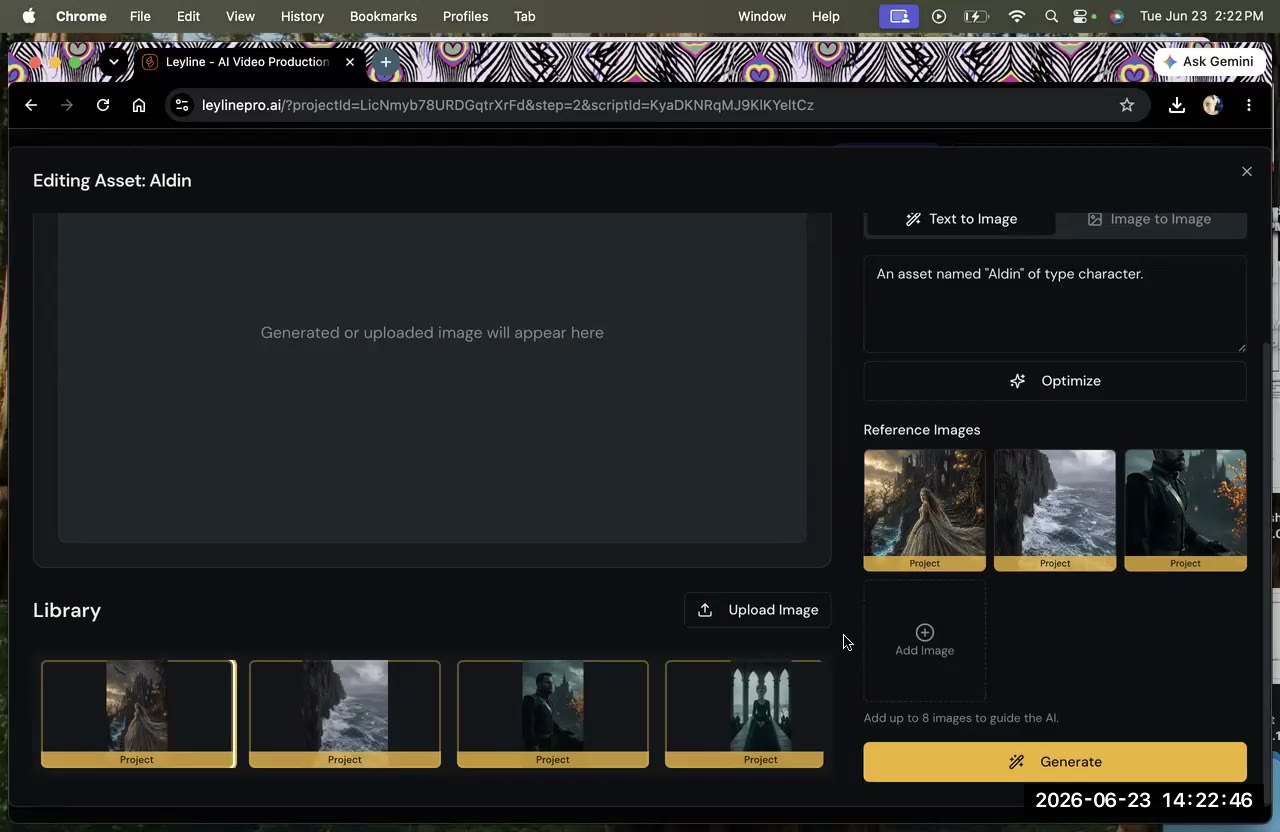
Character reference images not showing up in Breakdown or Design almost always means one thing: the image was added as a project reference instead of a character image. These are two separate slots with different purposes, and putting an image in the wrong slot means the pipeline can't connect it to the right character or shot.
Project references vs character images
- Project references are general style/mood images for the whole project — an overall look, color palette, or vibe. The program does not tie them to any specific character. Uploading one to three of these as a mood board is the intended use.
- Character images belong on the character's asset card (or in the Creative Bible). This is how the program knows "this is Mandy" and can keep her consistent across shots.
If you dump all your character images into the project, the program sees a pile of unsorted references and can't match them to the right shots. The whole point of the pipeline — breakdown, asset design, tagged references — is to connect a specific image to a specific character to a specific shot.
Understanding this distinction is fundamental to AI filmmaking workflow and ties directly into how character consistency in AI video works at the generation stage.
How to assign a character image correctly
- Open the character's asset card in Design (not the project-level reference area).
- Upload the image there (JPEG or PNG), or pick one from your library to set as the active design.
- Promote the character to the Creative Bible, then Sync — now it's locked and reusable in later episodes via Import from Bible.
- In Breakdown, make sure the character is tagged to the shots they appear in. That tag is what carries the reference into Keyframes so generations stay consistent.
If you generate a keyframe manually and the character looks wrong, check the tagged asset references panel — if the character is missing, add it (asset override) before generating.
Why it's built this way
It mirrors a real production. A line producer and first AD sort which character, prop, and location appears in which shot. The pipeline automates that — but only if your images live on the right cards. Project references set the overall art style; asset images define the actual characters.
This structure also scales to multi-episode projects. Once a character is in the Creative Bible, every future episode can import that locked design without re-uploading or re-describing the character. For longer series, this matters more than it might seem on episode one. Read more about what a series bible is to understand how that persistent structure works.
Common mistakes that cause images to go missing
- Dragging images into the project panel rather than opening the specific character card first.
- Using a reference photo that the model struggles to extract — a group shot, heavy cropping, or a low-resolution image. Use a clean, front-facing portrait at a readable resolution.
- Forgetting to tag the character in Breakdown after uploading. The image can be on the card perfectly, but if the character is not tagged to a shot, no reference flows into that shot's keyframe generation.
- Skipping the Sync step after promoting to the Creative Bible — the character won't appear as importable in other episodes until you sync.
If you're just starting out with AI filmmaking tools, understanding the asset card structure early saves a lot of debugging later.
Frequently asked questions
Why are my character reference images not showing in Breakdown?
You likely uploaded them as project references. Project images are general style references and are not linked to any character. Upload the image directly on the character's asset card or in the Creative Bible instead.
What is the difference between a project reference and a character image?
Project references guide overall style and mood for the whole project. Character images live on a specific asset card and define how that character looks so the pipeline can keep them consistent across shots.
What image format do character images need?
JPEG or PNG works. Upload to the specific character, prop, or location card — not the project-level reference panel.
How do I reuse a character across episodes?
Promote the character to the Creative Bible and Sync. In later episodes, use Import from Bible instead of re-uploading, so you always pull the same locked design.
Keep learning
Put style references at the project level and character images on the asset cards — then tag them in Breakdown. See how to maintain character consistency in AI video, the Creative Bible guide, and how to write AI video prompts that reinforce the character reference you've set.
Comments
Sign in with your Leyline account to join the conversation.