How to Maintain Character Consistency in AI Video: A Practical Workflow
Character consistency in AI video means keeping a character's face, wardrobe, and appearance identical from shot to shot across your entire production. Achieving it requires a structured asset workflow — uploading reference images to the right place, promoting finalized designs to a Creative Bible, and iterating on shots where the AI drifts.
A single reference image dropped into a general folder will not do it. This guide details the practical process shared by AI filmmaker Austin Zartman, creator of the AI short-film series ASHES, for achieving visual continuity in any AI-generated project.
For broader context on how character management fits into a full production, see the AI filmmaking workflow guide.
Where to Upload Character Reference Images for Consistency
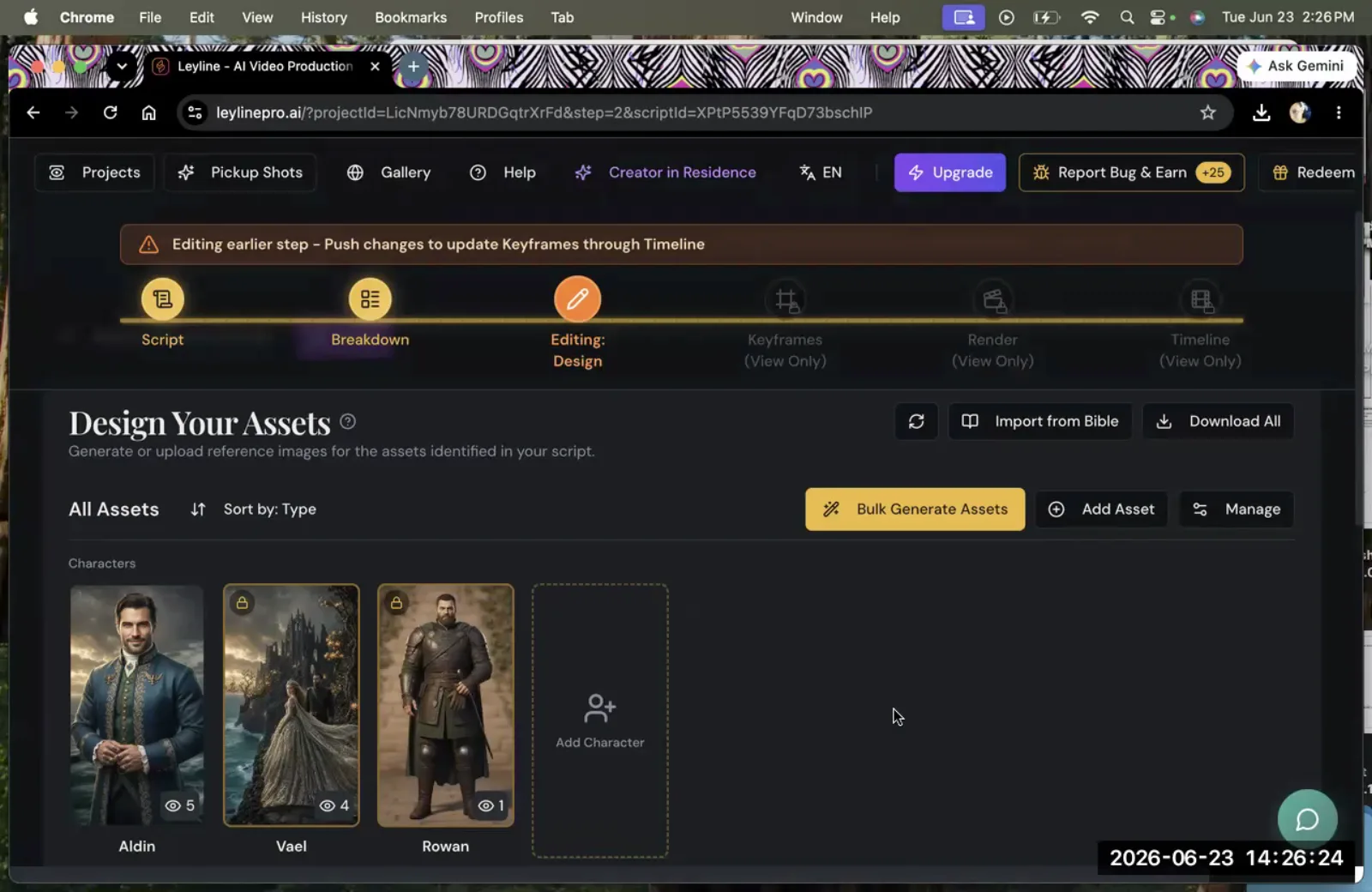
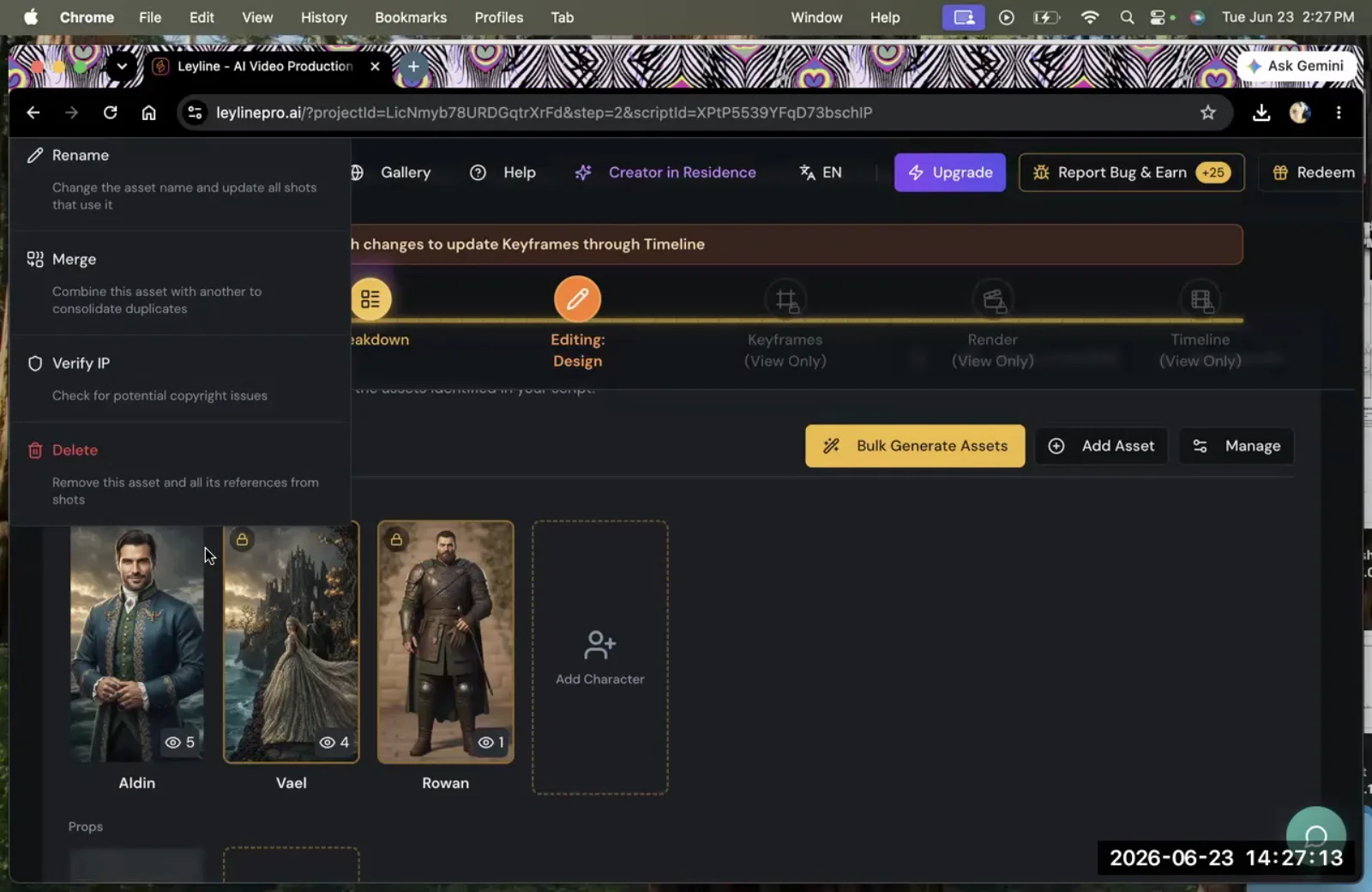
To ensure character consistency, you must upload reference images directly to the specific asset cards for each character or into your project's Creative Bible. Simply adding character images to a general project reference folder is not enough — the system will not automatically associate them with a specific character.
The key is to create an explicit, direct link between the visual reference and the character's name. A structured approach to reference images is the first step to maintain character consistency in AI video.
According to AI filmmaker Austin Zartman, this is a common point of confusion for new users. "You need to upload the image... here in the specific asset cards or in the Bible," he clarifies. This action tells the platform which images define a specific character's appearance.
The workflow involves two distinct methods:
- Asset Cards: For characters specific to a single script, you can upload their reference image directly to their asset card within that script. This is a localized approach.
- Creative Bible: For characters that will appear in multiple scripts or episodes, uploading their reference to the Bible is the better method. This centralizes the asset for project-wide use.
After uploading, the platform requires you to manually assign these images at the script level. You have to match the visual reference to the character's name for them to appear correctly during asset design. Zartman notes, "Right now we don't offer auto matching... you still have to manually adjust."
This manual assignment is a critical step for telling the AI exactly what a character, like 'Odin' from his example, should look like. Without this manual link, the reference image is just a file in a folder with no connection to the character you want to generate.
How to Make a Character Available for Future Use
To make a character's design available for consistent use across multiple scenes or episodes, you must promote it to the Creative Bible. This action moves the character from a script-level asset to a project-level asset. It creates a single source of truth for their appearance that can be accessed from any script within that project. This centralization is fundamental to maintain character consistency in AI video, especially for serialized content.
Once you have a character design you are happy with, the next step is to select "Promote to Creative Bible." This locks in the design and makes it a reusable component. Austin Zartman provides a clear rule for this process: "If this character is going to be reappearing in multiple episodes, always promote it to Bible once you've designed it."
Following this rule offers several advantages:
- Efficiency: It prevents you from having to redesign a character from scratch for each new scene or episode.
- Consistency: It significantly reduces the chance of visual drift, where a character's appearance slowly changes over time.
- Collaboration: If you are working with a team, the Creative Bible ensures everyone is using the same approved character model.
Promoting a character to the Bible is a deliberate action that signals a design is finalized and ready for reuse. It is the core mechanism for managing recurring characters in a large-scale AI video project.
The Core Workflow to Maintain Character Consistency in AI Video
The complete workflow to maintain character consistency in AI video can be broken down into four main stages. Each stage builds on the last, creating a repeatable process for managing your characters from initial design to final shot generation. Following these steps in order will help you achieve more predictable and coherent results from the AI.
- Upload and Assign Reference Images: Begin by uploading your character's reference image to either their specific asset card (for one-off appearances) or the Creative Bible (for recurring characters). You must then manually assign this image to the character's name in your script.
- Promote the Finalized Design: Once you generate a character design that you are satisfied with, promote it to the Creative Bible. This makes the design the official, reusable version for your entire project.
- Sync the Bible and Import the Character: Before starting work on a new script, always use the 'Sync Bible' function. This updates your project with the latest assets. After syncing, use the 'Import from Bible' function within your script to load the specific character you need.
- Iterate to Refine the Final Shot: Generate your video shots. Since AI video models have inherent variability, expect to generate each shot multiple times. This iteration process is necessary to fix minor inconsistencies in faces, clothing, and other details until you get a result that matches your established character design.
How to Use Characters from the Bible in Your Script
After promoting a character to the Creative Bible, you must first sync the Bible with your project and then import the character into your script. This two-step process is not automated. It requires deliberate action to ensure the updated, consistent character design is available for use, a critical part of how you maintain character consistency in AI video.
Here is the step-by-step process:
- Sync the Bible: The first step is to trigger the update. As Zartman emphasizes, this is a necessary manual action: "You need to sync the Bible right now. Like sync, sync Bible. Yes. Sync Bible, sync Bible." This command tells the platform to pull the most recent data from your project's Creative Bible. If you promote a character but forget to sync, your scripts will not see the updated version.
- Import the Character: Once the Bible is synced, you can go into your script and use the "Import from Bible" function. This will display a list of all the characters you have stored at the project level. From there, you can select the character you need, such as 'Odin', and import their established design directly into your current work.
This two-step process ensures that you are always working with the most current, approved version of a character, which is essential to maintain character consistency in AI video across different parts of your story.
How to Fix Inconsistencies in a Character's Face or Wardrobe
The best AI video model for character consistency varies by project, but regardless of the model you choose, fixing inconsistencies in a character's face or wardrobe is primarily achieved through iteration and targeted prompting. Minor and major visual deviations are a known limitation of current AI video models.
Generating multiple versions of a shot is the standard method for finding one that aligns with your character's design. This final refinement stage is where you truly maintain character consistency in AI video at the shot level.
"That is the trouble with AI video itself at the moment," states Austin Zartman. "It can only be fixed by iterations." This means you must expect to generate a shot multiple times to get the face or costume right.
There are two primary strategies for this:
- Iteration for Faces and General Appearance: The most reliable way to correct inconsistencies in a character's facial features is to re-generate the clip. Each generation will produce a slightly different result. Your goal is to continue generating until the AI produces a version that closely matches your reference image from the Creative Bible.
- Prompting for Specific Details (like Wardrobe): For recurring problems with specific elements like clothing, refining your text prompt can be very effective. If the AI is consistently generating the wrong outfit, you can add more descriptive terms to your prompt. One masterclass attendee shared a prompt that specifically helped with wardrobe issues, noting it solved problems where "all the wardrobe shit [was] happening." Adding descriptive terms about clothing material, color, and style directly into the prompt can help guide the AI and reduce unwanted variations. For example, instead of "a red shirt," try "a worn, crimson cotton t-shirt."
Combining a solid asset workflow with diligent iteration and smart prompting gives you the most control possible to maintain character consistency in AI video.
Frequently asked questions
Does the AI automatically match my reference images to my characters?
No. You must manually assign specific images to characters within the Creative Bible or at the script level, matched to their name. AI filmmaker Austin Zartman confirms that auto-matching is not currently a feature, so this manual connection is a required step.
When should I promote a character to the Creative Bible?
Promote a character to the Bible as soon as you have finalized their design, especially if they will reappear in multiple scenes or episodes. This makes their design a reusable, project-level asset that ensures consistency across your entire series.
What does 'Sync Bible' do?
The 'Sync Bible' function updates your entire project with the latest character designs and other assets stored in your Creative Bible. It is a necessary manual step to ensure any changes or new additions are reflected and made available across all your scripts.
Can prompts alone solve character consistency?
While specific prompts can help with elements like wardrobe, overall character consistency for features like faces still requires iteration. As Austin Zartman notes, visual drift is a general challenge with current AI video generation that is best solved by generating multiple takes. This is a key part of the process to maintain character consistency in AI video.
Keep learning
This guide is part of the Troubleshooting Character and Asset Workflow masterclass lesson.
Related guides:
Comments
Sign in with your Leyline account to join the conversation.