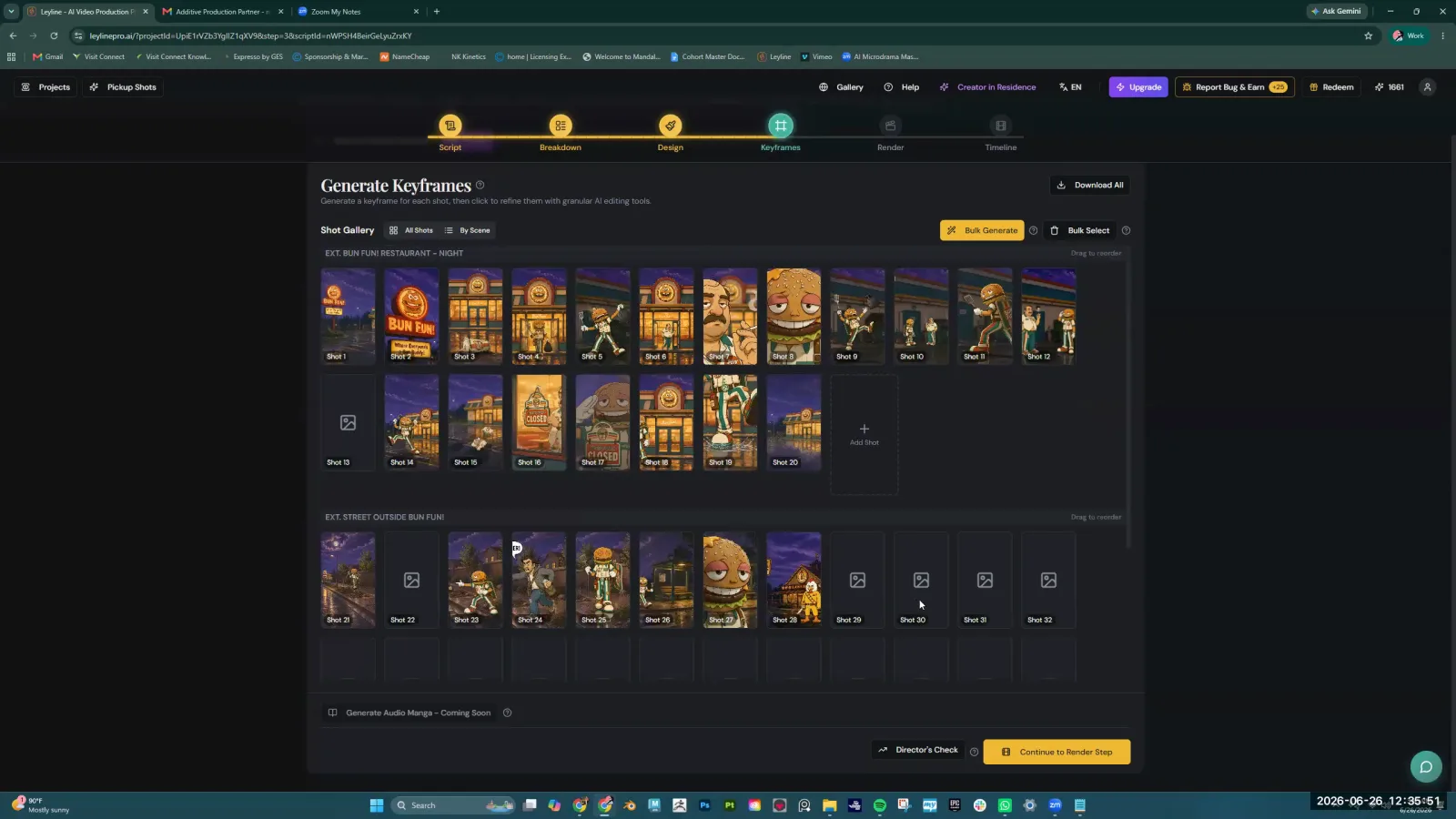
Duration vs Timeline Video Editing AI: A Practical Guide
In AI filmmaking platforms, understanding the duration vs timeline video editing AI distinction is critical for a smooth workflow. The timeline represents your entire project's intended length and sequence, while duration refers to the length of an individual video clip. These terms have specific meanings that differ from traditional video editing software. Within AI generation tools, the timeline is often a theoretical plan, and its internal preview player can be unreliable. The final duration of each clip is determined later in an external editor, which is a key concept in the duration vs timeline video editing AI process.
This guide explains the practical difference between a project's timeline and a clip's duration, using insights from a masterclass by AI filmmaker Austin Zartman. It clarifies why the numbers you see in an AI tool are often estimates and outlines the professional workflow for assembling a final edit.
The Core Difference in Duration vs Timeline Video Editing AI
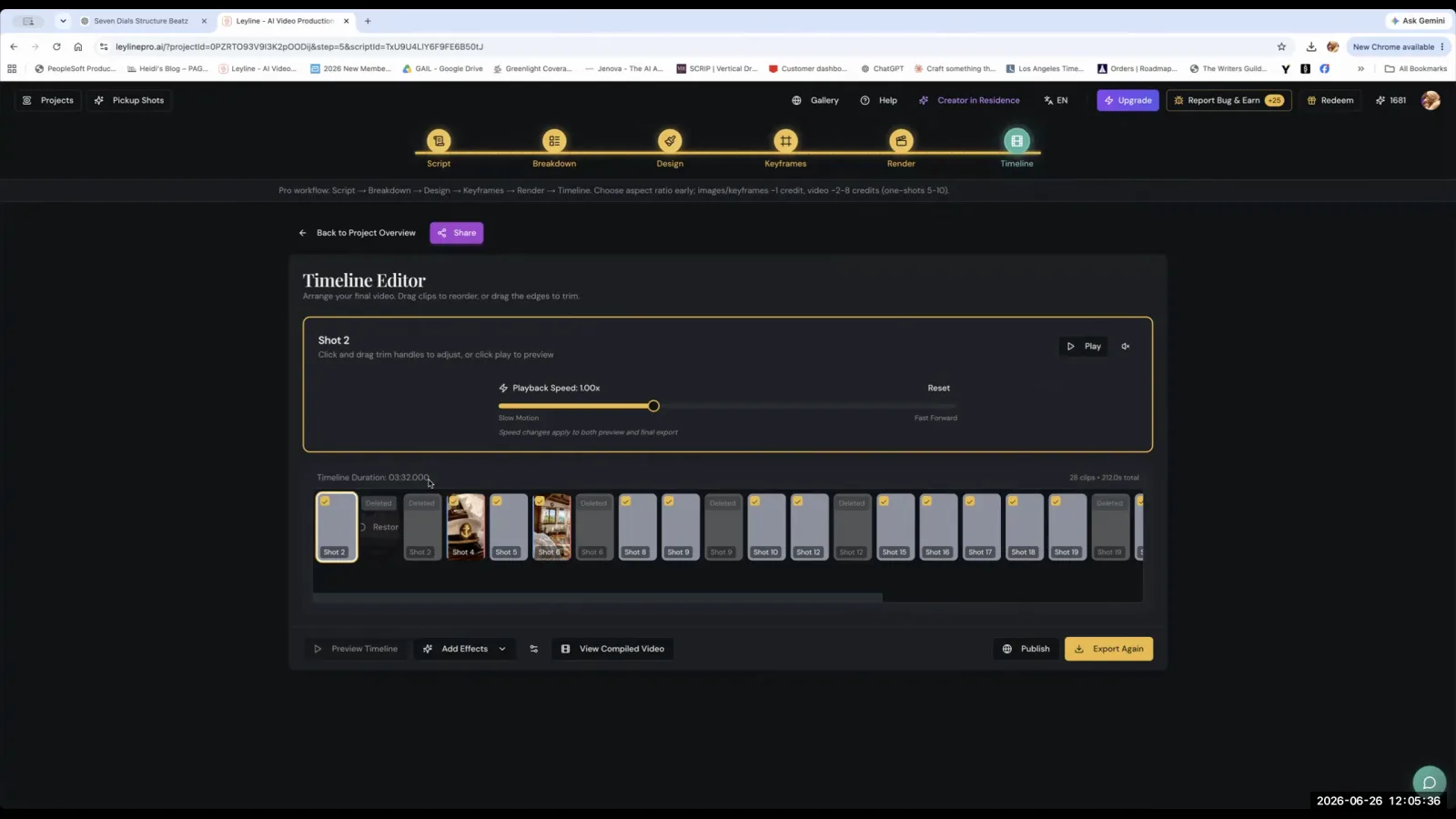
The core difference when considering duration vs timeline video editing AI is that the timeline is the total estimated length of your entire project, while duration is the specific length of an individual clip. AI filmmaker Austin Zartman explains that the timeline in an AI tool might show a total length like "3 minutes 32 seconds," but this is a theoretical total based on estimated clip durations. The actual, final length of the project is often different after the clips are assembled and edited externally. This is the central challenge of the duration vs timeline concept in AI video editing.
To manage your project effectively, think of the two concepts this way:
- The Timeline: This is the macro view—the full sequence of shots that tell your story. It's the assembly of all your individual clips, representing the project's structure from beginning to end. In an AI platform, this is your plan or blueprint. The timeline's length is the sum of all clip durations, which ultimately creates your final timeline video.
- The Duration: This is the micro view. It's the length of a single shot, which is highly malleable. For example, the AI might generate a five-second clip. In post-production, you can speed it up to last only two seconds or trim its beginning and end. This changes its effective duration before it's placed on the final timeline. The duration of any single clip is flexible.
The sum of the final, edited durations of all your clips determines the final length of your project's timeline. The initial numbers in the AI tool are just starting points in the duration vs timeline video editing AI workflow.
Why is AI Clip Duration Just an Estimate?
The duration shown for a shot in an AI tool's breakdown is a theoretical estimate made by the AI based on your text prompt. This number is not the final length of the clip you generate. This uncertainty is a key factor in the duration vs timeline video editing AI process. As Austin Zartman states, "This is an estimation by the AI on how long the shot is according to the text right now. It's not the clip you finally generate... This is a theoretical number."
For example, the platform might estimate a shot will be five seconds long based on the action described in your prompt. However, several factors can change this:
- AI Model Variance: The specific AI model used for generation might not produce a clip of that exact length. Generation is a creative process, and the model may interpret the prompt's timing differently.
- Post-Production Editing: The filmmaker will almost always adjust the clip in post-production. Zartman notes, "once you download it into your editor, you will find that some shots are like, they need to speed them up or you need to cut."
- Pacing and Rhythm: The initial estimate from the AI does not account for the overall pacing of your film. You might need a shot to be much shorter for a fast-paced sequence or longer to build suspense.
This editing process of trimming, cutting, and re-timing is where the clip's final, effective duration is set. This is a fundamental aspect of the duration vs timeline video editing AI workflow. Through this process, a project that was theoretically over three minutes can be tightened into a compelling minute and a half. The estimate is a guide, not a rule.
Why Won't My Full Timeline Play Back in the AI Platform?
Your full timeline may not play back in the AI platform due to technical limitations within the platform's built-in preview player. This is a common issue when working with a large number of shots and a frequent frustration in the duration vs timeline video editing AI space. Austin Zartman identifies this as a potential "cloud compiler issue" that happens "when there are too many shots," causing the player to show only one shot instead of the complete sequence. This is a technical glitch with the previewer, not a problem with your project's underlying data.
Even if the playback fails, your project's intended structure is usually intact. The AI has the correct data for your sequence on its servers. As Zartman observed in the masterclass when a project failed to preview correctly, "this isn't an issue because it says timeline duration is 3 minutes 32 seconds. So that is actually how long it should play. It's just there's some issue with the player right now."
This highlights a key point: the timeline data exists correctly on the backend. The internal player is simply unable to render it for preview. This limitation reinforces the need for an external, professional workflow where you have full control over playback and editing. Do not rely on the in-app player for a final review of your project's timing, as it's an unreliable part of the duration vs timeline video editing AI experience.
How to Manage Clip Duration and Assemble Your Final Timeline
The recommended professional workflow is to download all your generated clips from the AI platform and assemble them in a dedicated, external video editor. This approach bypasses any playback issues within the AI tool and gives you full creative control over the final cut. Mastering this process is key to succeeding with duration vs timeline video editing AI. In the editor, you can precisely control the duration of each shot by cutting or changing its speed to build your final timeline.
Follow these steps for a reliable editing process:
- Generate All Clips: Focus on generating all the individual shots you need based on your script or storyboard within the AI platform. Don't worry too much about the estimated durations at this stage.
- Download All Clips: Once generation is complete, download every video file to your local machine. Austin Zartman's consistent advice is to "download all your shots... and then start editing in your editor."
- Import into an Editor: Bring all the downloaded clips into a professional video editing application. Tools like CapCut, Adobe Premiere Pro, or DaVinci Resolve are suitable for this.
- Trim and Assemble: Go through each clip on your editor's timeline. Trim the start and end to use only the best part of the shot. Adjust the speed if needed. Arrange the trimmed clips in sequence to build your story and create the final timeline video.
An attendee in the masterclass confirmed this practice, stating, "I've put most of them into the timeline because there's something in each shot that I can use that I found was interesting." This involves finding the usable moments within each generated clip and setting its final duration accordingly. For more advanced work, Zartman mentions using tools like CapCut, where you can perform detailed video editing tasks like separating audio from video. This is part of the final editing process where the duration and timing of the final timeline are locked in. This workflow is central to resolving the duration vs timeline video editing AI challenge.
Frequently asked questions
What is a timeline in video editing?
A timeline is the visual representation of your entire video project, showing all your video and audio clips arranged in sequence from start to finish. In the context of duration vs timeline video editing AI, the timeline in an AI tool can also refer to the project's total theoretical length, like 3 minutes 32 seconds, even if the internal preview player doesn't work correctly. The final timeline is built in an external editor.
What does clip duration mean?
A clip's duration is the length of a single, individual piece of video. In AI filmmaking, the initial duration is often an AI's estimate (e.g., five seconds) based on your prompt. The final duration is what you decide upon in your editing software by trimming the clip, cutting sections, or adjusting its playback speed to serve the story. This concept is central to the duration vs timeline video editing AI workflow.
Should I edit my video inside the AI generator?
No, the recommended workflow is to edit externally. According to AI filmmaker Austin Zartman, you should download all generated clips and use a dedicated external editor like CapCut for final assembly. This is because internal preview tools can be unreliable, especially for projects with many shots. External editors offer far more precise control over timing, pacing, and the final look of your video, which is essential for any serious duration vs timeline video editing AI project.
Can I change the duration of an AI-generated clip?
Yes. An AI-generated clip is a standard video file (like an MP4). Once you download it, you can import it into any video editor. There, you have full control to shorten the clip by trimming it, cut out sections, or alter its playback speed to fit your project's timeline perfectly. The length of the clip is not fixed.
How does the AI estimate the length of a clip?
The AI estimates a clip's duration by analyzing the text prompt you provide. It assesses the complexity of the action, the number of described movements, and the general pacing implied by the language. For example, a prompt for a "quick shot of a car speeding by" will likely get a shorter estimated duration than a "slow-motion shot of a person walking through a field." This is the AI's best guess and serves as a starting point in the duration vs timeline video editing AI process.
Keep learning
This guide is part of the Troubleshooting AI Video Generation masterclass lesson.
Related guides:
Comments
Sign in with your Leyline account to join the conversation.