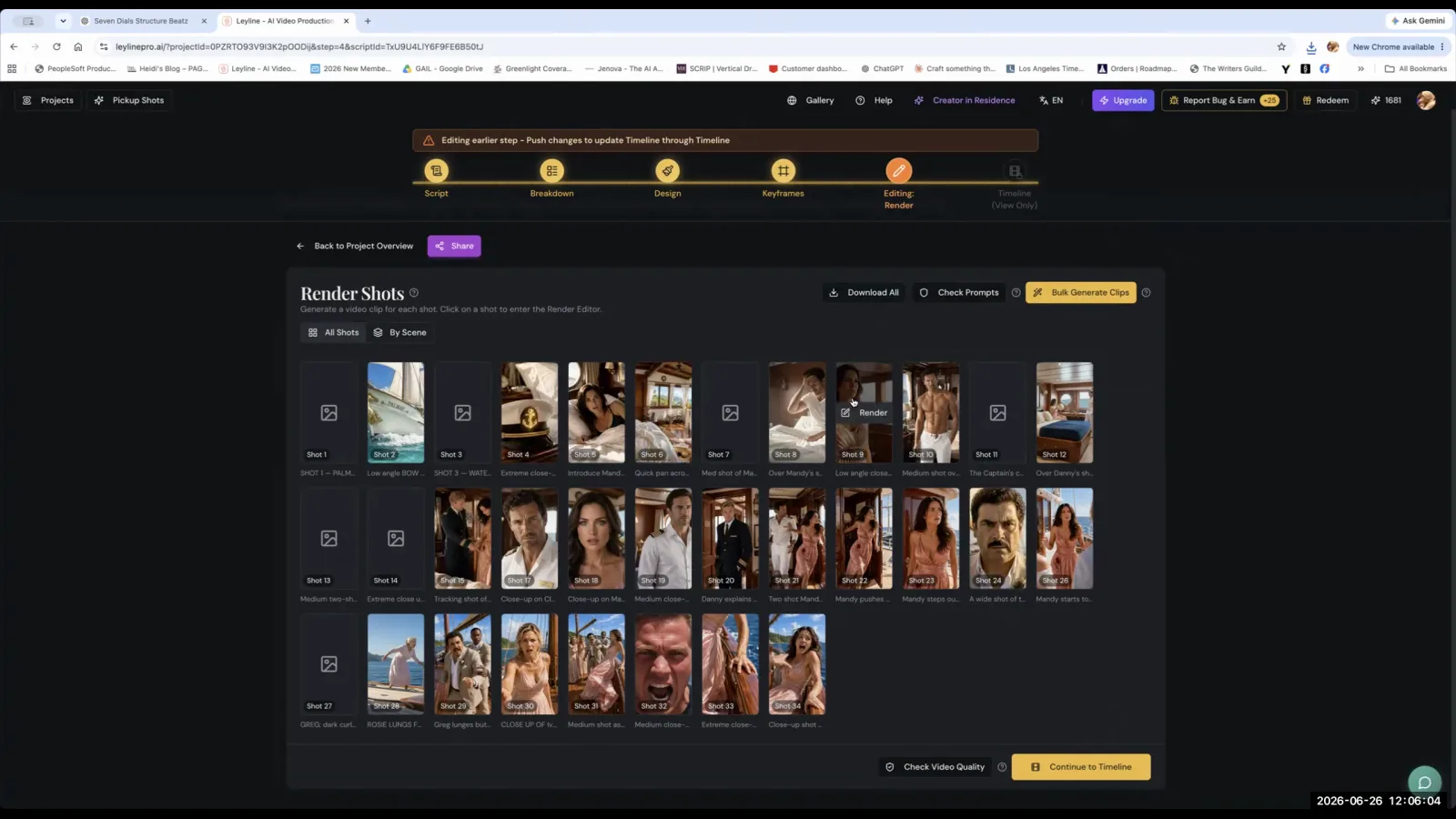
AI video editing combines generative artificial intelligence for clip creation with traditional non-linear editing (NLE) software for assembly, sequencing, and post-production. In its current state, AI does not autonomously edit a full video project the way a human editor would.
Instead, filmmakers use AI platforms to generate individual shots based on text prompts and reference images. These clips are downloaded and imported into a standard video editor, where the creative decisions of pacing, shot selection, and audio mixing are made by the user. This hybrid workflow uses AI for asset generation while keeping human control over the final narrative and aesthetic.
How does AI assist with video editing today?
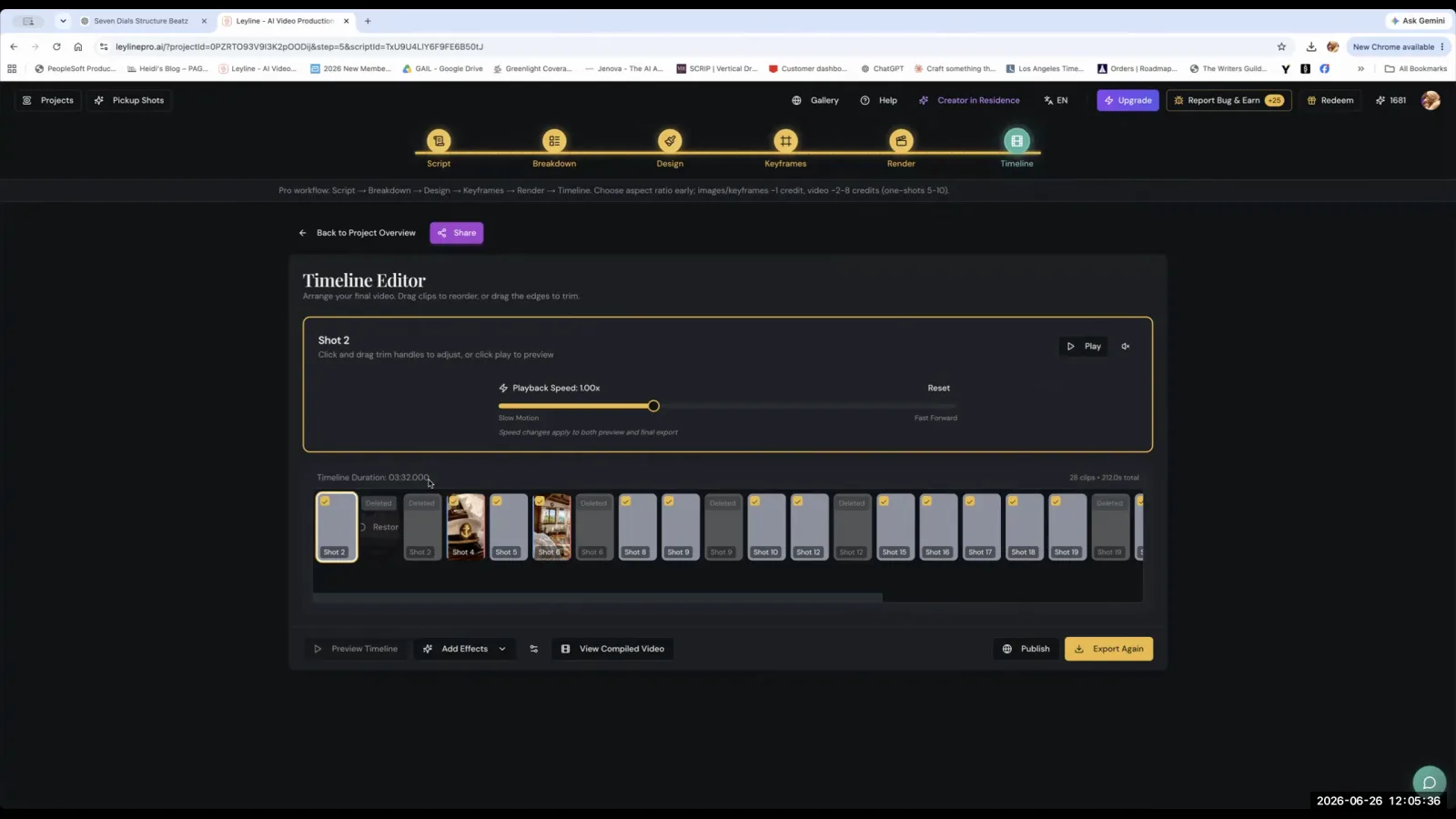
AI primarily assists with video editing by generating the raw video clips, which are then assembled using traditional editing software. The current workflow is not about an AI making cuts or arranging a timeline. Instead, filmmakers generate a series of shots, download them as individual files, and import them into a timeline editor.
As AI filmmaker Austin Zartman explains, the practical step is to "go to render and download all the clips and maybe preview all in your editor." This positions the AI as a tool for creating source material, not as the editor itself.
The creative work of building a sequence, trimming clips, and finalizing the story happens in a separate, dedicated video editing application. This separation is crucial because, at present, AI is not considered reliable for making high-level creative editing decisions.
Can you rely on automated AI editing suggestions?
No, you cannot fully rely on automated AI editing suggestions, as they are often inaccurate and can produce nonsensical results. These features, which attempt to fix inconsistencies or suggest improvements, require significant human oversight. According to Austin Zartman, they are only correct about "six out of 10 times," and filmmakers should always "use your own judgment. The AI is not quite there yet."
One attendee of Zartman's masterclass shared a concrete example: after accepting AI suggestions to make a scene more consistent, the AI placed a character who was supposed to be in a cabin bed into an office, "with a halo over him, barefoot, standing two inches off the ground." Blindly following AI suggestions can actively harm a project, which is why manual control remains essential.
What is the workflow for editing AI-generated video?
The standard workflow for editing AI video involves generating shots, downloading them, and assembling them in an external timeline editor. This process begins with breaking down a script into individual shots and generating them on an AI platform. Once you have a batch of clips—for instance, an attendee mentioned working with 34 shots—download them all and import the files into your preferred editing software.
After creating a rough cut, identify any missing shots or moments that need improvement. At that stage, return to the AI platform to create new clips, known as pickup shots, to fill those gaps before finalizing the edit.
How do you generate new shots for an existing edit?
To generate new shots for an existing edit, use a "pickup shots" feature within your AI tool, which creates individual clips using reference images for consistency. Once you've identified a gap in your timeline, return to the AI generator. Austin Zartman advises: "Click video... and find a model that will allow you to put in references and start generating individual shots."
For a realistic look, select a 'realistic' model and set the correct aspect ratio—such as '9 over 16' for vertical video. Providing a reference image from a previous shot guides the AI to match the established look of your characters and scenes, making the new clip easier to integrate.
How can you fix audio in AI-generated clips?
You can manage audio in AI-generated clips either by using negative prompts during generation or by using an external tool like CapCut to separate audio tracks after downloading. If you want a clip with no music, add "no music" to the negative prompt field before generating.
If your generated clip contains unwanted bundled audio, a more robust post-production step is needed. Zartman recommends: "download these clips and separate the voice, the music and the clip in Capcut. There's a function for that." This lets you isolate and remove unwanted sounds, or mix voice, sound effects, and music tracks independently in your main editing project.
How do you improve clip quality before editing?
To improve clip quality before editing, use highly specific, descriptive prompts and select AI models known for controllability. Vague prompts lead to generic or incorrect results that are difficult to cut together. The guidance is to be "really, really specific"—for example, instead of "man on sidewalk," write "Marvin passes a pedestrian giving him gum, he stands on the sidewalk."
For even more control, use image editing functions within the AI platform, such as the ability to "draw the mask and edit the image." Choosing the right model also matters: for consistent faces and fine-tuned control, models like Kling and Seedance are recommended for their fine-grained controllability.
Frequently asked questions
What tools are recommended for AI video editing?
AI filmmaker Austin Zartman's workflow suggests a combination of tools. Use an AI video generation platform to create the individual clips, and then use a traditional non-linear editor like CapCut for assembling the timeline, sequencing shots, and performing detailed audio work like separating voice from music.
How reliable are AI editing suggestions?
Automated AI editing suggestions are not very reliable. According to instruction from Austin Zartman, they are only correct around "six out of 10 times." Human judgment is essential, as blindly accepting AI suggestions can introduce bizarre errors, such as placing characters in the wrong setting.
What are 'pickup shots' in AI filmmaking?
Pickup shots are individual video clips generated after an initial batch to fill gaps or replace weak shots identified during the editing process. They are a key part of the workflow, allowing you to refine a project by creating specific, targeted content as needed.
Can AI separate audio from video?
While AI generation tools may not offer advanced audio separation, you can use external applications for this task. It is recommended to download the generated clips and use a program like CapCut, which has a specific function to "separate the voice, the music and the clip."
Keep learning
This guide is part of the Troubleshooting AI Video Generation masterclass lesson.
Related guides:
- What Is an AI Video Generator? Models, Prompts & Settings
- A Practical AI Filmmaking Workflow Explained
- How to Use AI in Filmmaking: A Practical Guide
- How to Maintain Character Consistency in AI Video
- How to Fix Glitchy AI Video Clips
- How to Write AI Video Prompts That Actually Work
- What Is a Pickup Shot in AI Filmmaking?
Comments
Sign in with your Leyline account to join the conversation.