Troubleshooting and Iterating on AI Video Generation
Cohort 9, Session 6 — taught by Austin Zartman, creator of the AI short-film series ASHES.
To make a film with AI, you must generate each video clip individually before assembling a final render. The process involves breaking down your story into a series of shots, writing a specific text prompt for each one, and then generating the video for that shot. After generating your clips, you review them on a timeline to identify gaps and iterate by adding more shots to your breakdown.
What you will learn
- Understand how to generate a video for an individual shot within the production workflow.
- Learn the importance of reading, refining, and rewriting video prompts before generating.
- Grasp the iterative process of generating a rough cut, identifying gaps, and adding more shots.
- Know the general benchmark for the number of shots needed for a vertical short film.
- Learn how to push changes from the breakdown stage downstream to other production stages.
Generating a Single Video Shot
This workflow shows how to create a video clip for one specific shot in your project by reviewing its prompt and using the generation tool.
Step 1. Navigate to your project and click into the specific shot you want to generate (e.g., 'shot one').
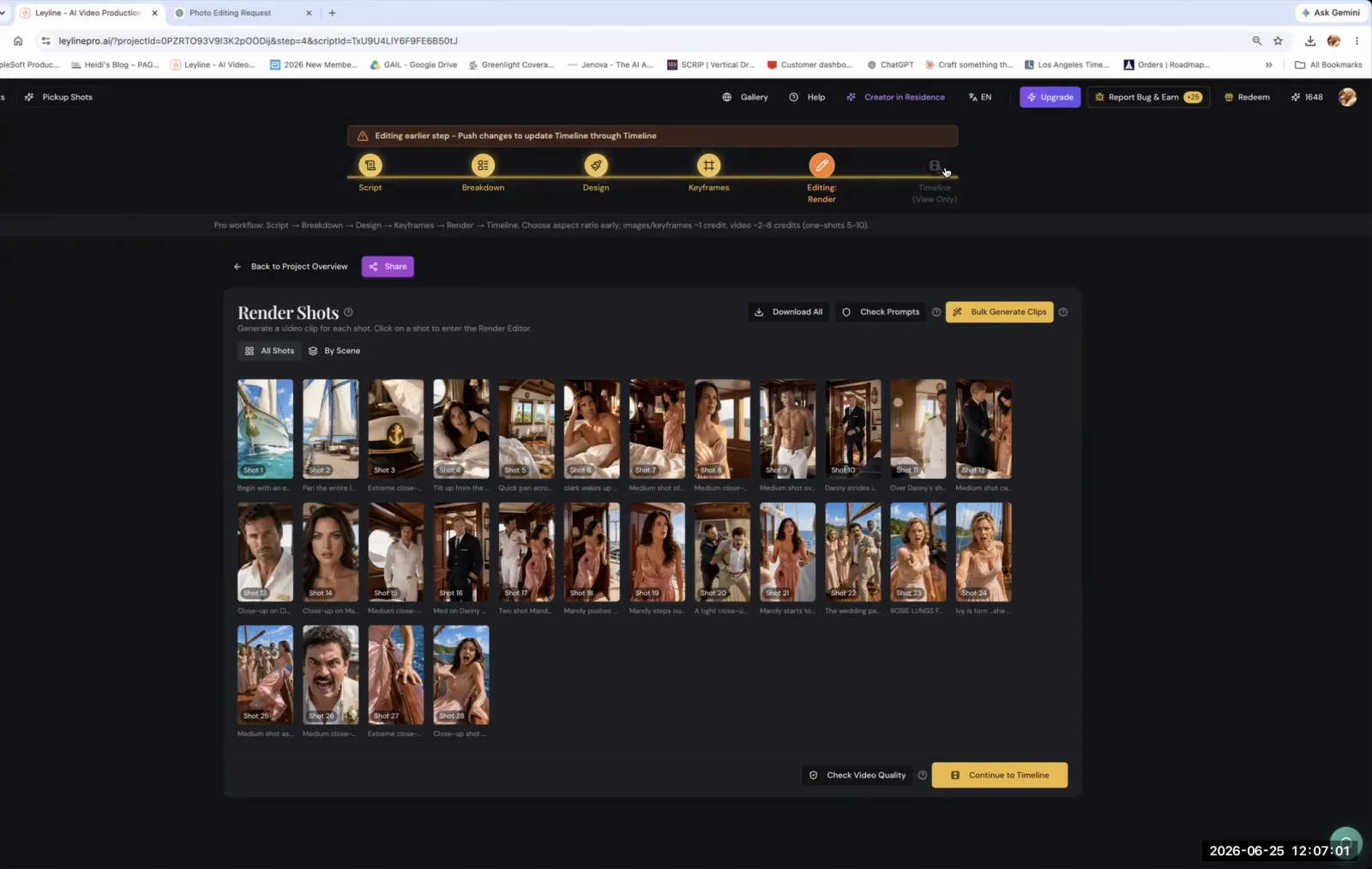
From the Render Shots page, select the thumbnail for the specific shot you want to generate.
Step 2. Scroll down to the 'Video Prompt' section and carefully read the text to ensure it accurately describes the scene you want.
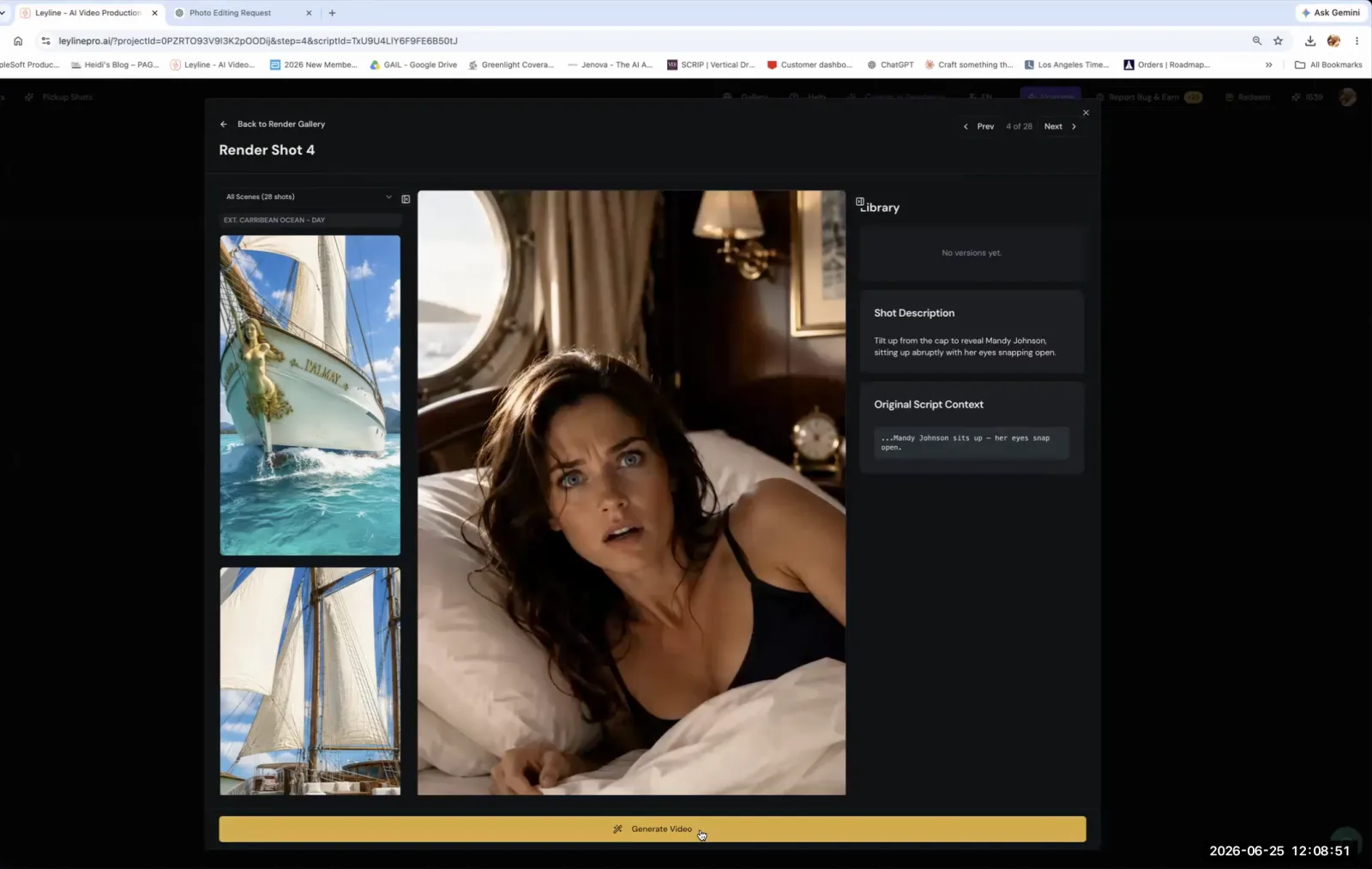
Review the 'Shot Description' and 'Original Script Context' to confirm the AI has correctly interpreted your scene.
Step 3. Rewrite the prompt if necessary, making it as specific and detailed as possible to get the best result.
Step 4. Locate and click the large 'Generate video' button, which is typically fixed at the bottom of the page.
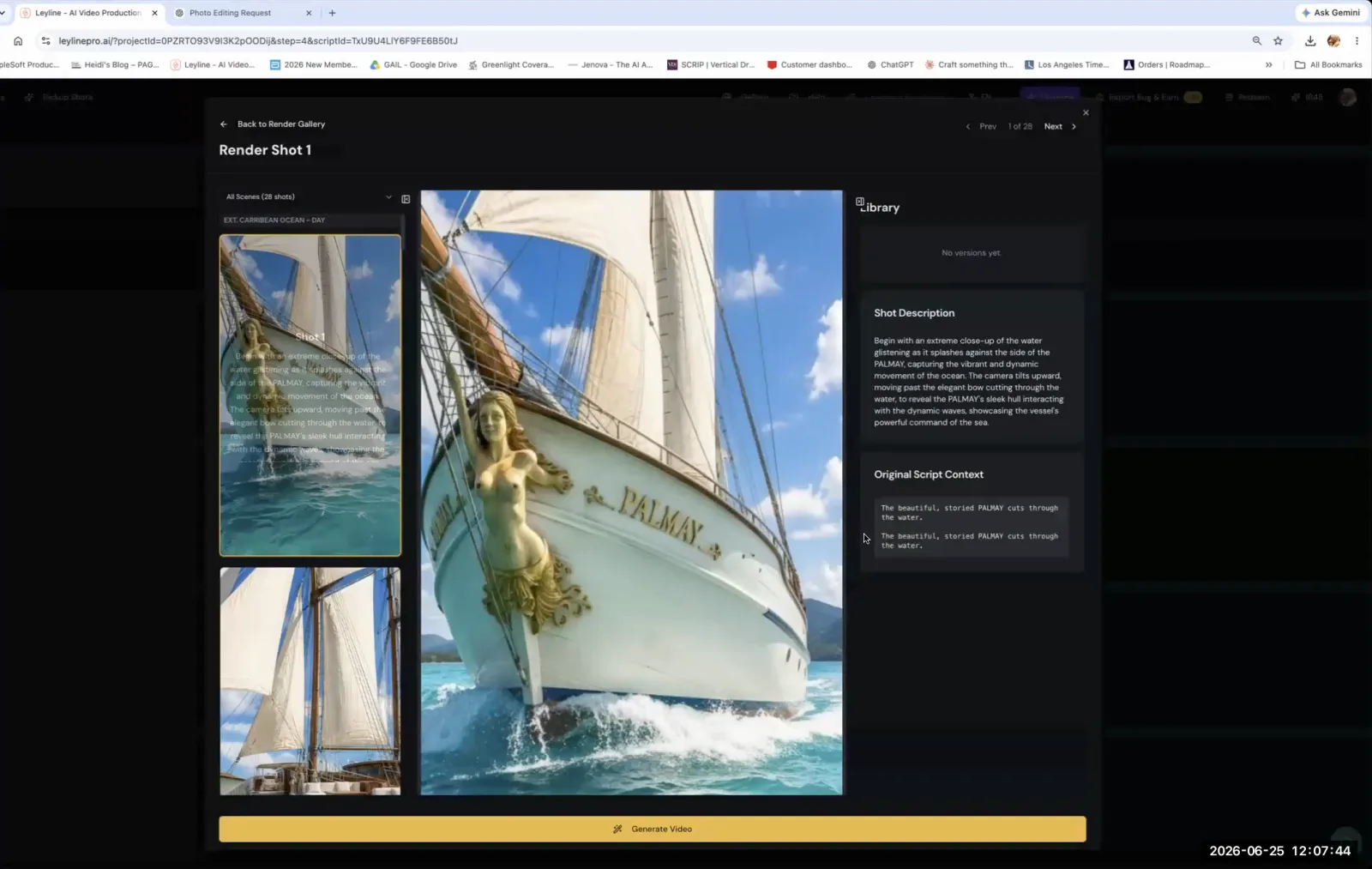
Click the 'Generate Video' button at the bottom of the page to render your shot.
Step 5. Allow the video to process in the background; you can close the shot and begin working on another one while the first one generates.
Iterating on a Rough Cut
Use this process to refine your film by generating a first pass, identifying story gaps on the timeline, and then adding more shots in the breakdown phase.
Step 1. Generate the videos for all the shots in your initial breakdown.
Step 2. Go to the timeline preview to watch the sequence of all your generated shots together.
Step 3. As you watch, identify where the story feels incomplete or where you are missing shots.
Step 4. Return to the 'Breakdown' stage of your project to add new shots and dialogue where needed.
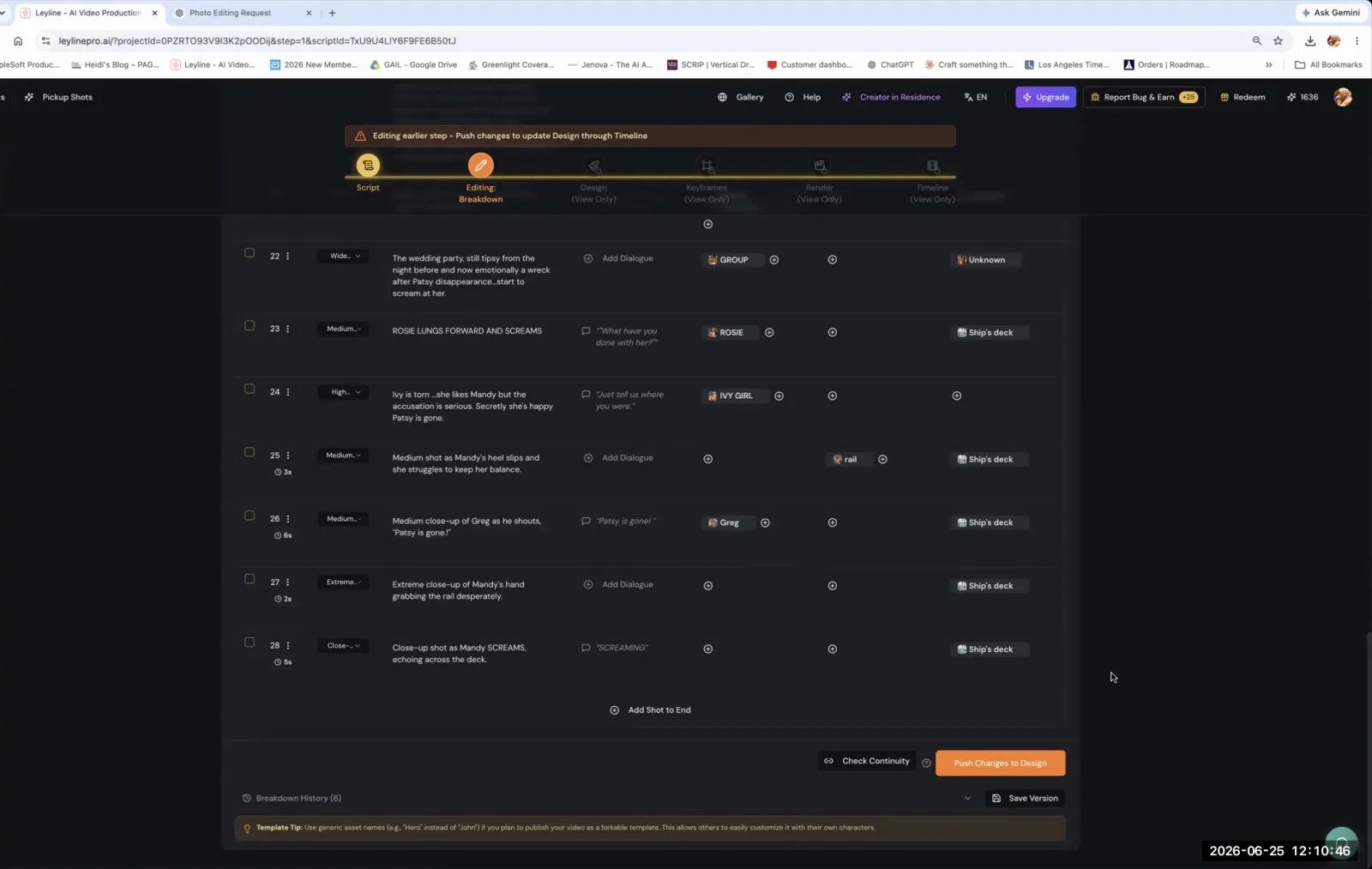
After making edits in the Breakdown stage, click 'Push Changes to Design' to update the rest of your project pipeline.
Step 5. Push the changes from Breakdown forward through the Design and Keyframe stages to integrate the new shots into your project.
Step 6. Repeat the process of generating, reviewing, and adding shots until you have a complete rough draft.
Key terms
Shot Generation. The process of using an AI model to create a video clip for a single, specific shot that has been defined in the script breakdown.
Bulk Generation. A feature that allows a user to generate video clips for multiple shots simultaneously. The instructor advises against this for a first pass, as it prevents careful review of each shot's prompt.
Video Prompt. The descriptive text input that directs the AI on what to create in a video shot. It should be specific and clear to achieve the desired visual outcome.
Breakdown. The initial phase of the AI filmmaking process where a script is divided into a sequence of individual shots, each with its own description and prompt.
Timeline Preview. A feature in the video tool that assembles all generated shots in sequence, allowing the creator to watch a rough version of their film and identify areas that need more shots or adjustments.
Push Changes Downstream. The action of propagating modifications made in an early stage of production (like Breakdown) forward to subsequent stages (like Design and Keyframe), ensuring the entire project is updated.
Vertical Short. A short-form film formatted for vertical viewing on mobile platforms. The instructor notes that these typically require around 40 shots to be effective.
Redundant Prompting. A technique for writing effective AI prompts by being extremely specific and repeating key details to ensure the AI model fully understands and executes the desired visual instructions.
Common mistakes to avoid
- Attempting to render a final video without first generating the individual video clips for each shot.
- Generating video clips without first reading, reviewing, and refining the text prompts for each shot.
- Underestimating the number of shots needed for a vertical short, assuming 25-30 is enough when 40 is a better target.
- Expecting the AI to generate the perfect shot on the first try without needing to rewrite and iterate on prompts.
Frequently asked questions
Why are my video clips missing from the final render?
Your video clips are likely missing because they were never generated. You must generate the individual video clips for each shot before attempting to render the final video. The timeline will appear empty if the source clips for each shot in your breakdown have not been created yet.
How to fix a short film that feels empty or has gaps?
To fix a film with gaps, first review the rough cut on the timeline to identify where the story feels empty. Then, return to the breakdown stage of your project to write prompts and generate additional shots that fill in these narrative holes before assembling the next version.
How many shots do I need for a one-minute vertical video?
For a one-minute vertical short, you should aim for around 40 shots. Filmmakers often underestimate the number needed, assuming 25 or 30 will be sufficient, but a higher shot count typically results in a more engaging final product and avoids a sparse or empty feeling in the edit.
Should I bulk generate all my AI video clips at once?
It is better to generate shots individually or in small batches rather than using bulk generation for an entire project. This shot-by-shot workflow allows you to review and refine your prompts as you go, troubleshoot issues with specific clips, and avoid wasting time generating unusable footage.
In the instructor’s words
“That's a director's job. I would really, I strongly advise against what you're doing right now. Because you're in this course to learn that prompt.”
“You're going to have to go back and rewrite these prompts a couple times because the shots are not going to come out the first time.”
“Generally a vertical short is about 40 shots.”
This tutorial was produced from the Leyline Masterclass recording (Cohort 9, Session 6, 2026-06-25). Screenshots are captured directly from the session.