Technical Troubleshooting for AI Filmmaking
Cohort 1, Session 5 — taught by Austin Zartman, creator of the AI short-film series ASHES.
To make a film with AI, you follow a structured, iterative process. First, establish a detailed project “series bible” to provide the AI with a consistent source of truth for characters and settings, which prevents errors like hallucinations. Next, generate static keyframe images for each shot, correcting any visual inconsistencies. Finally, use specific video prompts to animate these corrected keyframes into the final video clips.
What you will learn
- How to correctly set up a new project by uploading a series bible.
- How to identify and correct AI 'hallucinations' in character and plot breakdowns.
- Techniques for iteratively refining keyframe images to ensure wardrobe and character consistency.
- How to use tools like 'Edit with AI' and 'Manual Asset Override' to fix visual errors.
- How to recover from workflow mistakes like accidentally deleting a keyframe or regenerating a script breakdown.
- The process of writing effective video prompts to animate keyframes correctly.
- How to manage and organize character, prop, and location assets for a series.
Create a New Project with a Series Bible
The first step in any Layline project is to upload a pre-written series bible. This provides the AI with a consistent foundation of character and world details to prevent hallucinations and errors downstream.
Step 1. From the main projects page, create a new project and select the desired format, such as 'Vertical Shorts'.
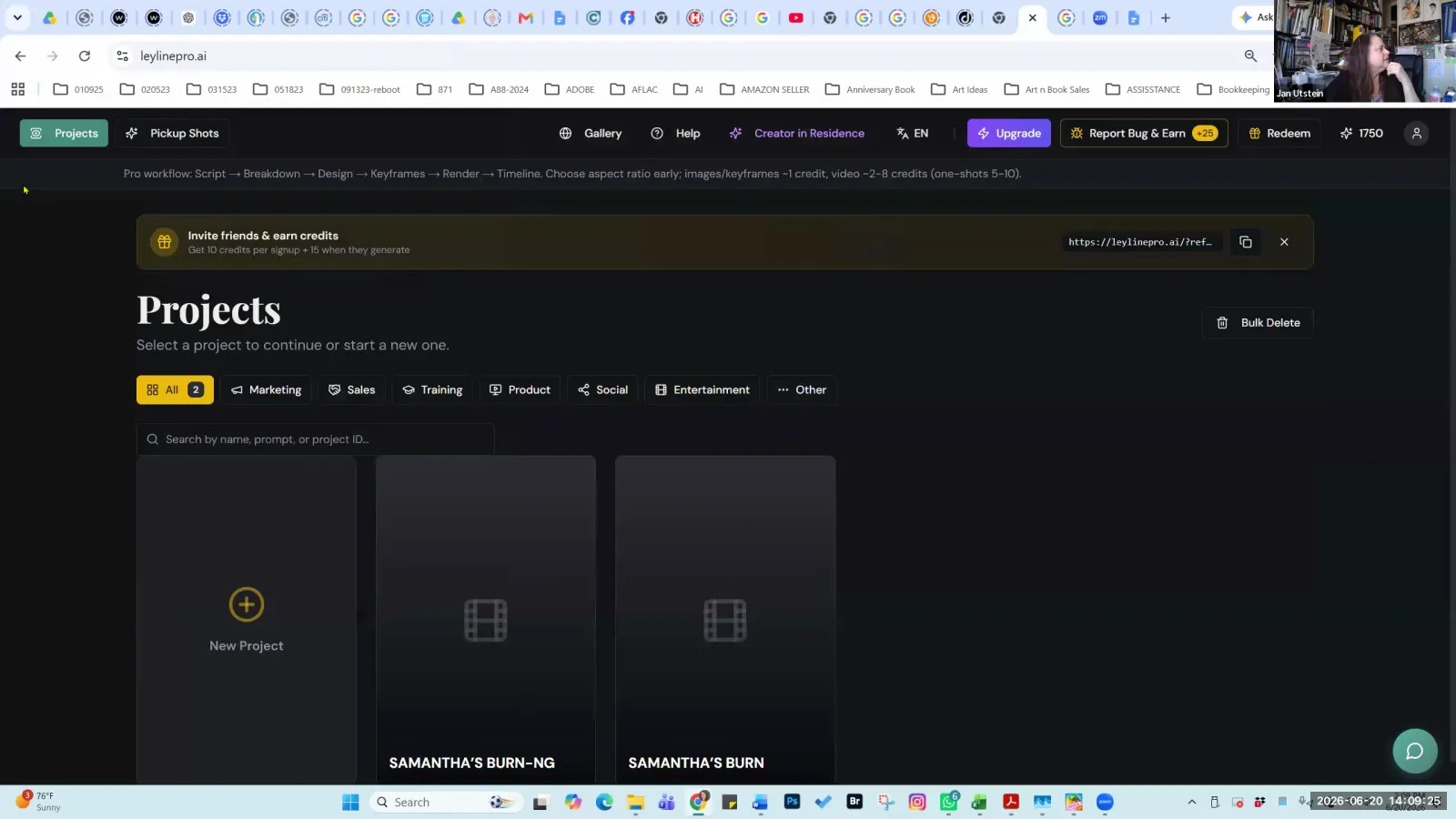
On the main Projects page, click the 'New Project' button to begin.
Step 2. In the Synopsis Editor on the project overview page, click the arrow icon to upload your series bible as a PDF file.
Ensure your PDF does not contain any images for best results.
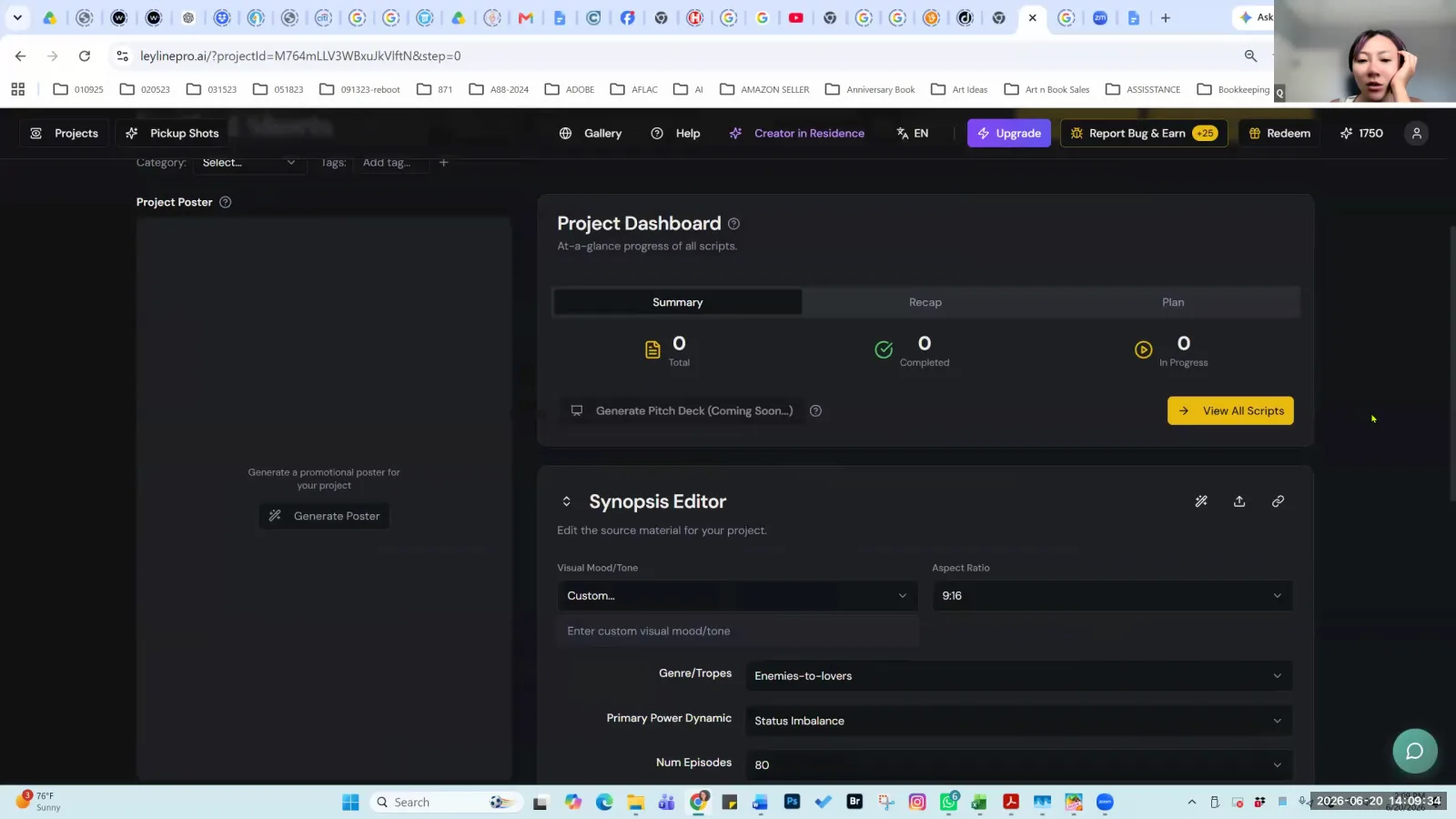
In the Synopsis Editor on the project overview page, click the upload icon to add your series bible as a PDF file.
Step 3. After the AI analyzes the uploaded bible and populates the fields, click the 'Generate Series Bible' button to create the full project structure.
This step builds out the character sheets, locations, and episode outlines based on your document.
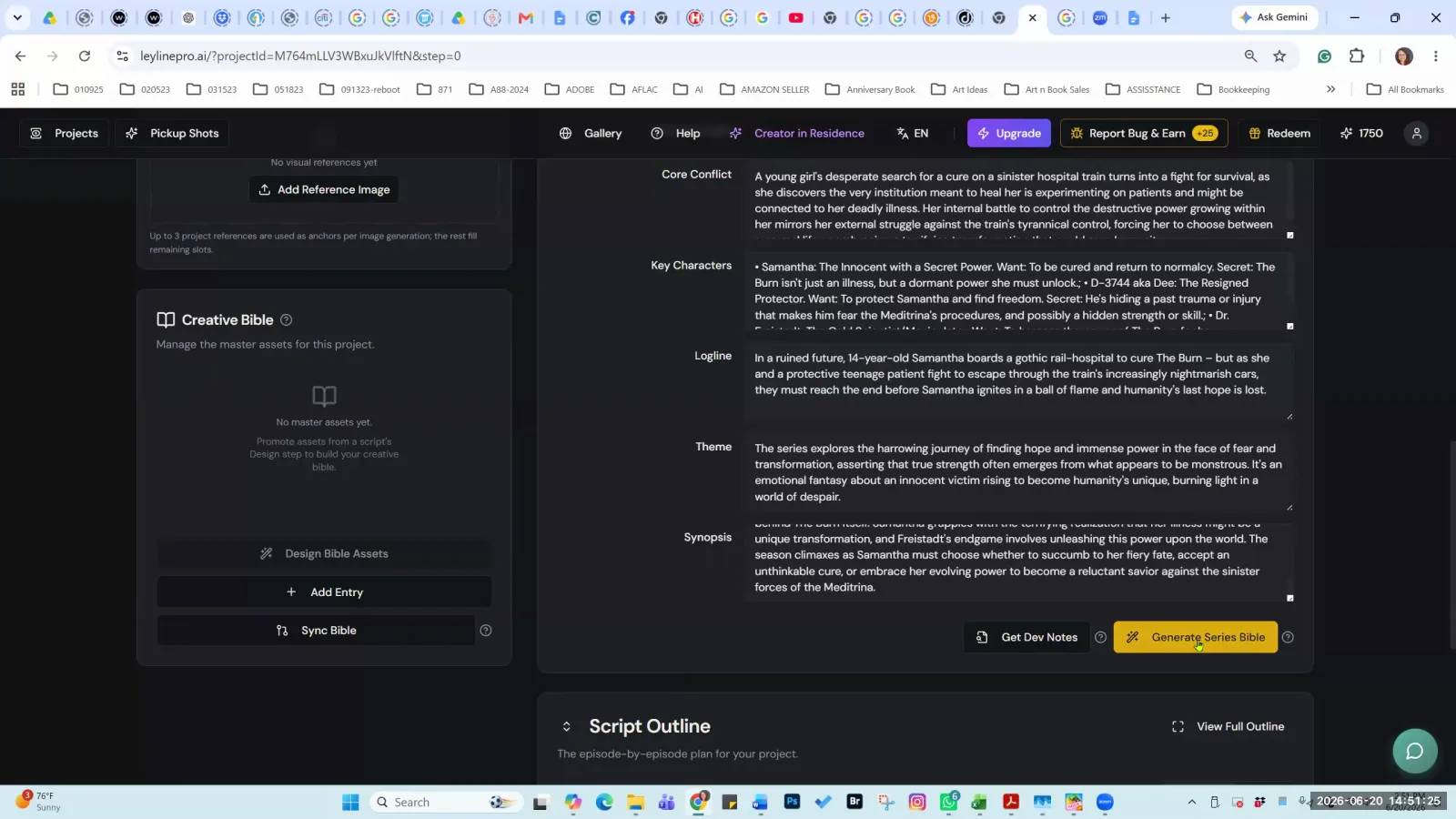
With the project details populated from your document, click 'Generate Series Bible' to build out the project.
Step 4. Review the generated outline by clicking 'View Full Outline' and manually edit any inaccuracies directly in the text boxes or by using the 'Edit with AI' chat function.
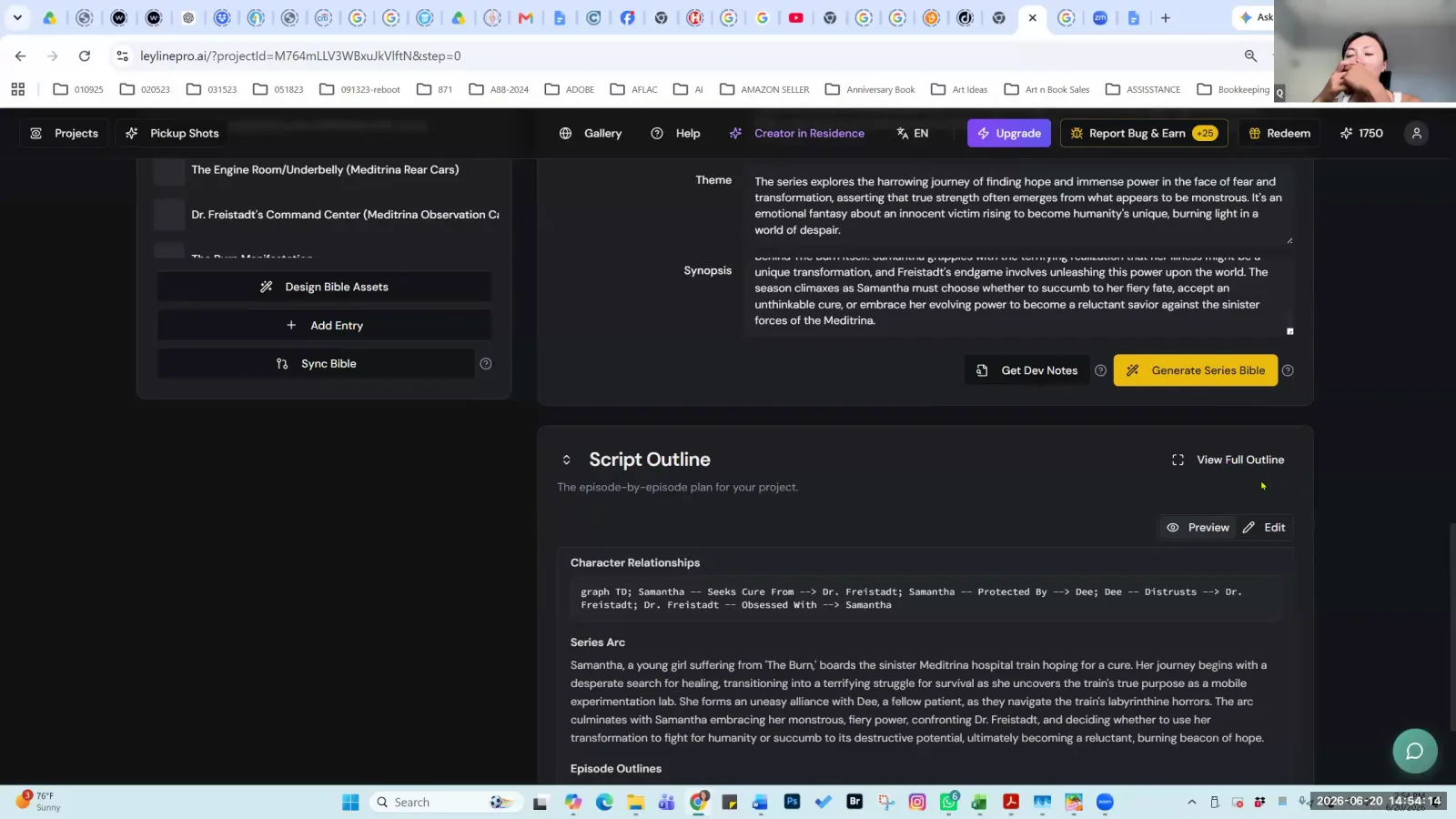
Review the generated script outline and click 'View Full Outline' or 'Edit' to make changes.
Iteratively Fix an Inconsistent Keyframe Image
When the AI generates a keyframe with incorrect details, like a character's clothing, you must fix it at the source. This workflow shows how to iteratively correct the static image before moving to video generation.
Step 1. Navigate to the 'Keyframes' tab for your script.
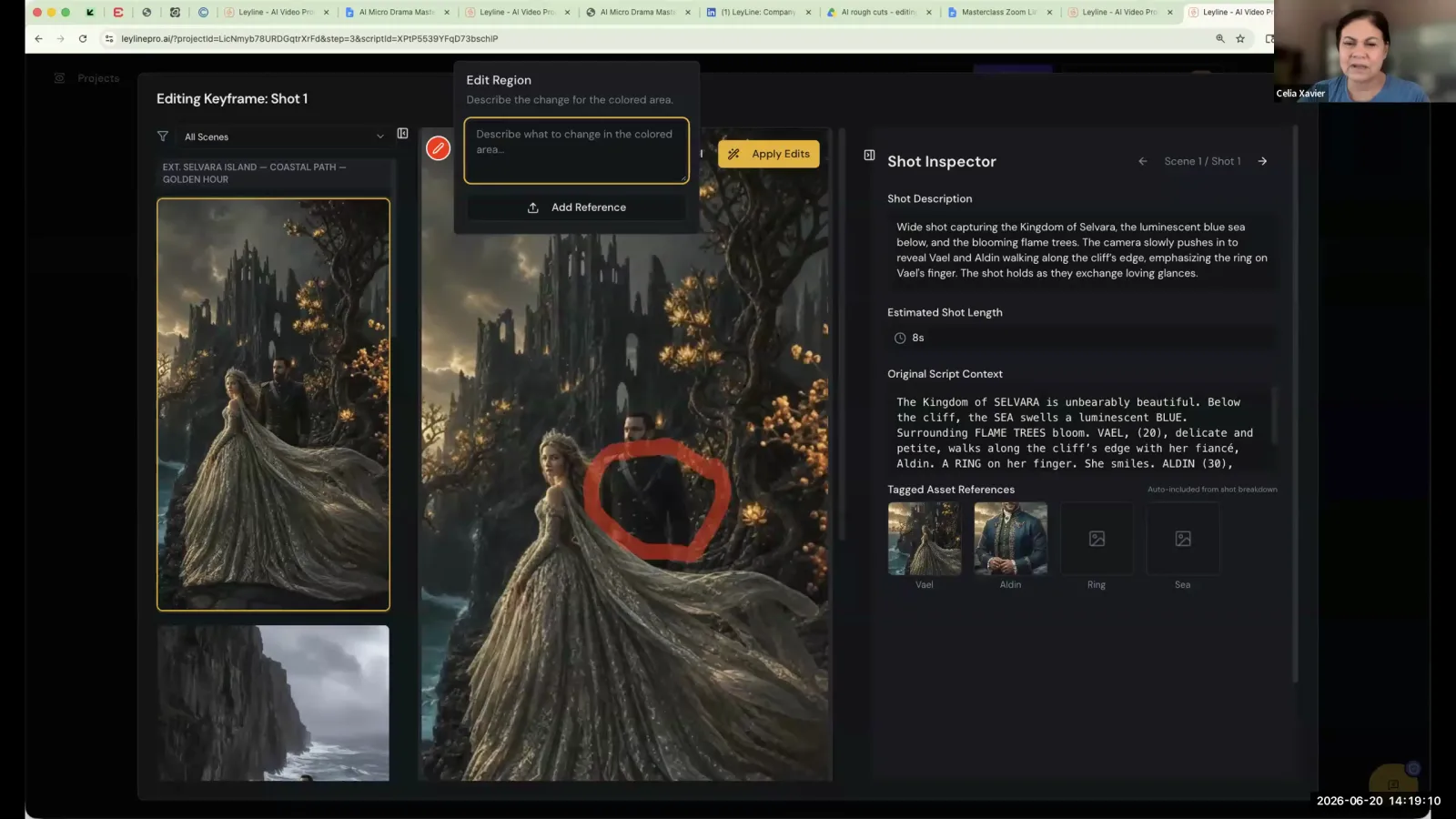
This is the Keyframes view, which shows the generated images for each shot in your script.
Step 2. Locate the incorrect image. If it's mostly correct but has minor flaws (e.g., wrong color coat), click 'Edit with AI'.
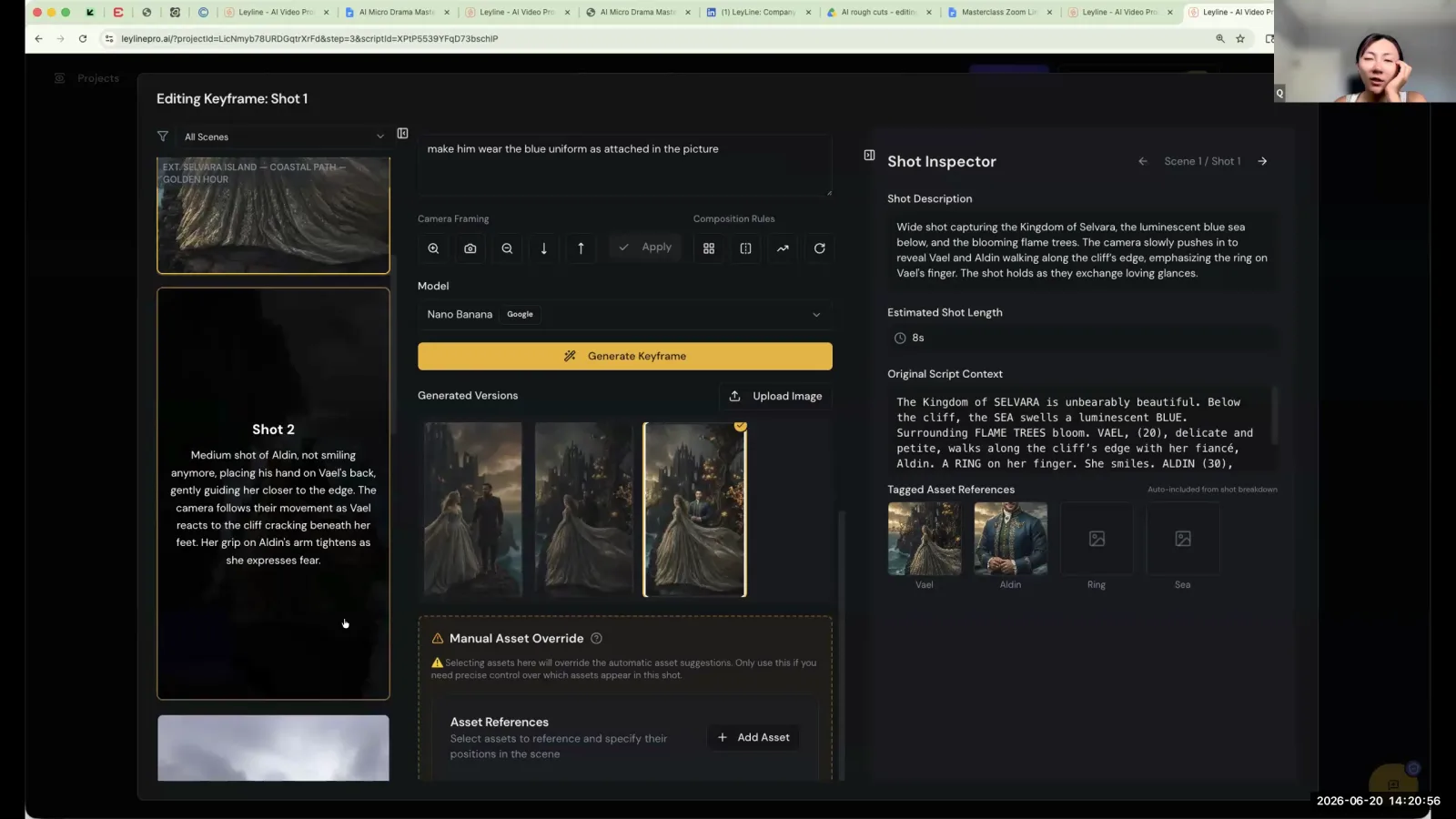
Select the generated image that is closest to your vision, which you can then refine with further edits.
Step 3. Use the red masking tool to paint over the area you want to change, such as the character's uniform.
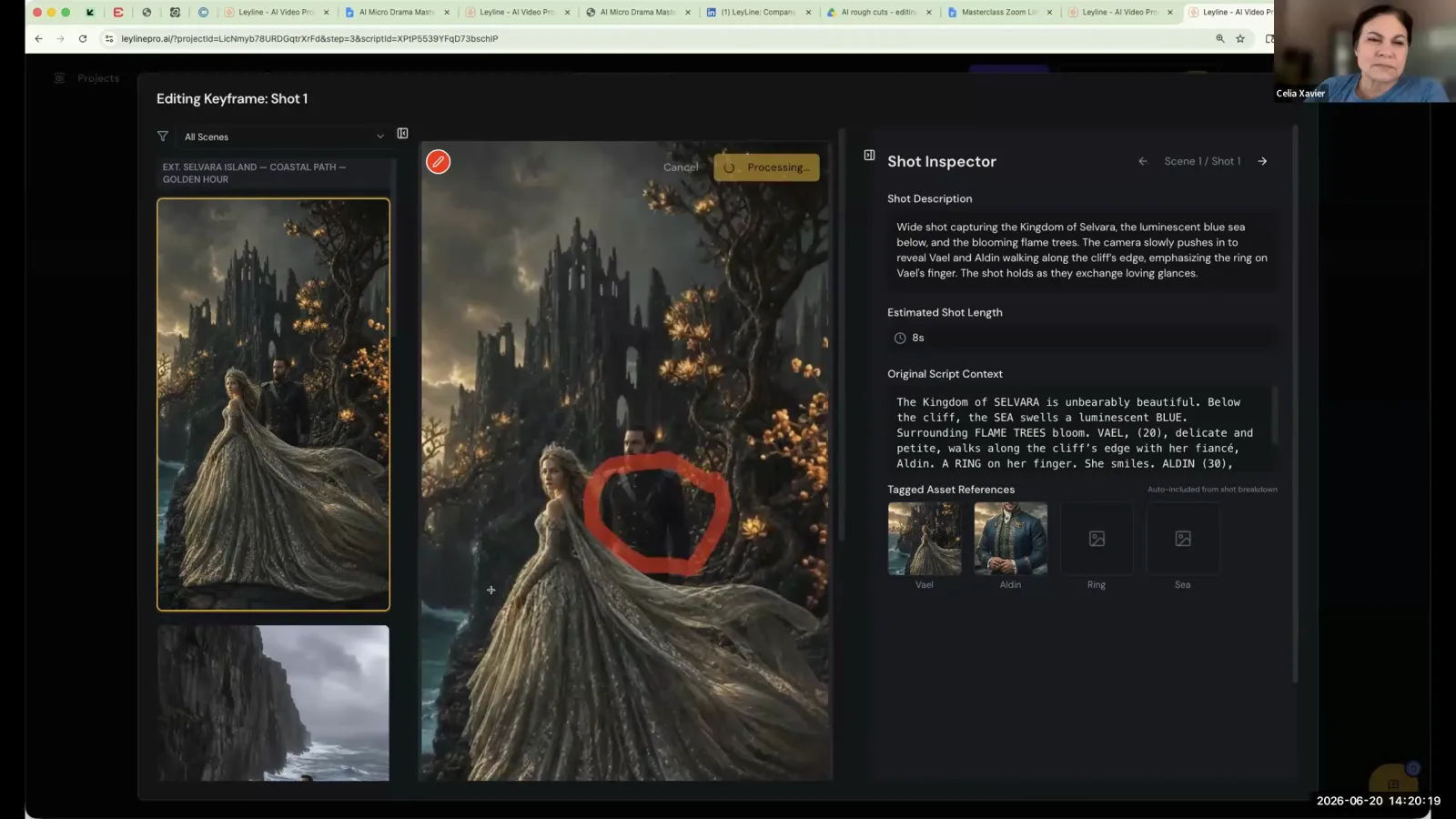
Use the red masking tool to paint over the area you want to change, such as the character's uniform.
Step 4. Write a precise prompt describing the change, such as 'make him wear this costume', and add a reference image of the correct costume if available.
Step 5. If the image is completely wrong, use the 'Manual Asset Override' tool instead. Select the correct characters and props, place them in the frame, and write a new prompt from scratch.
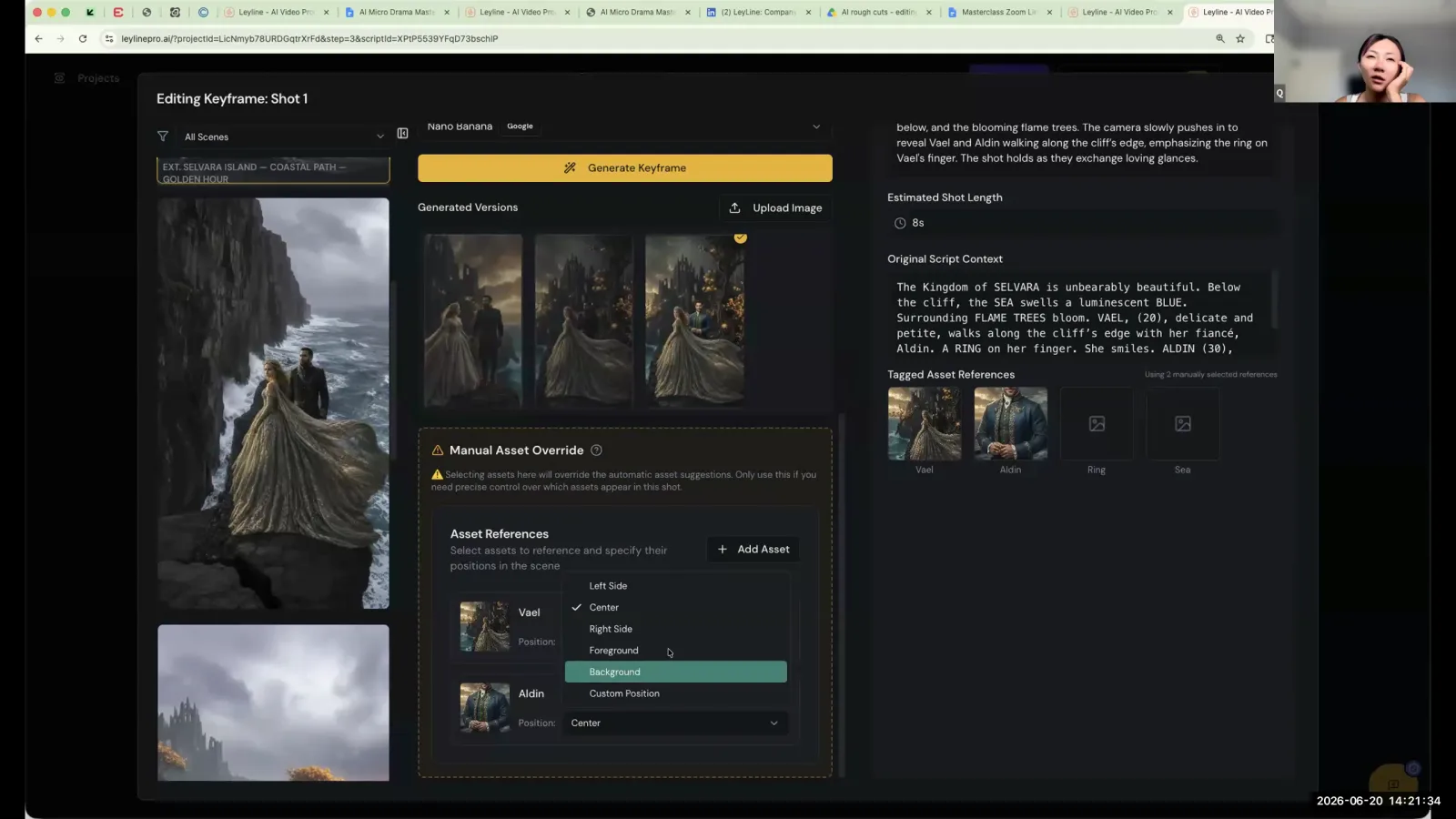
Use the Manual Asset Override tool to manually place characters and props in the scene for more precise control.
Step 6. Repeat the generation process until you get an image you are satisfied with. It may take more than 10 attempts.
This is an iterative process that requires patience.
Correct an Image's Aspect Ratio
Sometimes the AI generates an image in the wrong orientation, such as horizontal when you need vertical. This workflow provides the simple steps to correct an image's aspect ratio within the platform.
Step 1. In the keyframe editor, click on the image with the incorrect aspect ratio.
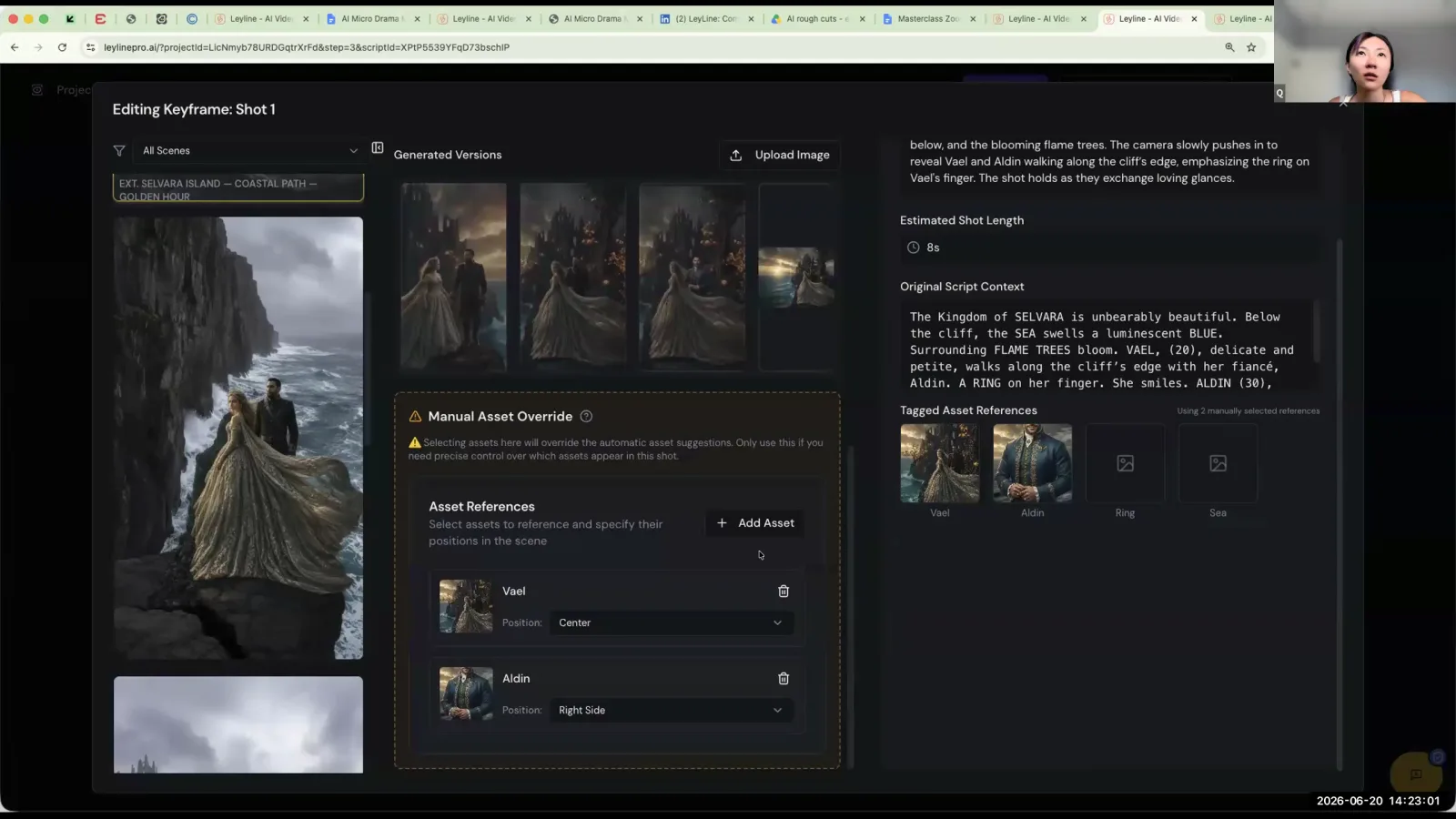
In the keyframe editor, select the image with the incorrect aspect ratio to begin editing it.
Step 2. Use the cropping tool to draw a circle or rectangle around the portion of the image you want to keep.
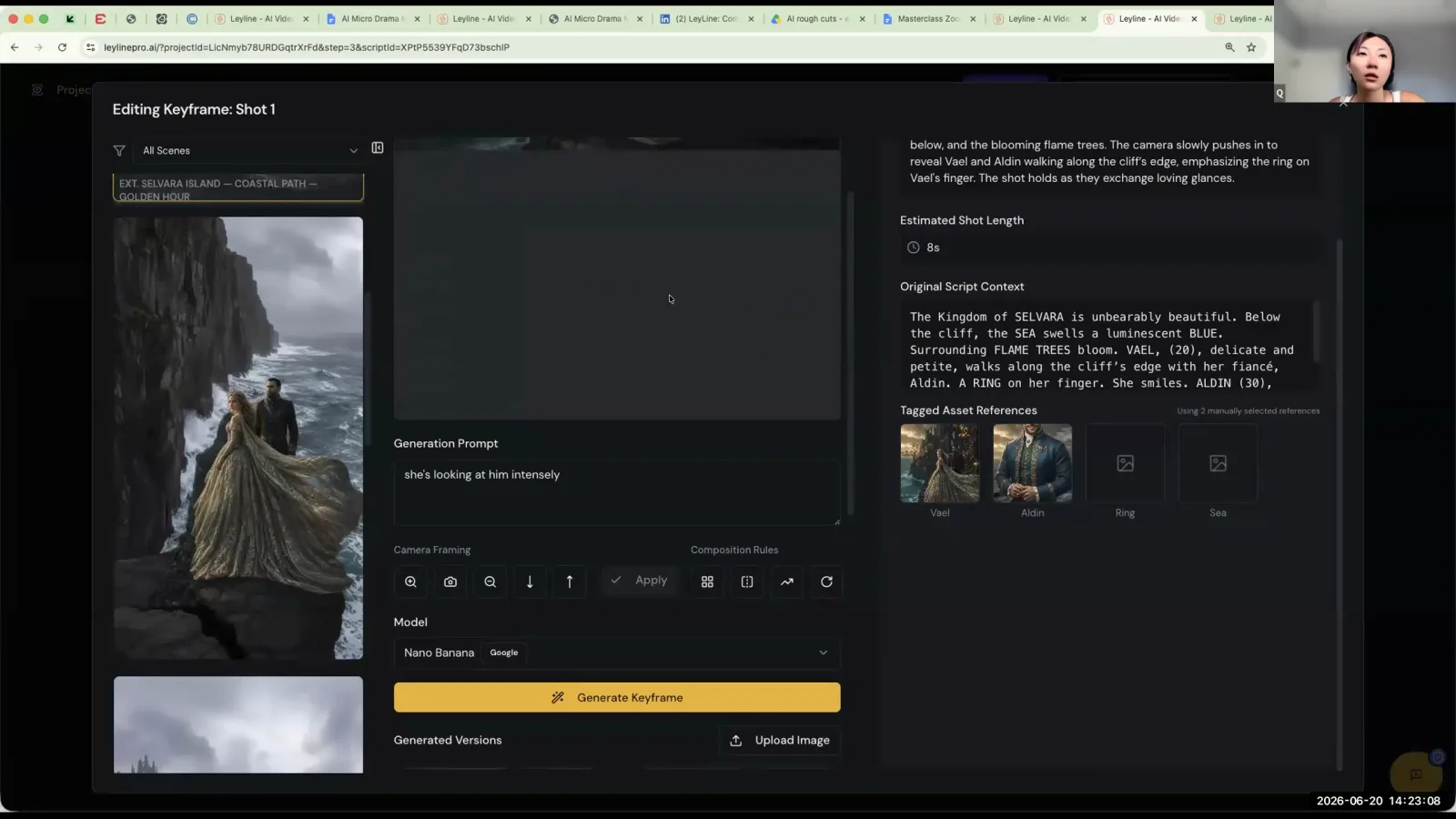
The keyframe editor displays the current image, generation prompt, and camera framing tools.
Step 3. In the prompt box, specify the desired output, such as 'create this as a 9/16 image'.
Step 4. The tool will generate a new, correctly-framed version of the image.
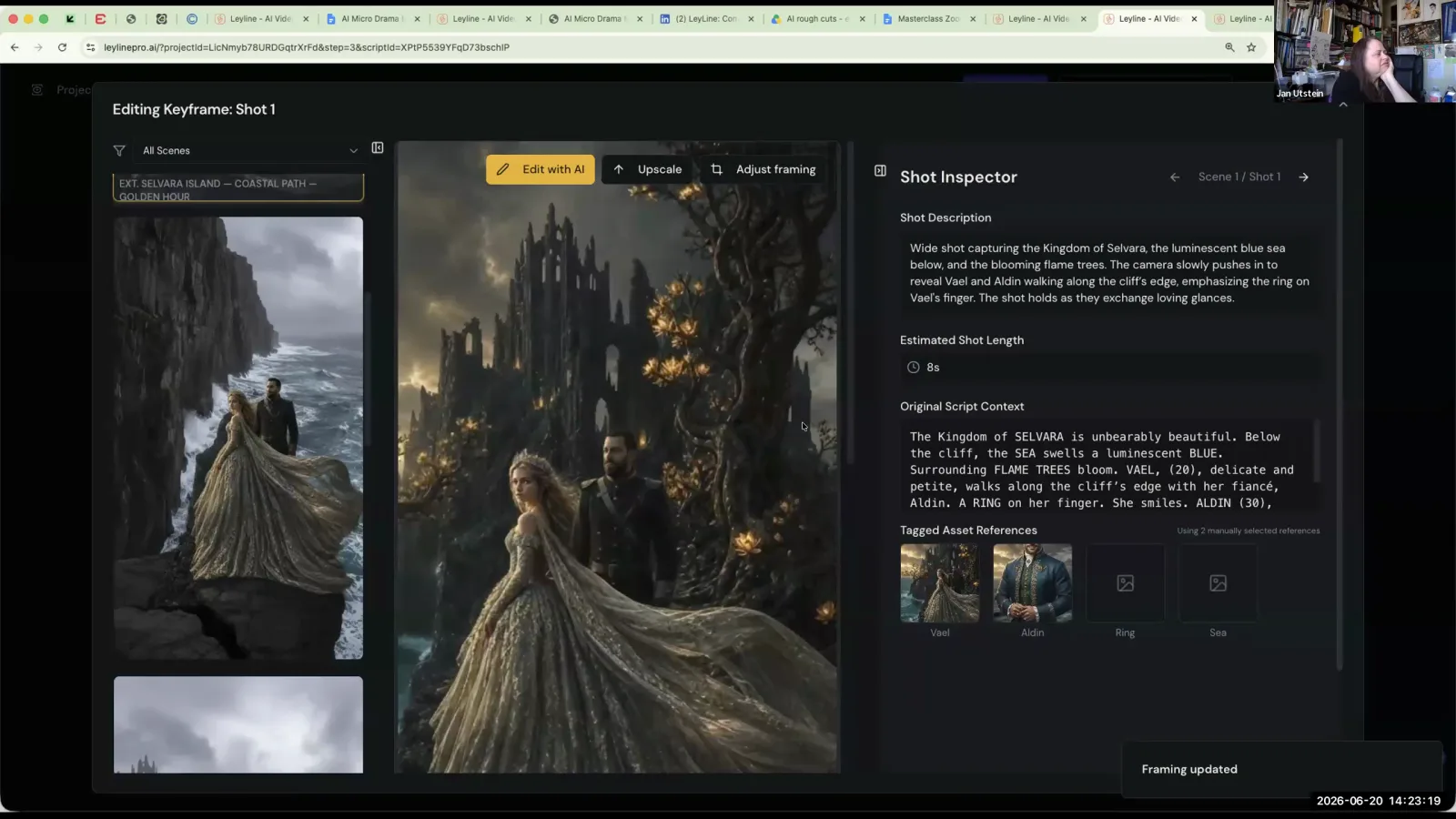
The AI generates a new, correctly-framed version of the shot, confirmed by the 'Framing updated' notification.
Generate a Video Clip from a Keyframe
Once a keyframe image is finalized and correct, you can bring it to life. This workflow details how to use video and negative prompts to animate a static keyframe into a short video clip.
Step 1. After finalizing your keyframes, proceed to the 'Render' stage.
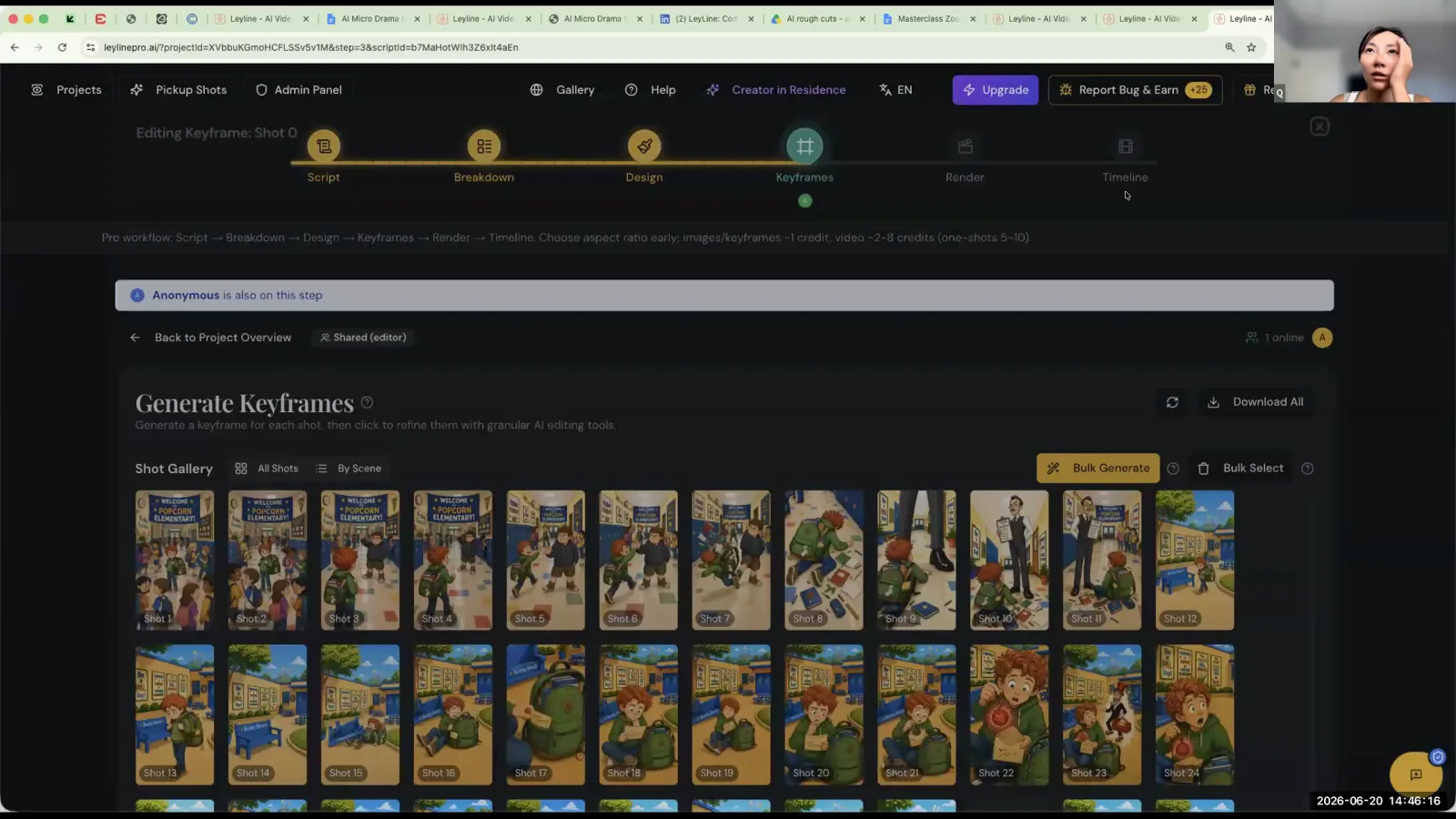
With your keyframes generated, click on 'Render' in the top workflow bar to proceed.
Step 2. For each shot, review the 'Video Prompt' field. This is where you describe the animation and camera movement.
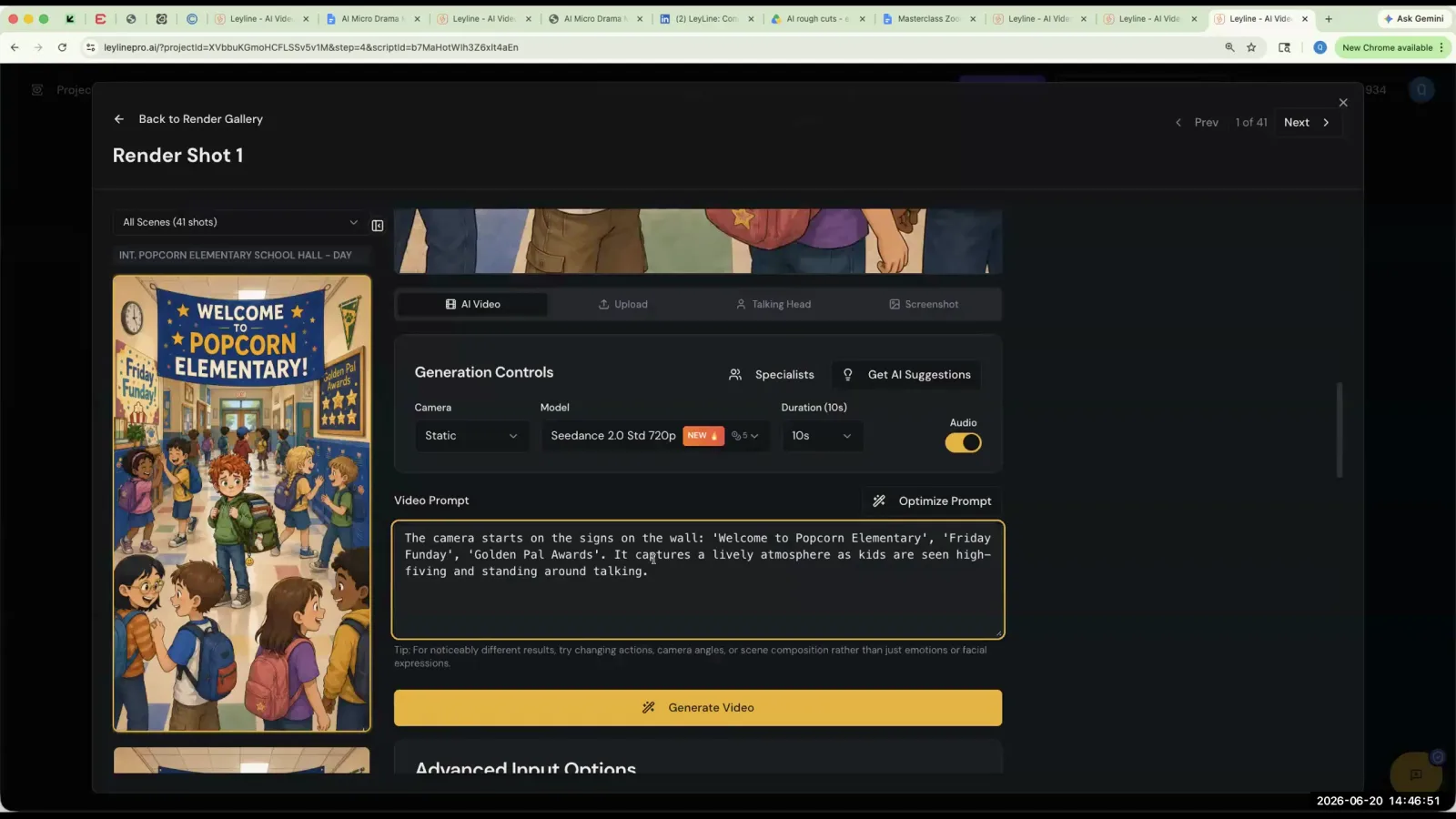
The 'Video Prompt' field contains the text description that guides the AI's animation and camera movement for the selected shot.
Step 3. Write a clear and specific prompt describing the action, for example, 'The character looks up slowly as the camera pushes in'.
Step 4. Select the video generation model you want to use.
Step 5. Click to generate the video. The AI will use the keyframe image and your video prompt to create the animated clip.
Key terms
Hallucination (AI). When an AI model generates information or characters that are not present in the source material, such as creating a non-existent character from a script.
Series Bible. A foundational document for a project that contains all the core information, including characters, locations, props, logline, and conflict. It is used by the AI to maintain consistency.
Synopsis Editor. The interface within the platform where the user can upload or edit the series bible and its core components.
Project Overview Page. The main dashboard for a project where the series bible and overall project settings are managed.
Keyframe Stage. The step in the production pipeline where you generate or upload the static images that will serve as the starting point for each video shot.
80/20 Rule (in AI). The principle that AI can get you about 80% of the way to your desired result, but the remaining 20% requires manual human intervention and refinement.
Edit with AI. A feature that allows users to make small, targeted changes to an existing image using a text prompt and a masking tool, ideal for fixing minor details.
Manual Asset Override. A tool for regenerating an image from scratch by manually placing character and prop assets in the frame and writing a new prompt, used when an image is completely wrong.
Iterative Process. The practice of repeatedly generating and refining an AI output, such as an image, making small adjustments each time until the desired result is achieved.
Aspect Ratio. The proportional relationship between the width and height of an image. In the platform, tools exist to crop or reframe an image to the correct aspect ratio, like 9:16 for vertical shorts.
Script Breakdown. The process where the AI analyzes a script and breaks it down into a sequence of individual shots, each with a description, camera angle, and action.
Cascading Changes. The principle that changes made in an earlier stage of the production pipeline (like the script breakdown) will automatically affect all subsequent stages (like keyframes and rendering). Changes do not flow backward.
Download CSV. A feature that allows users to export the script breakdown or shot list as a CSV (Comma-Separated Values) file, which can be opened in spreadsheet software like Excel.
Video Prompt. The text description provided in the render stage that instructs the AI on how to animate a static keyframe, including camera movements and character actions.
Negative Prompt. A prompt used in AI generation to specify what you do not want to see in the output, such as 'no red dress'.
Sync Bible. A function that updates the project's main series bible with information from a later stage, like the script level. It requires manual approval to avoid unintended overwrites.
Common mistakes to avoid
- Hitting the 'Generate Series Bible' button multiple times, which causes the AI to build upon its own previous generation, leading to hallucinations.
- Trying to fix rendering issues in the final video stage instead of going back to the keyframe stage to correct the source image first.
- Deleting an entire keyframe/shot to replace it, which shifts the numbering of all subsequent shots, instead of simply uploading a new image to the existing shot.
- Regenerating the script breakdown and expecting it to be identical to a previous version; each generation is unique.
- Uploading a script directly without first establishing a series bible, which can lead to the AI generating a bible with incorrect or hallucinated details.
- Assuming that text fields on the main project page are not editable when they are simple input boxes.
- Confusing the 'Generate' button for a 'Save' button, leading to unwanted regeneration of content.
- Not being specific enough in prompts for image generation or video animation, leading to generic or incorrect results.
Frequently asked questions
What is a series bible and why is it important for AI filmmaking?
A series bible is a foundational document containing all character, setting, and plot details for a project. It is critical for AI filmmaking because it provides a single source of truth for the AI, ensuring consistency and preventing the generation of incorrect or hallucinated details across your shots.
How to fix AI character hallucinations in a script breakdown?
To fix AI character hallucinations, you must start with a well-defined series bible before generating the script breakdown. Avoid repeatedly pressing the 'Generate Series Bible' button, as this causes the AI to build on its own errors. A pre-written bible provides a stable foundation for the AI to work from.
How to maintain character and wardrobe consistency in AI-generated video?
Maintain consistency by establishing a detailed series bible from the start. If the AI generates an inconsistent keyframe, correct it at the image stage using iterative prompts or manual override. Fixing the source image before animating prevents the error from carrying over into the final video and affecting subsequent shots.
How to replace a keyframe without messing up my shot list?
To replace a keyframe image without reordering your shot list, use the 'Manual Asset Override' feature. Instead of deleting the entire shot, which shifts the numbering of all subsequent shots, you can simply upload a new image directly into the existing shot's keyframe slot, preserving your project's structure.
What is the difference between 'Edit with AI' and 'Manual Asset Override'?
'Edit with AI' involves iteratively prompting the AI to regenerate an image until it meets your requirements, which is useful for refining details. 'Manual Asset Override' allows you to bypass the AI entirely and upload your own pre-existing or externally edited image directly into a specific shot's keyframe slot.
Why does my AI script breakdown change every time I generate it?
Each time you generate a script breakdown, the AI performs a unique interpretation of the source material because the process is not deterministic. To ensure consistency, generate the breakdown once from a solid series bible and then work from that version, downloading a CSV for a stable reference if needed.
In the instructor’s words
“This is, I guess what they call hallucinating. Because it's got a lot of stuff that my script has nothing to do with.”
“The AI sometimes can read it and sometimes, it's not 100%. We'll try to make it more accurate, but 100% accuracy is not really with this new wave of technology.”
“When you did it the first time, all it did was extracting the information from your script and made it into a Bible. The second time you hit it, the program used the information that was generated the first time to recreate. So there's more liberty that it has taken.”
This tutorial was produced from the Leyline Masterclass recording (Cohort 1, Session 5, 2026-06-20). Screenshots are captured directly from the session.