The Complete Use AI in Filmmaking Guide
This use ai in filmmaking guide explains the process of generating short AI video clips from text descriptions, known as prompts. This method allows creators to produce visual content by specifying subjects, actions, and camera movements, which an AI model then interprets to create a moving image. According to AI filmmaker Austin Zartman, creator of the AI short-film series ASHES, success in this field hinges on understanding how to communicate clearly with the AI and leveraging specific techniques to refine the output. The process rewards simplicity and directness, turning a filmmaker's written ideas into visual sequences for AI video projects.
How to Write an Effective AI Video Prompt
An effective AI video prompt contains three essential components: the subject, the action, and the technical specifications. AI filmmaker Austin Zartman advises that for video generation, "it rewards simplicity and clarity." Breaking your prompt down into these parts ensures the AI has a clear directive. Start with the main focus of your shot, add the specific movement it should perform, and finish with any camera instructions. This structured approach minimizes ambiguity, which is crucial when working with an AI model. The more precise your language is, the more likely the generated AI video will match your creative vision.
Zartman outlines the structure with a clear example from his work on the series ASHES:
- Subject: This is the main character or object in your scene. For example,
a slim humanoid robot. - Action: This describes what the subject is doing. The action should be singular and clear, such as
walking down the street away from the camera. - Technical Specifications: This includes camera movements or shot types. Examples include
dolly shotorcamera pans left.
A crucial best practice is to limit each prompt to a single focus. "In general, it is a best practice to have one action per prompt and at most one camera movement," Zartman states. Attempting to combine multiple actions, like a character walking and waving, can confuse the AI model and lead to unpredictable or flawed results. This discipline is vital for building a scene shot by shot. Instead of trying to create a complex sequence in one go, focus on generating individual, high-quality clips that can be edited together later. This modular approach is a cornerstone of a successful AI filmmaking workflow.
Choosing the Right AI Model: A Use AI in Filmmaking Guide
The best AI video model depends on your specific needs, as different models excel at different tasks. Some are better for complex actions, while others specialize in expansive, atmospheric shots. It is important to choose a model that aligns with the goal of your specific clip.
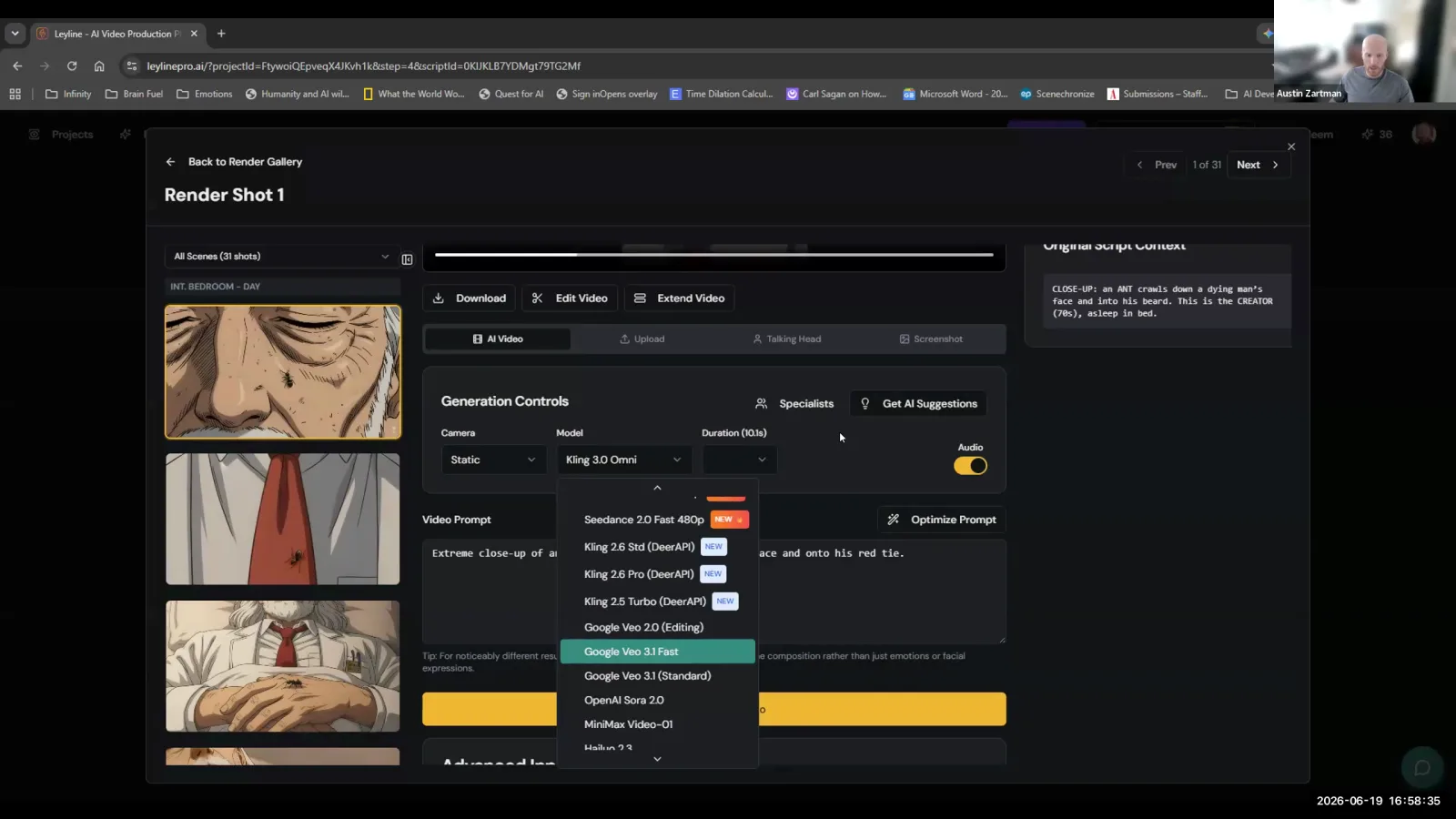
Austin Zartman provides a high-level overview of several capable models available on platforms like Leyline:
- Seedance 2.0: Currently considered the best all-around model. Zartman notes that it "can sometimes handle multiple actions and movements in a single clip" and can generate clips up to 15 seconds long. This makes it a strong choice for more dynamic or complex shots.
- Cling family (e.g., Cling 3.0): These are also very effective models. Cling 3.0 is the newest in this family and offers strong performance for general video generation.
- Google VO 3.1: This model is particularly useful for certain types of scenes. Zartman finds it "very capable for dealing with big like sort of environmental shots where you don't need a ton of control." If you are creating a wide landscape or establishing shot, VO 3.1 is an excellent option.
Experimenting with different models is a key part of the AI filmmaking process. You might use Google VO 3.1 for a sweeping establishing shot and then switch to Seedance 2.0 for a close-up with a specific character action. Understanding their individual strengths allows you to select the right tool for each part of your film. A good practice is to run the same prompt through multiple models to see which one delivers the best result for your vision.
What is the best video quality for AI-generated clips?
For AI-generated video clips, 720p is the recommended minimum quality setting. This resolution provides a clean image without the noticeable graininess that can appear at lower settings. According to Austin Zartman, this is especially important for how audiences consume media today.
"I find that 720p is kind of like the minimum video quality where you don't really notice that it's... grainy at all," he explains. When generating clips at a lower resolution, such as 480p, the visual artifacts become more apparent, which can detract from the viewing experience. Since much of the content is viewed on mobile devices, 720p strikes a good balance between quality and file size. For professional-looking results, Zartman advises, "sticking with 720p and above is what you want to be at."
How to Fix Unwanted Elements in AI Video
To fix recurring unwanted elements in AI-generated video, you can use a negative prompt. This technique involves explicitly telling the AI model what to exclude from the generation. It is a powerful tool for refining your output when the model repeatedly makes the same mistake or introduces an element you don't want.
Austin Zartman provides a concrete example from his own work. While trying to generate a shot of an ant crawling on an old man's hands, the AI kept making the hands move and shift unnaturally. To solve this, he used the negative prompt feature. "What I said was 'the man's hands do not move' and added that to the negative prompt," Zartman recalls. "And then the next time I generated it, his hands did not move." This demonstrates how a simple, direct negative command can correct a persistent issue. This method is far more efficient than repeatedly regenerating a clip and hoping for a better outcome.
Can AI generate dialogue and lip-sync?
Yes, more capable AI video models can generate characters speaking dialogue with corresponding lip-sync directly from a text prompt. This feature allows filmmakers to create scenes with speaking characters without needing separate animation or VFX software for lip-syncing. The AI interprets the dialogue within the prompt and animates the character's mouth to match the words.
According to Zartman, the more advanced models like Seedance, Google VO, and Cling 3.0 are equipped with this capability. To use it, you simply include the dialogue in the action portion of your prompt. For instance, a prompt could be, "the old man wakes up and says, 'hello, Ruby.'" The AI would then generate a video of the man waking up while his lips form the words "hello, Ruby." This integrated feature streamlines the process of creating dialogue-driven scenes in an AI workflow, making it useful for pre-visualization and animated storyboards.
How can you edit specific parts of an AI-generated scene?
You can edit a specific element within an AI-generated keyframe using in-generation editing tools. This process, sometimes referred to as in-painting for video, allows you to make targeted adjustments to a part of the image without having to regenerate the entire scene. It offers a level of post-generation control that is critical for refining shots.
The method involves isolating the object you want to change and providing a new text command. As Zartman describes, "you can draw a circle over their character and like say 'make it 20% bigger' or something." By drawing a simple shape over the element and typing a command, you can modify attributes like size, color, or even the object itself. This technique is essential for making small corrections or creative adjustments to perfect a shot, bridging the gap between raw generation and post-production.
Frequently asked questions
What are the three parts of an AI video prompt? An effective AI video prompt is built on three core components: the subject (the main character or object), the action (what the subject is doing), and the technical specifications (camera movements or shot types). This structure provides clear instructions to the AI model.
What's a key rule for writing AI video prompts? A primary rule, recommended by AI filmmaker Austin Zartman, is to limit each prompt to one action and, at most, one camera movement. This simplicity helps prevent the AI from getting confused and produces more consistent, predictable results in the generated video clip.
What is negative prompting in AI filmmaking? Negative prompting is a technique where you provide the AI model with instructions on what to avoid generating. If a recurring error appears in your clips, you can add a command like "the character's hands do not move" to the negative prompt field to correct the issue.
What is a good minimum resolution for AI video? A resolution of 720p is the recommended minimum for AI-generated video. This quality level is high enough to avoid the grainy look often seen in lower resolutions like 480p, ensuring the final clip looks clean and professional, especially on mobile devices.
Can AI models create lip-synced dialogue? Yes, advanced AI video generation models such as Seedance 2.0, Google VO 3.1, and Cling 3.0 can generate dialogue and lip-sync automatically. By including the spoken words directly in your text prompt, the model will animate the character's mouth to match the dialogue.
Keep learning
This guide is part of the AI Video Generation and Rough Cuts masterclass lesson.
Related guides:
Comments
Sign in with your Leyline account to join the conversation.