AI Filmmaking Workflow & Asset Management
Cohort 9, Session 3 — taught by Austin Zartman, creator of the AI short-film series ASHES.
To make a film with AI, you must establish a structured production pipeline focused on asset management. The process begins with creating a series bible containing character sheets and reference images, which creates 'tagged asset references'. A script breakdown then automatically links these assets to specific shots, providing the AI with clear visual instructions to maintain character and location consistency throughout the film.
What you will learn
- Understand the importance of a structured production pipeline for AI filmmaking.
- Learn how to properly set up a series bible with character and design assets.
- Master the script breakdown process to ensure characters are correctly tagged in shots.
- Discover how to manually override and tag assets in keyframes to fix consistency issues.
- Learn the correct procedure for uploading pre-generated images as keyframes.
- Recognize how a well-structured project speeds up the creation of subsequent episodes.
- Gain insight into distribution opportunities for AI-generated series on platforms like TikTok.
Set Up Character Assets in the Series Bible
To ensure character consistency from the start, begin by creating a character sheet in the series bible. This links the character's name to a specific reference image for all subsequent AI generation.
Step 1. Navigate to the project overview and access the Series Bible.
Step 2. Click 'Generate Series Bible' to have the AI parse your script and identify characters.
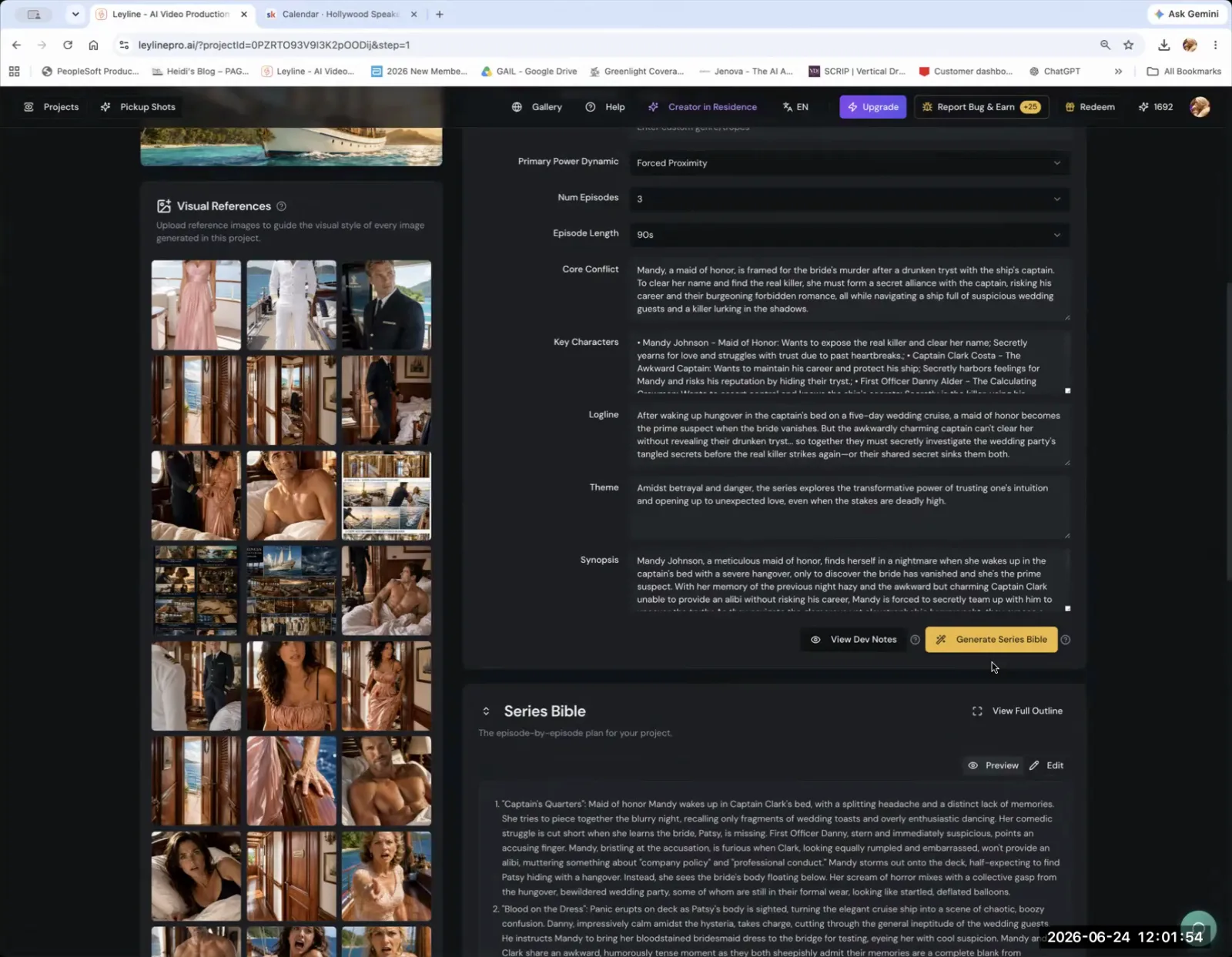
Click the 'Generate Series Bible' button to have the AI create a detailed plan for your project.
Step 3. Scroll down to the 'Design Bible Assets' section where characters are listed.
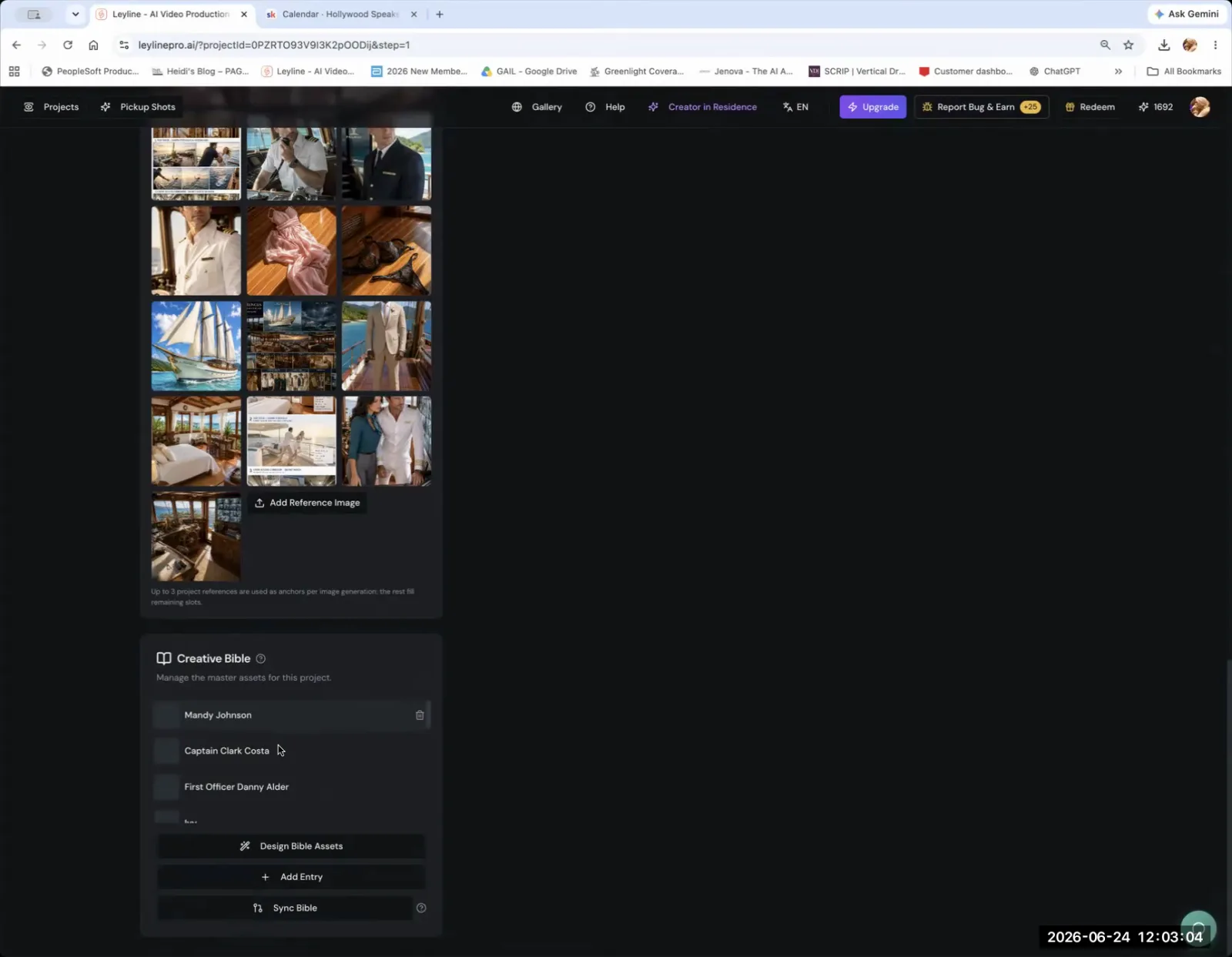
The 'Creative Bible' section lists the project's characters, such as Captain Clark Costa.
Step 4. Click on a character's name (e.g., 'Mandy') to open their asset card.
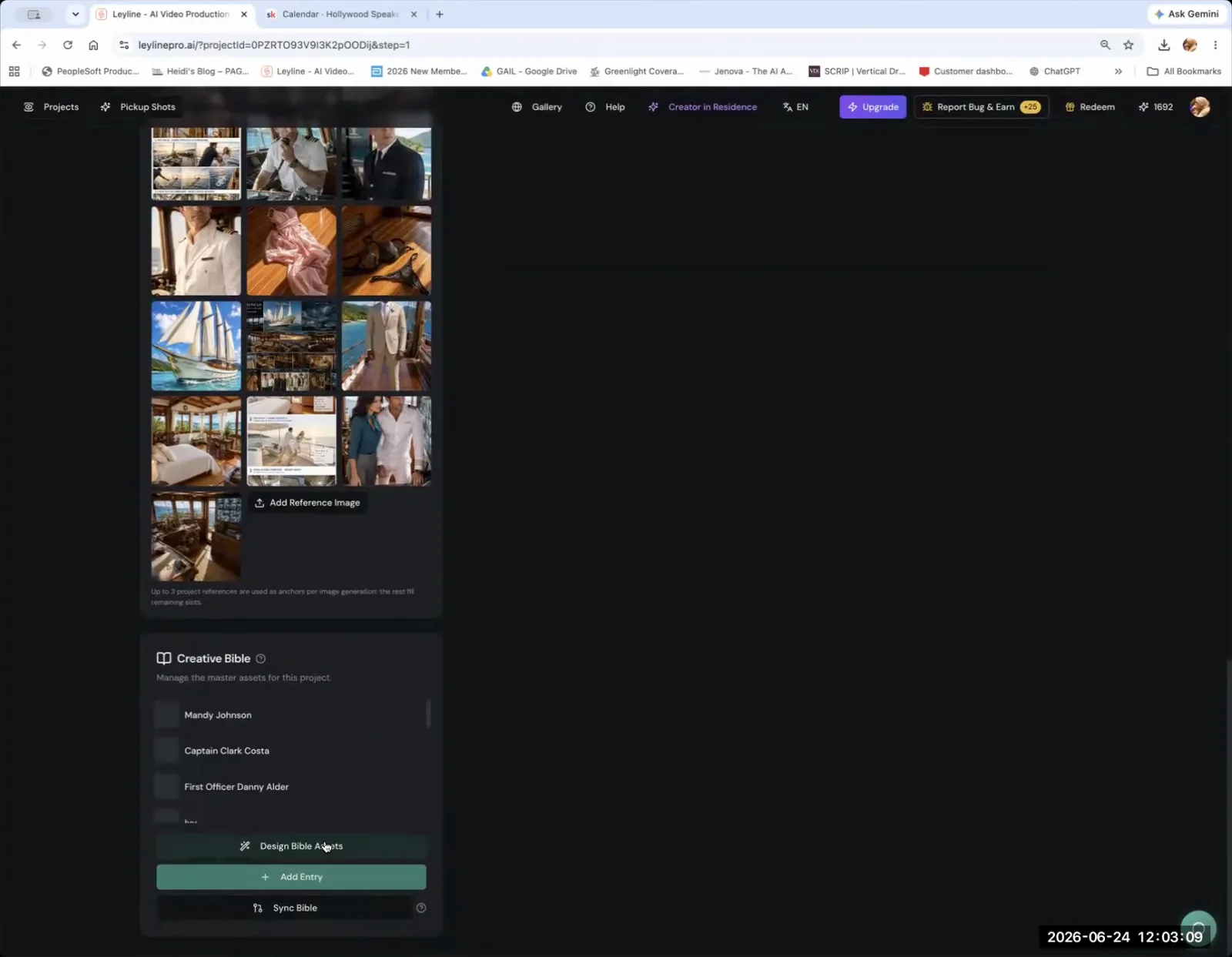
In the Creative Bible section, click 'Add Entry' to create a new asset for your project, such as a character.
Step 5. Upload the main reference image for that character into the designated slot.
Manually Tag Characters in a Shot
If the automated script breakdown fails or was skipped, you can manually tag a character in a specific keyframe. This process corrects consistency issues by directly linking your established character asset to the shot.
Step 1. Go to the 'Keyframes' tab for your episode.
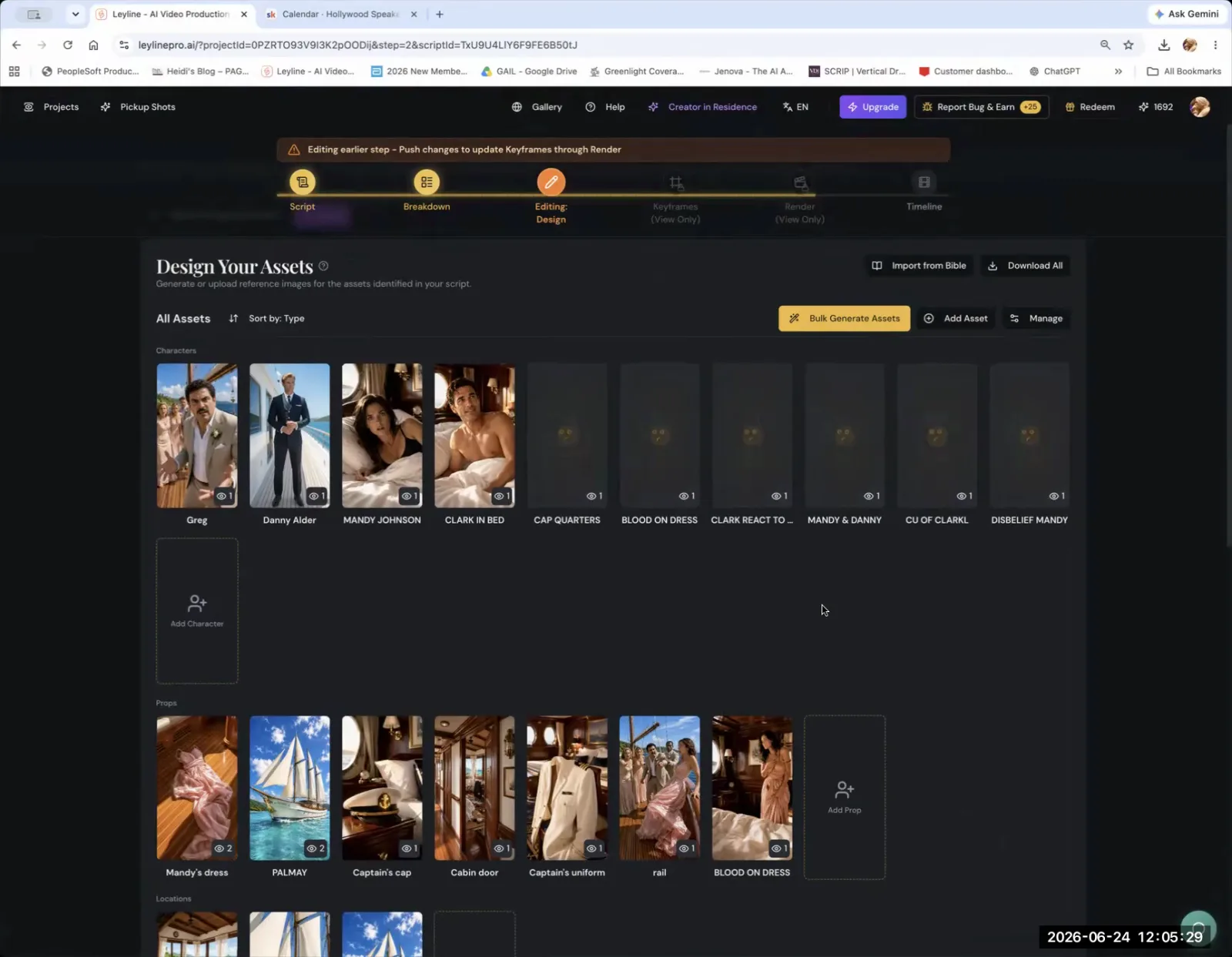
Find the 'Keyframes' tab in the top navigation bar to proceed to the next step.
Step 2. Click to edit the keyframe card for the shot that needs correction.
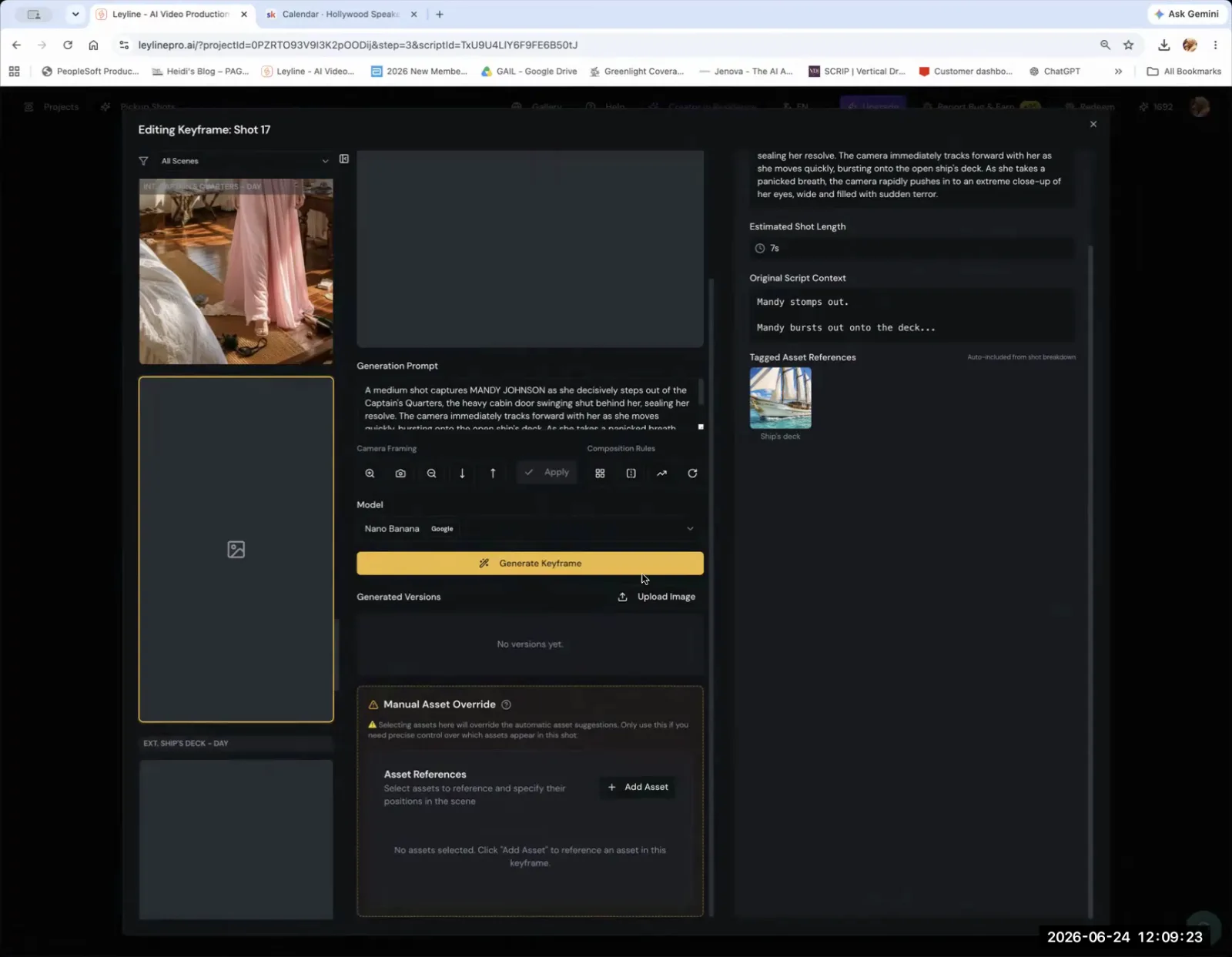
Click the "+ Add Asset" button in the "Manual Asset Override" section.
Step 3. In the right-hand panel, find 'Manual Asset Override' and click 'Add Asset'.
Step 4. Search for and select the character who appears in the shot.
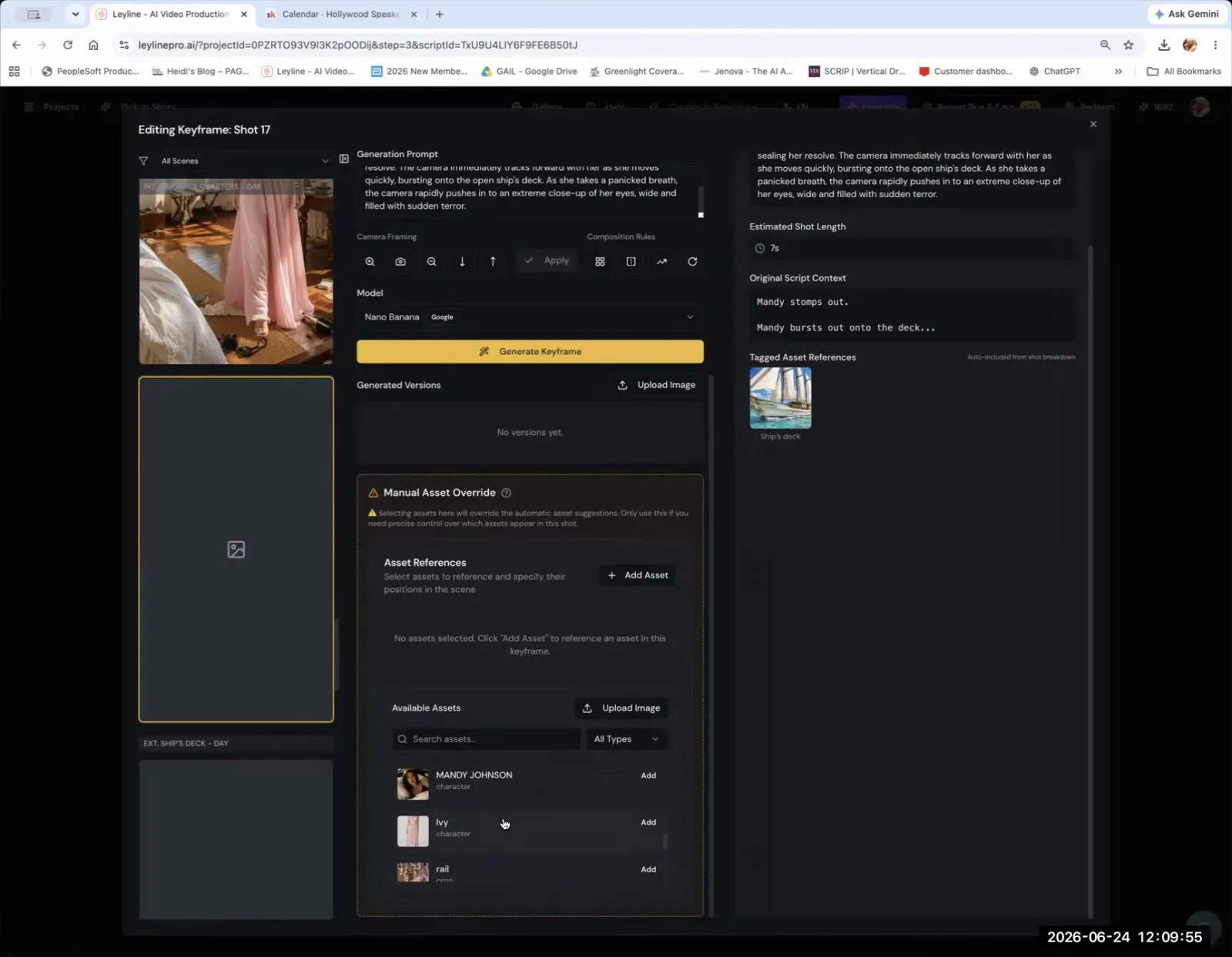
Search for and add the character who appears in the shot from the Available Assets list.
Step 5. Optionally, specify the character's position in the frame (e.g., center, left, right).
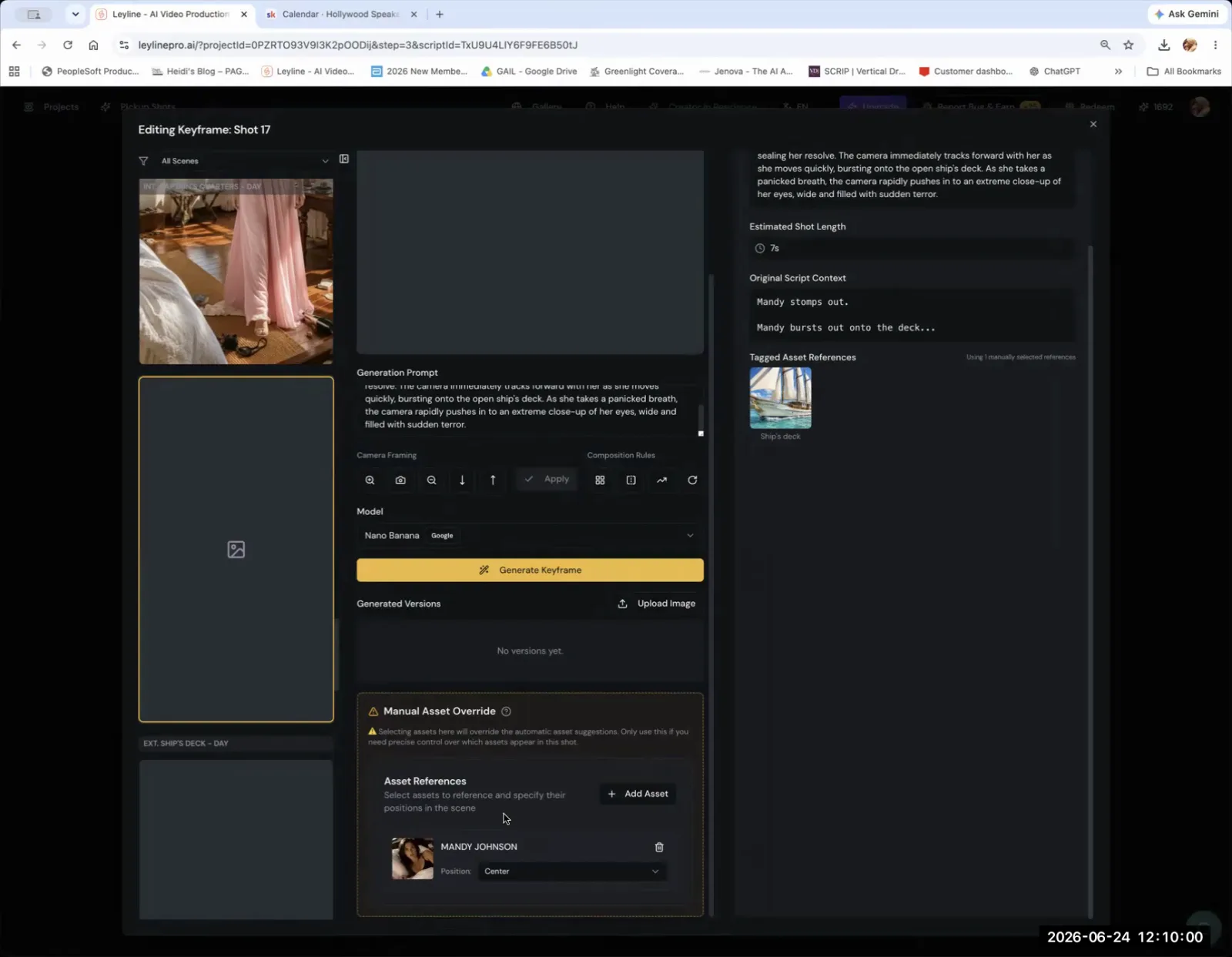
Specify the character's position in the frame, such as 'Center', using the dropdown under Asset References.
Step 6. Confirm to add the character as a tagged asset reference for that shot.
Upload a Pre-Generated Keyframe Image
To incorporate an image created in another tool, you can upload it directly into a shot's keyframe slot. This manual override allows you to use pre-generated assets instead of the platform's generator for that specific frame.
Step 1. Navigate to the 'Keyframes' section of your episode.
Step 2. Click 'Edit' on the empty keyframe card for the desired shot.
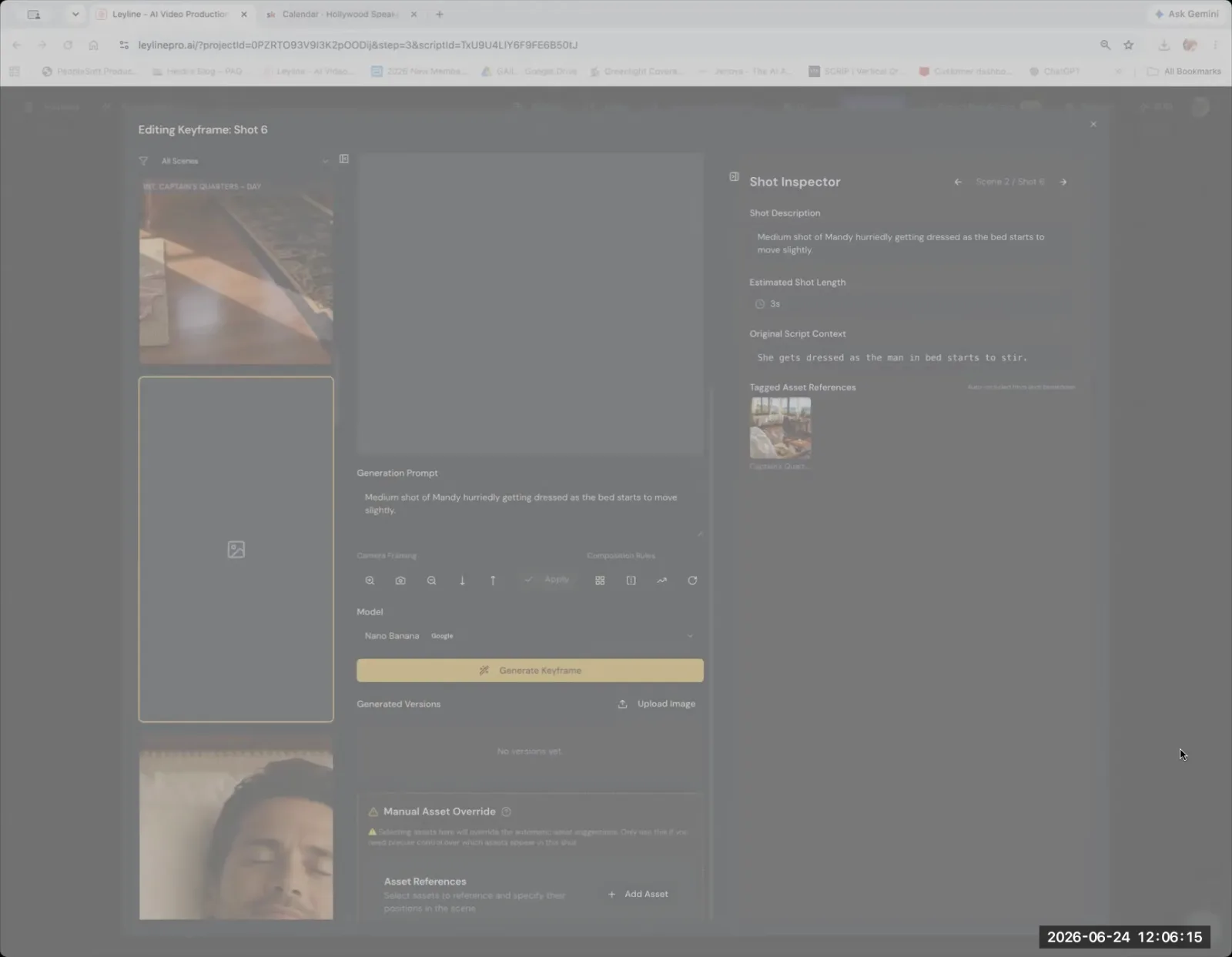
Below the 'Generated Versions' area, click 'Upload Image' to use your own image as a keyframe.
Step 3. In the pop-up window, scroll down and click the 'Upload Image' button.
Step 4. Select the corresponding image from your computer to upload it.
Key terms
Script Breakdown. The process of analyzing a script to identify and tag all production elements, such as characters and locations, for each specific shot. This is a critical step for ensuring the AI correctly references assets for generation.
Series Bible. A central document for a production that contains all core information, including detailed character descriptions, location designs, and story outlines. In the software, it's where primary visual references are stored.
Keyframes. Still images representing the most important visual moments in a sequence. They serve as the primary visual guide for generating the final video shots.
Tagged Asset References. The official link within the software between a character or object in the script and its corresponding visual design from the series bible. This is how the AI model knows which image to use for a character like 'Mandy'.
Manual Asset Override. A feature that allows a user to manually add or change the tagged asset references for a specific shot, bypassing the automated information from the script breakdown.
Character Sheet. A collection of reference images for a character, ideally showing them from multiple angles (like a front view), to ensure consistent generation. This is more reliable than using an in-action keyframe as a reference.
Design Bible Assets. The specific section within the software's series bible where the user uploads or generates the canonical visual designs for recurring characters, props, and locations.
Reference Folder. A general storage area within the project for mood boards and overall style references, which is distinct from the structured asset library used for generation. It is not intended for storing all keyframes.
Production Pipeline. The intended, sequential workflow within the software (Script -> Bible -> Breakdown -> Design -> Keyframes) designed to maximize efficiency and maintain consistency across a project.
Continuity Check. A software feature that analyzes the script breakdown to suggest potential continuity errors, such as assets that should be consistent across different shots.
Indie Production Aggregator. A company that bundles shows from many independent creators to distribute them to large platforms like TikTok, which prefer dealing with a single entity rather than numerous individuals.
Vertical Micro Drama. A genre of short-form, vertically-oriented video series designed for mobile consumption, with its own dedicated industry markets and events.
Common mistakes to avoid
- Uploading all generated keyframes into the general project 'reference' folder instead of into individual keyframe slots for each shot.
- Skipping the script breakdown process, which prevents the software from automatically tagging characters and locations in shots.
- Attempting to generate a character without first uploading a reference image for them in the 'Design Bible Assets'.
- Expecting character consistency by only using the character's name in a text prompt, without ensuring the character is a 'tagged asset reference' for that shot.
- Not following the intended production pipeline in order, which creates significant manual rework and troubleshooting later on.
Frequently asked questions
How to maintain character consistency in AI video?
Establish a character sheet in the series bible with a primary reference image. This creates a 'tagged asset reference' that the AI uses for generation. This method is more reliable for maintaining consistency than only using a character's name in a text prompt and can be manually corrected if needed.
What is a series bible for an AI-generated show?
A series bible is a central repository for project assets like character sheets and design elements. You upload a primary reference image for each character here, creating a 'tagged asset reference'. The AI then uses this tag to maintain visual consistency across shots, which is crucial for multi-episode production.
Can I upload my own images as keyframes in AI video software?
Yes, you can upload pre-generated images directly into a specific shot's keyframe slot. This manual override is for incorporating assets made outside the platform. It's important to place them in the correct keyframe slot, not the general project reference folder, to ensure they appear in the right shot.
What are the most common mistakes in AI filmmaking workflows?
Common mistakes include skipping the script breakdown, which prevents automatic character tagging, and placing all images in a general reference folder instead of specific keyframe slots. Another error is expecting character consistency from a text prompt alone, without first creating a tagged character asset in the series bible.
What is a 'tagged asset reference' in AI video production?
A tagged asset reference is a direct link between a character's name and their primary reference image, established within the series bible. When a script breakdown identifies a character in a shot, it uses this tag to pull the correct visual data, ensuring greater consistency than a name prompt alone.
In the instructor’s words
“The pipeline was designed so that the image matches the shot.”
“This is AI, you need to check its work.”
“You have put a asset library in the reference folder, basically, to the program.”
This tutorial was produced from the Leyline Masterclass recording (Cohort 9, Session 3, 2026-06-24). Screenshots are captured directly from the session.