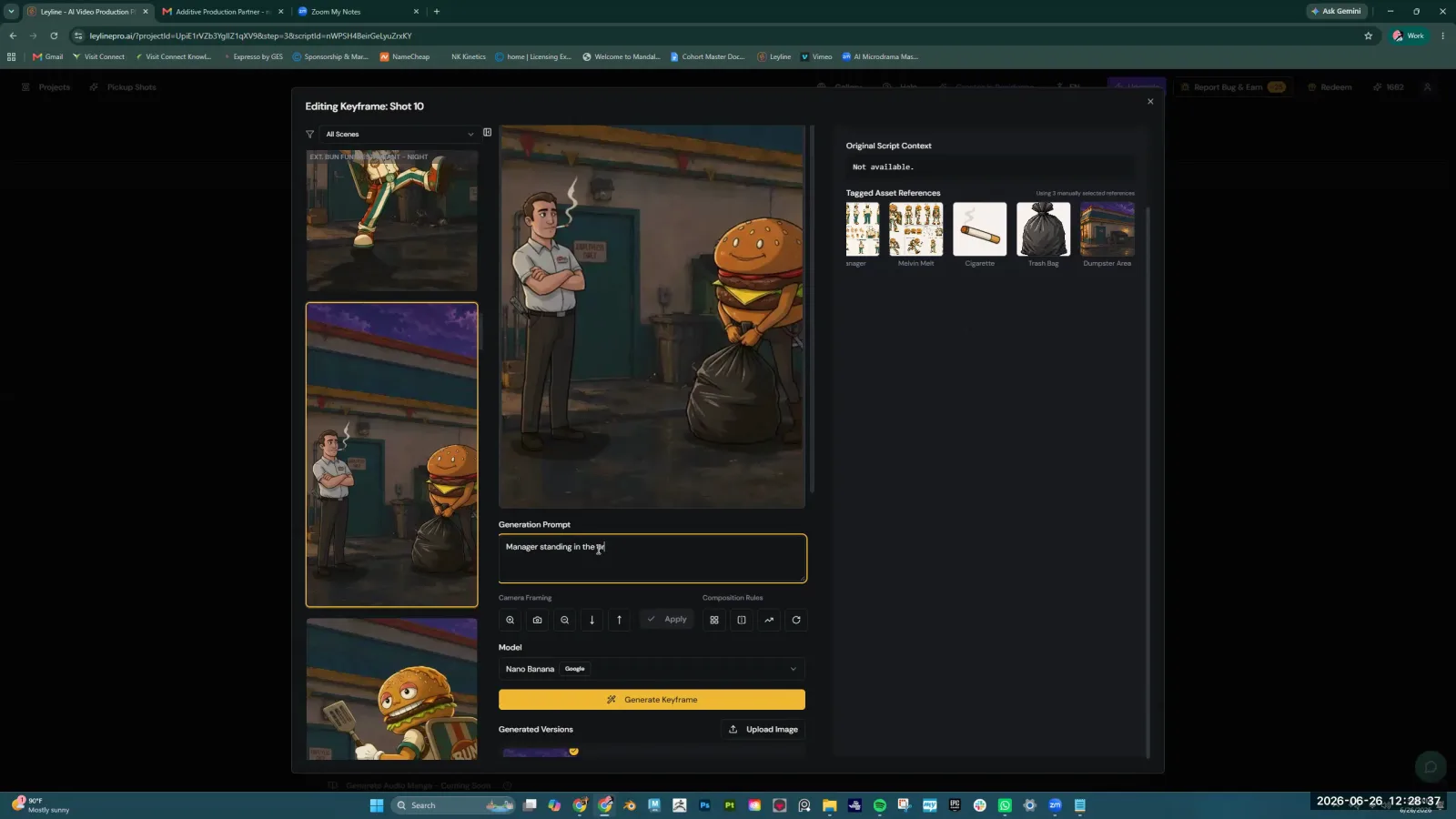
A Practical Guide to Negative Prompting AI Video
Negative prompting is a technique to control AI output by specifying what to exclude. For creators using negative prompting ai video, this means telling the AI what not to generate—which is as important as telling it what you want. This feature helps prevent unwanted artifacts, styles, or inconsistent elements.
As AI filmmaker Austin Zartman discussed in a masterclass, negative prompting can stop an AI from adding random audio to clips, giving you full control over your project's sound design. This guide explains how to use negative prompts effectively in your AI video workflow.
Key Uses for Negative Prompting AI Video
The primary use of negative prompting ai video is to remove unwanted elements from the final render, ensuring greater creative control and consistency. While a positive prompt directs the AI on what to create, a negative prompt refines the output by setting clear boundaries on what to avoid. This is a fundamental tool for steering the AI toward a specific vision.
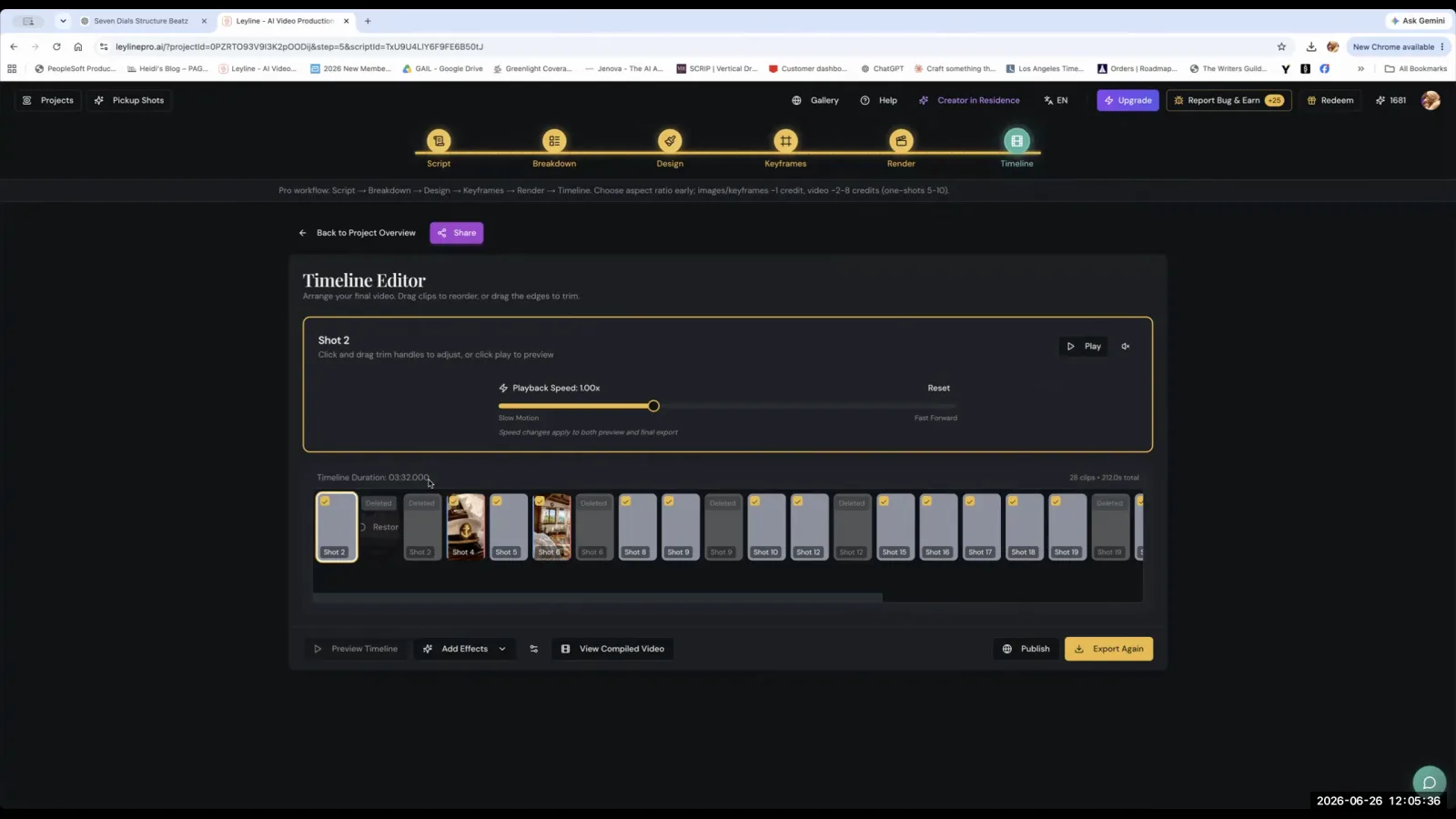
One of the most practical applications is managing audio. During a masterclass, AI filmmaker Austin Zartman addressed a scenario where an AI tool added different music to each generated clip, creating a disjointed final product. "Every music that it's put behind the video is different in each clip," an attendee explained.
The solution, confirmed by Zartman, is to use the negative prompt feature. By adding "no music" as a negative, the filmmaker instructs the AI model to generate silent video clips. This provides a clean slate for adding a deliberate, cohesive soundtrack during the editing phase.
Beyond audio, negative prompting is widely used to control visual elements in AI video. Common use cases include:
- Correcting Visual Artifacts: Use a negative prompt like "blurry, grainy, distorted, watermark, signature, text" to improve the clarity and professionalism of the output.
- Avoiding Unwanted Styles: If the AI defaults to a certain aesthetic, you can exclude it. For example, adding "cartoon, anime, 3D render, photorealistic" can help guide the model toward a more specific or unique visual style.
- Removing Specific Objects or Figures: To declutter a scene, you can use a negative to remove distracting elements. Prompts like "crowd, cars, modern buildings" can help achieve a specific setting or time period.
- Fixing Anatomical Issues: When generating characters, AI can sometimes produce errors. Negative prompts like "extra limbs, fused fingers, deformed hands, poorly drawn face" are essential for cleaning up anatomical inaccuracies.
How to Apply a Negative Prompt to Your Clips
You cannot apply a negative prompt to an existing clip; you must re-render the clip from the original prompt while including the new negative instruction. This is because negative prompting is a command given to the AI during the generation process itself. It is not a post-production filter or effect.
This workflow was highlighted when a filmmaker in an Austin Zartman masterclass realized they needed to fix unwanted music across their entire project. They stated, "That's what I'm going to do is go back through all 41 prompts and redo it." This quote illustrates the reality of the process: fixing an issue at the source requires regeneration.
The Re-rendering Workflow
If you discover a recurring unwanted element after generating a batch of clips, follow these steps:
- Identify the Problem: Review your generated clips and pinpoint the specific, recurring element you want to remove (e.g., inconsistent background music, a persistent watermark).
- Locate the Source Prompts: Return to the original text prompts you used to generate each clip.
- Add the Negative Prompt: In the dedicated negative prompt field of your AI tool, enter the instruction. For the music issue, you would add "no music."
- Generate Again: Re-run the generation for all affected clips. This will consume more time and generation credits, but it is the only way to fundamentally remove the unwanted element from the AI video.
The need to re-render underscores the importance of planning and testing. When starting a large project, generating a few test clips with preemptive negative prompts (like "blurry, watermark") can save significant time and resources later on.
Why Negative Prompting is Crucial for Consistency
Negative prompting is important for consistency because it eliminates random variables that AI models might introduce, establishing a uniform baseline across all generated clips. Without it, the AI can make its own creative choices that disrupt the coherence of a larger project.
The core problem discussed in Austin Zartman's masterclass was twofold: the AI added music, and that music was different in each of the 41 clips. This made it impossible to assemble them into a cohesive scene with a single, continuous emotional tone. Using a negative prompt to remove all music ensures every clip is silent, providing a blank canvas.
This level of control is essential for professional filmmaking. It allows the creator to make deliberate choices about sound design, scoring, and style in a dedicated video editing program.
Negative prompting ai video transforms the AI from a source of random outputs into a more predictable and directable tool. By systematically excluding what you don't want, you gain precision over the final product, ensuring that every shot aligns with your creative intent.
Best Practices for Writing an Effective Negative Prompt
Effective negative prompts are typically simple, specific, and built iteratively by testing their impact on the AI video output. The goal is to guide the AI clearly without being so restrictive that it hinders the generation process.
Negative prompting works alongside your positive prompt — if you haven't nailed your main prompt yet, read how to write AI video prompts before layering in negatives.
Here are some best practices to follow:
- Start Simple: Begin with one or two keywords. A long, complex negative prompt can confuse the AI or have unintended consequences. For example, start with "blurry" before trying "low resolution, out of focus, motion blur, unclear."
- Be Specific and Clear: Use direct, concrete terms. The AI understands concepts, so feed it the exact concept you want to avoid. "Deformed hands" is more effective than "bad hands."
- Use Comma-Separated Keywords: Most AI video tools allow you to list multiple concepts to exclude in the negative prompt field. A common practice is to build a standard list of quality-control negatives, such as: "text, watermark, logo, blurry, grainy, low quality."
- Test and Iterate: Before generating a large batch of clips, run a few tests to see how the AI responds to your negative prompt. If it works as intended, apply it to the rest of your project. If not, adjust the wording and try again.
- Don't Contradict Your Main Prompt: Ensure your negative prompt doesn't cancel out a key part of your positive prompt. For example, if your main prompt is "a vibrant city street at night full of neon signs," using a negative prompt for "lights" will likely produce poor results.
Frequently asked questions
What is a simple example of a negative prompt?
A simple and practical example of a negative prompt is using the phrase "no music." As discussed in a masterclass with AI filmmaker Austin Zartman, this command instructs the AI video generator to create the visuals described in the main prompt but to specifically avoid adding any background audio or soundtrack.
Can I add a negative prompt to a video I already made?
No, a negative prompt is an instruction used during the AI generation process itself. To apply it, you must re-render the video from the source text prompt, adding the negative prompt instruction at that stage. You cannot edit it into an existing video file after it has been created.
Does using a negative prompt affect video quality?
Using a negative prompt to remove a specific element like music should not negatively affect the visual quality of the video. Its purpose is to guide the AI on what to exclude, refining the output to better match the creator's vision without degrading the core visual generation.
Is negative prompting only for audio?
No, negative prompting can be used to exclude a wide range of elements. While the example from the masterclass focused on removing music, negative prompts are commonly used in both AI image and video generation to avoid things like specific colors, objects, artistic styles, or common visual artifacts like extra limbs.
Keep learning
This guide is part of the Troubleshooting AI Video Generation masterclass lesson.
Related guides:
Comments
Sign in with your Leyline account to join the conversation.