Troubleshooting AI Script Breakdowns and Asset Management
Cohort 9, Session 1 — taught by Austin Zartman, creator of the AI short-film series ASHES.
Making a film with AI requires manually refining the AI's output rather than relying on a single-click process. You must troubleshoot the initial script breakdown by merging or deleting shots, manage project assets by creating consistent character sheets, and organize elements for multi-episode projects using a 'Creative Bible'. This hands-on approach ensures the final product aligns with your creative vision and maintains consistency.
What you will learn
- Manually edit and refine an AI-generated script breakdown.
- Use CSV files to save and restore different versions of a shot list.
- Create and manage consistent character assets by uploading images or generating them within the tool.
- Organize project assets by merging duplicates and assigning images to characters, locations, and props.
- Utilize the "Creative Bible" feature to maintain consistency across multiple episodes.
- Understand the correct format for uploading a project bible (text-only).
- Select the appropriate project template for different formats like vertical shorts.
Editing an AI-Generated Script Breakdown
This section shows how to manually adjust the shot list generated by the AI, letting you merge or delete shots to better align the breakdown with your script's narrative flow.
Step 1. Review the shots generated by the AI for a specific scene.
Step 2. Identify shots that are redundant or can be combined.
Step 3. Click the three dots next to a shot to open the options menu.
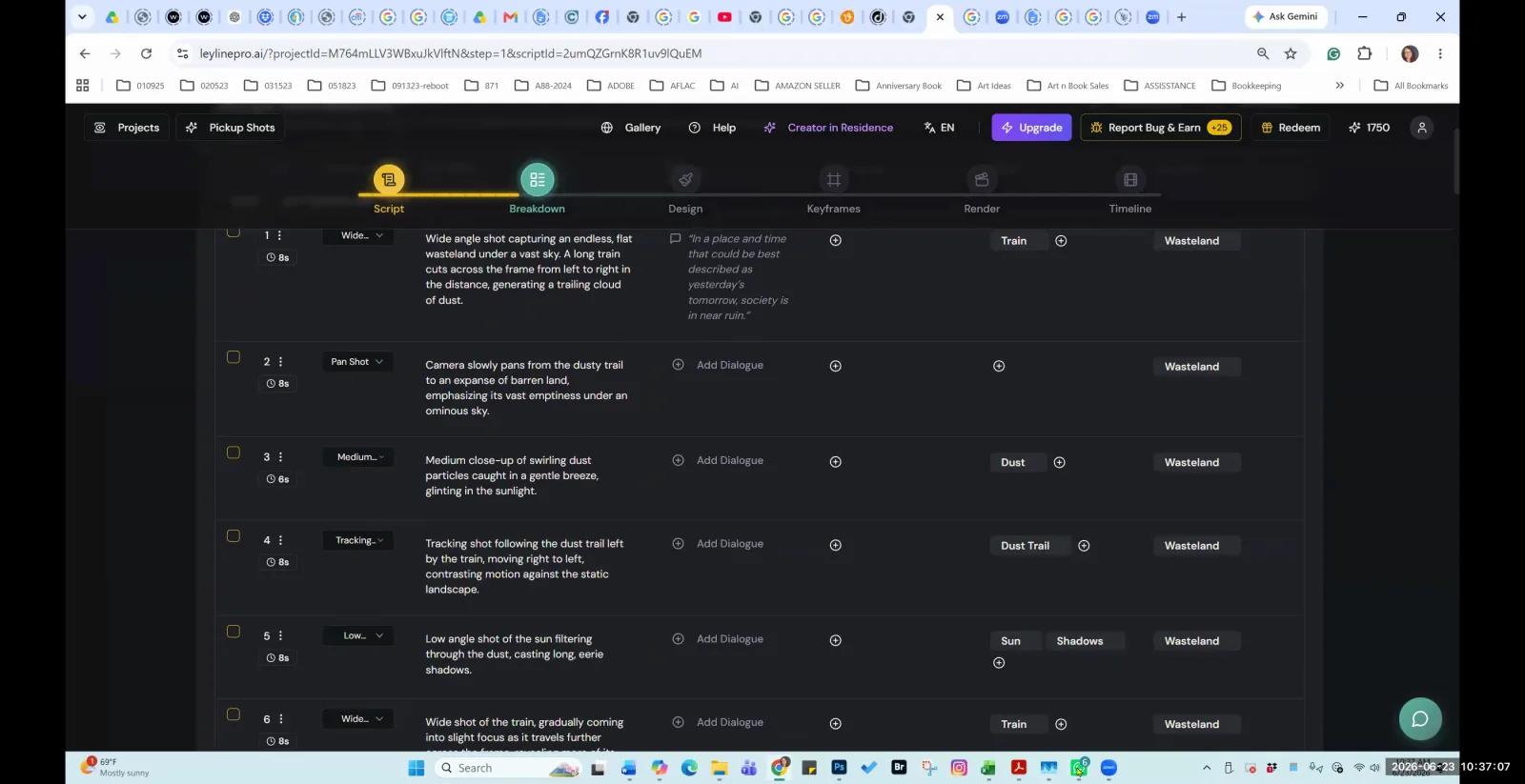
Access more options for a specific shot by clicking the three-dot menu icon.
Step 4. Select "Merge with previous shot" to combine it with the one before it.
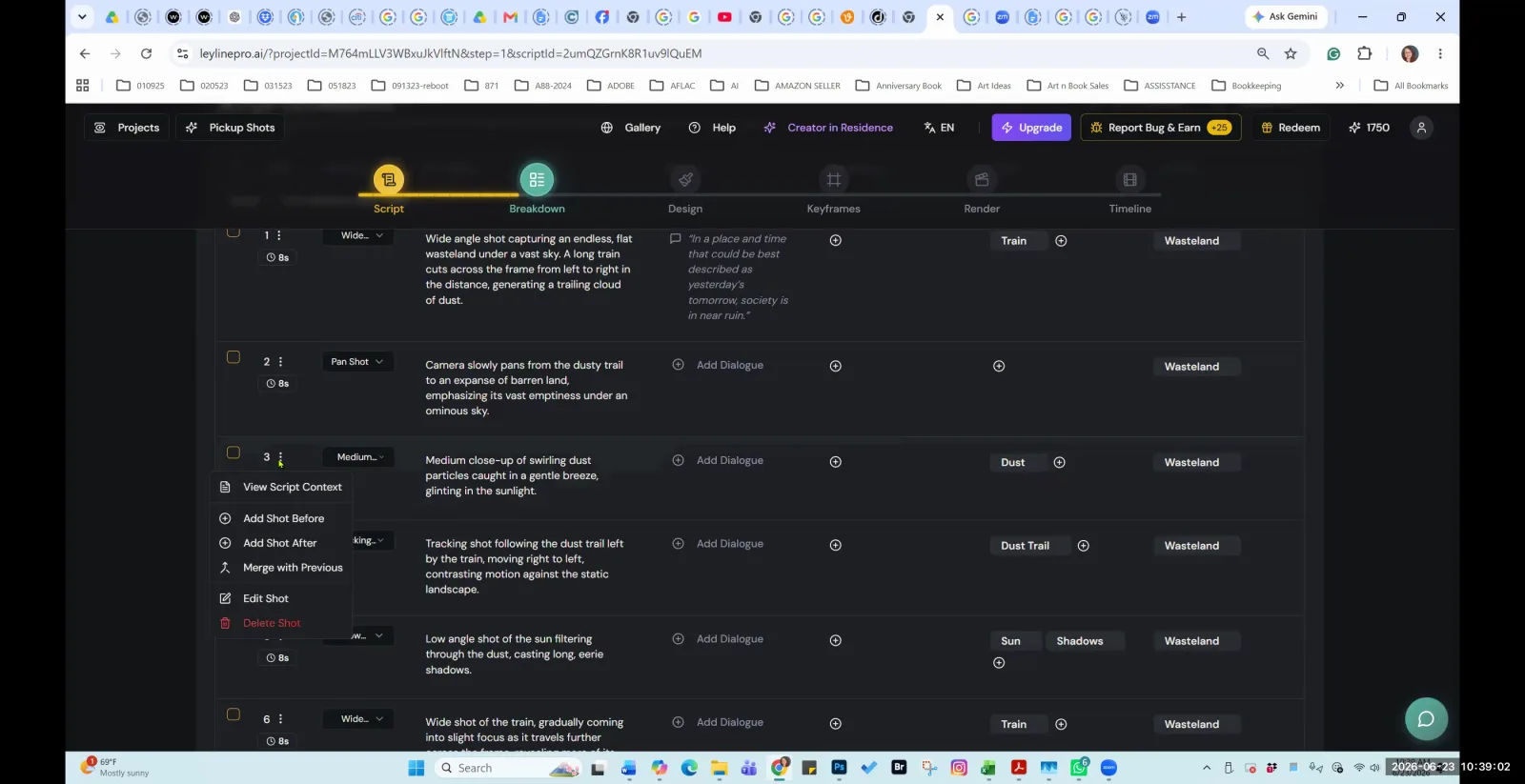
Select 'Merge with Previous' from the shot's context menu to combine two shots.
Step 5. Alternatively, select "Delete the shot" to remove it entirely.
Step 6. After merging, click "Generate AI suggestion" to create a new prompt for the combined shot.
Saving and Restoring a Breakdown with a CSV file
Here, we demonstrate how to export your edited shot list as a CSV file, which creates a backup and allows you to restore a specific version of your breakdown later.
Step 1. In the breakdown view, find and click the option to download the CSV file.
Step 2. Save the CSV file to your computer.
Step 3. To restore this version, click the "Upload CSV" button.
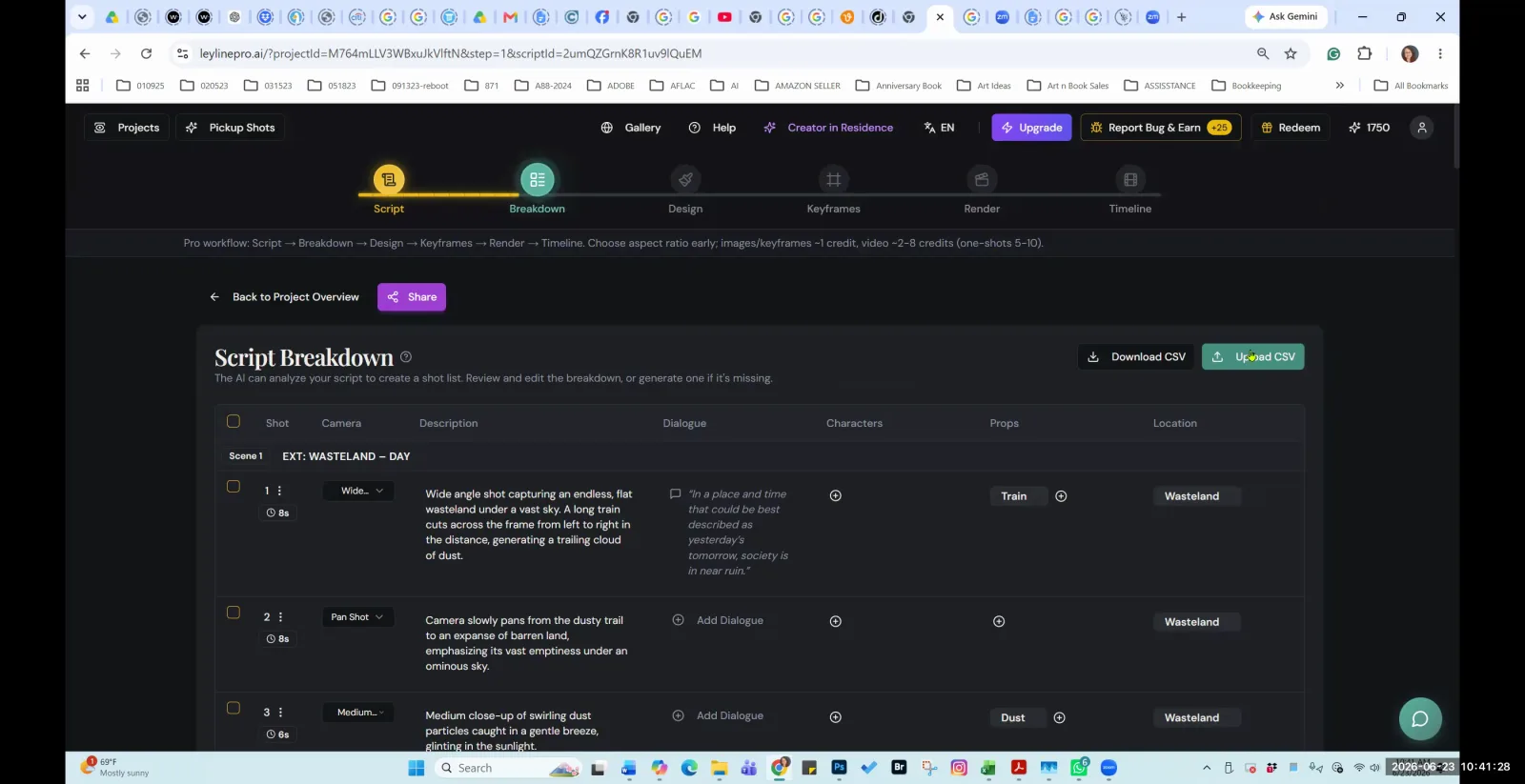
Click the "Upload CSV" button to restore a previously saved version of your script breakdown.
Step 4. Select the previously saved CSV file from your computer to load it back into the project.
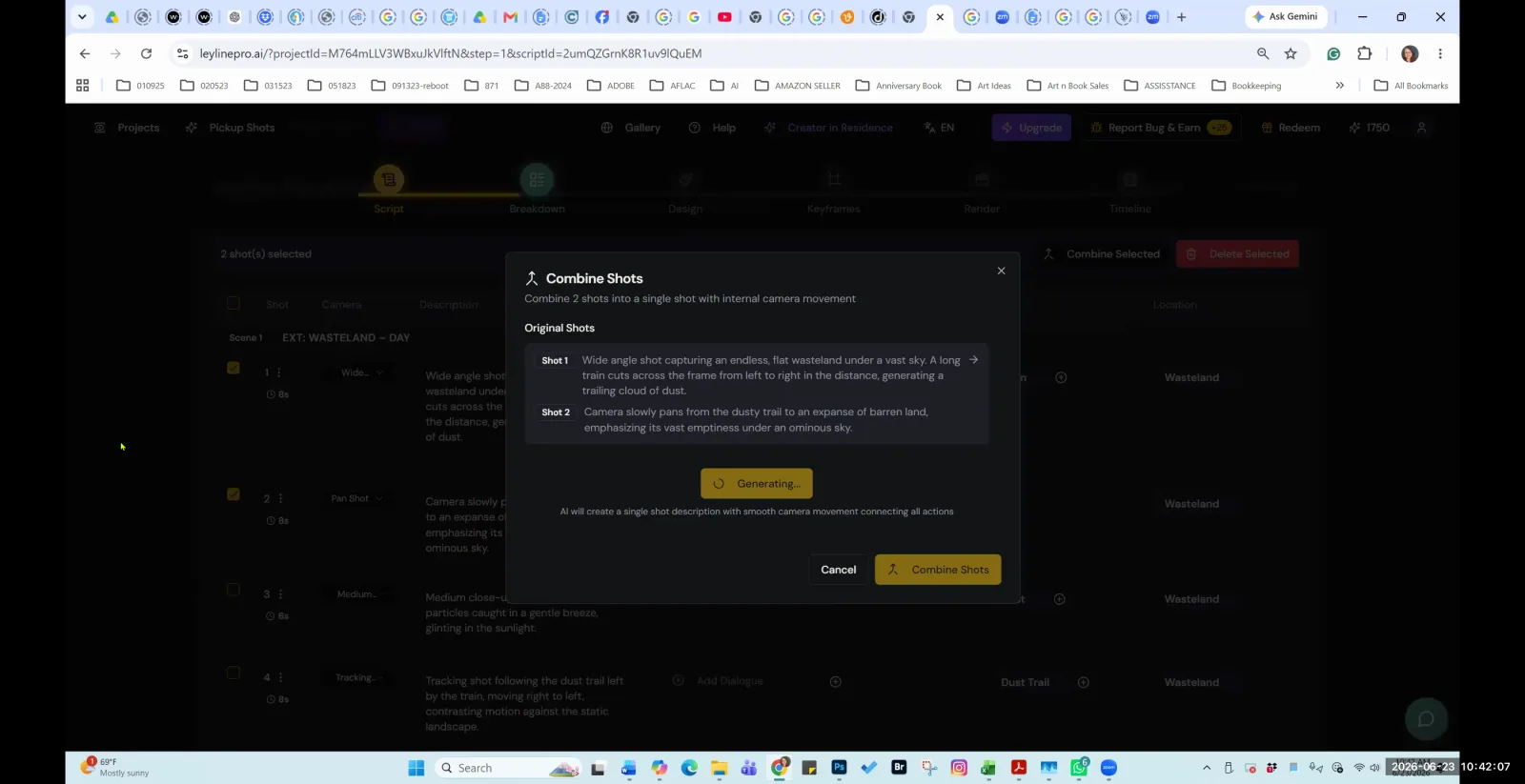
The AI generates a new shot description by combining the two selected shots.
Creating a Consistent Character Design
This workflow focuses on generating a stable character appearance by creating a character sheet with multiple views and using visual references to guide the AI.
Step 1. Navigate to the "Design" tab and select the character asset you want to define.
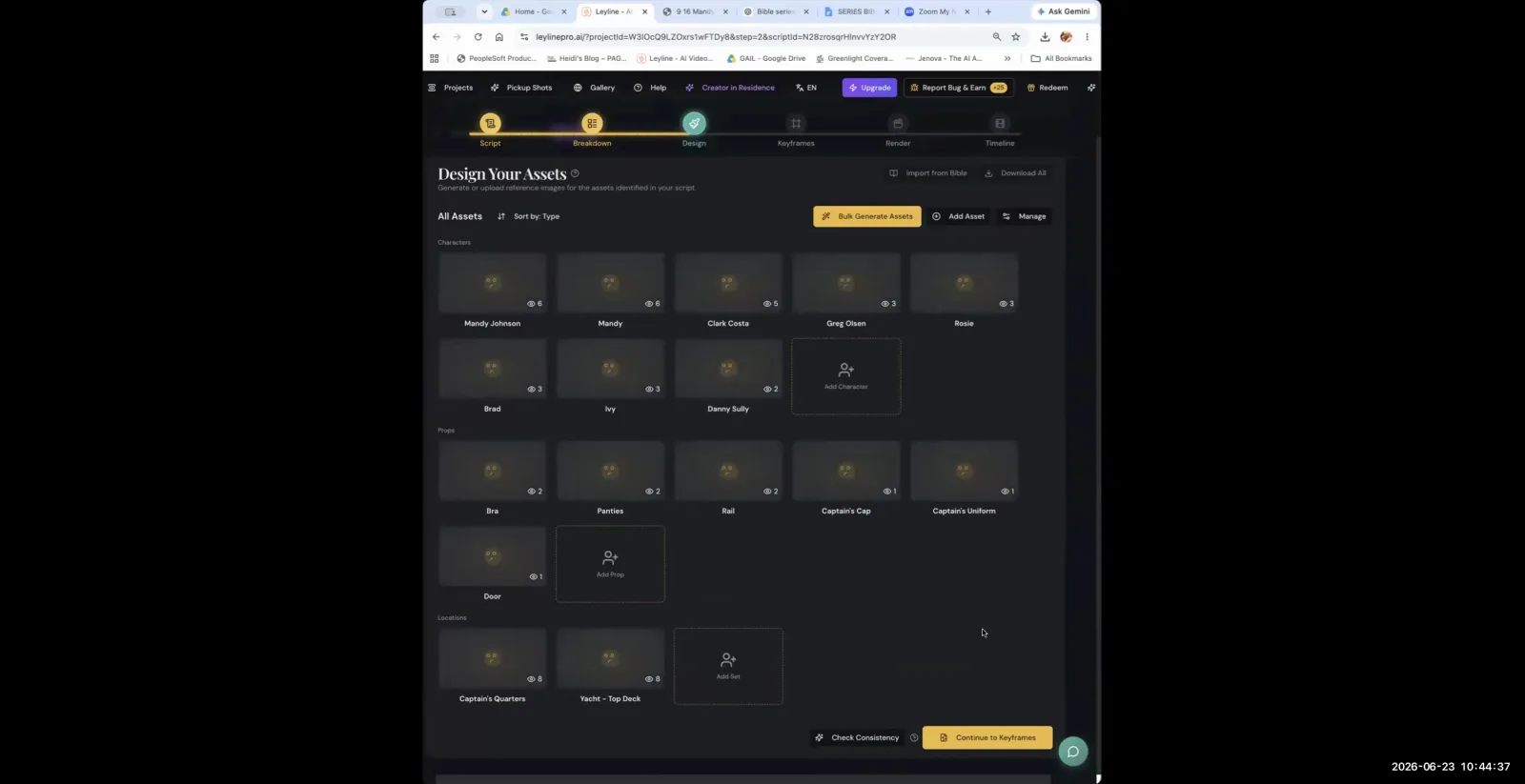
In the Design tab, find the character asset you want to define from the gallery.
Step 2. To use an existing image, click "Upload" and select your character reference image.
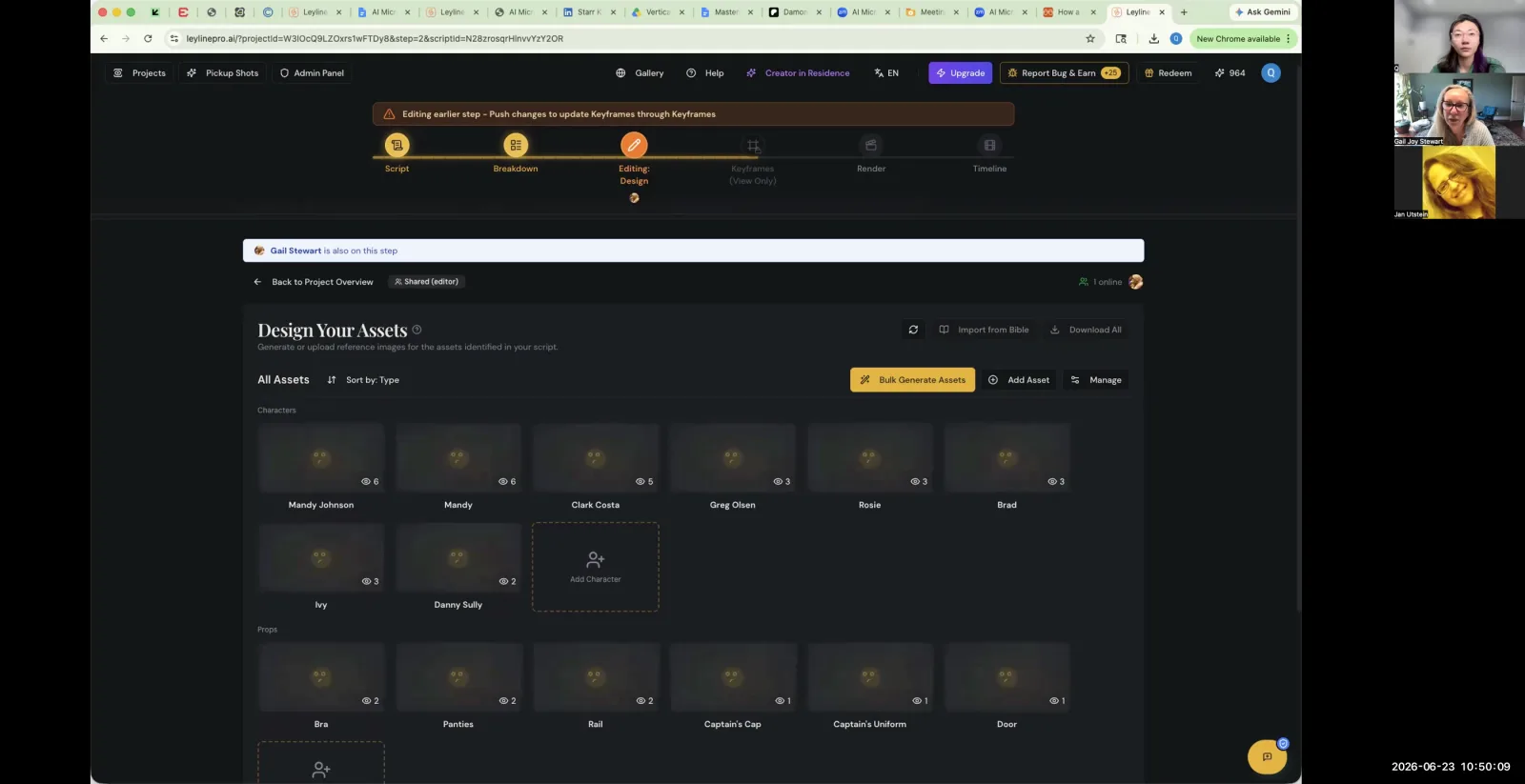
The "Design Your Assets" page shows all the characters and props that need reference images.
Step 3. To generate a new image, write a descriptive prompt (e.g., "front view of the character, dressed in heels").
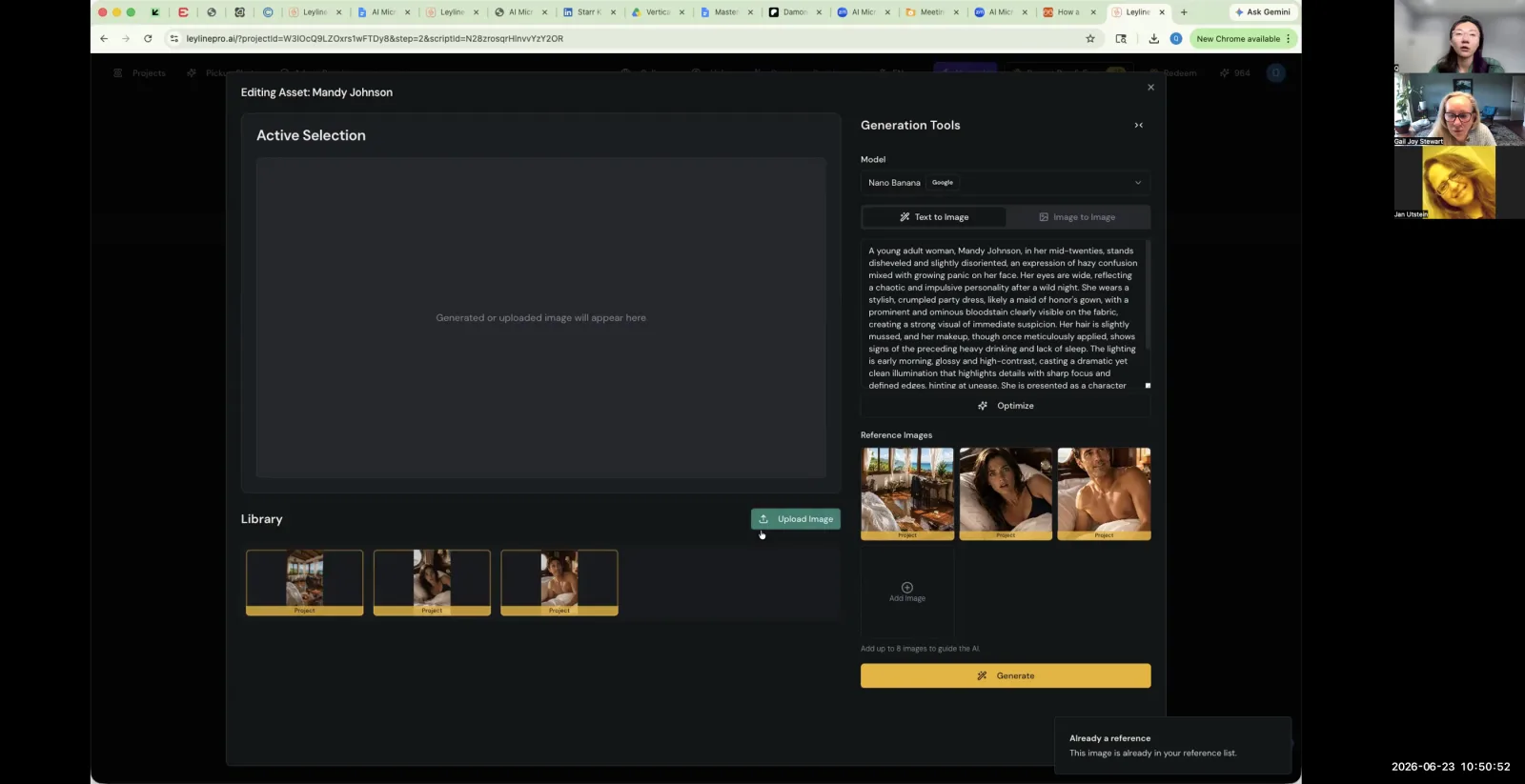
Write a detailed prompt describing the character, setting, and mood to guide the AI's image generation.
Step 4. Generate multiple views (front, side, etc.) to build a complete character sheet.
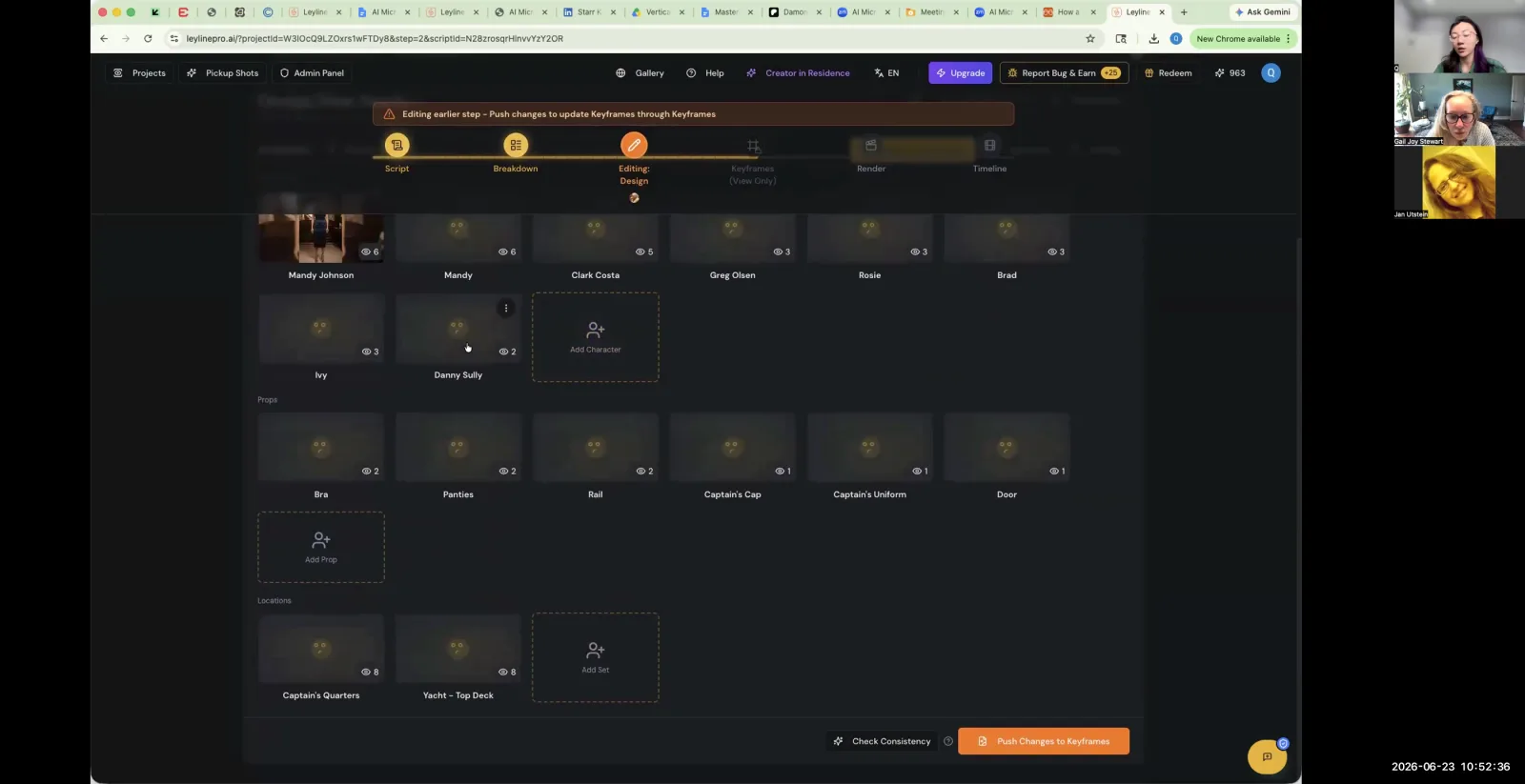
The Editing Design tab displays all the assets generated from your script, organized into categories like characters, props, and locations.
Step 5. Once satisfied with a character design, promote it to the Creative Bible to lock it in for future use.
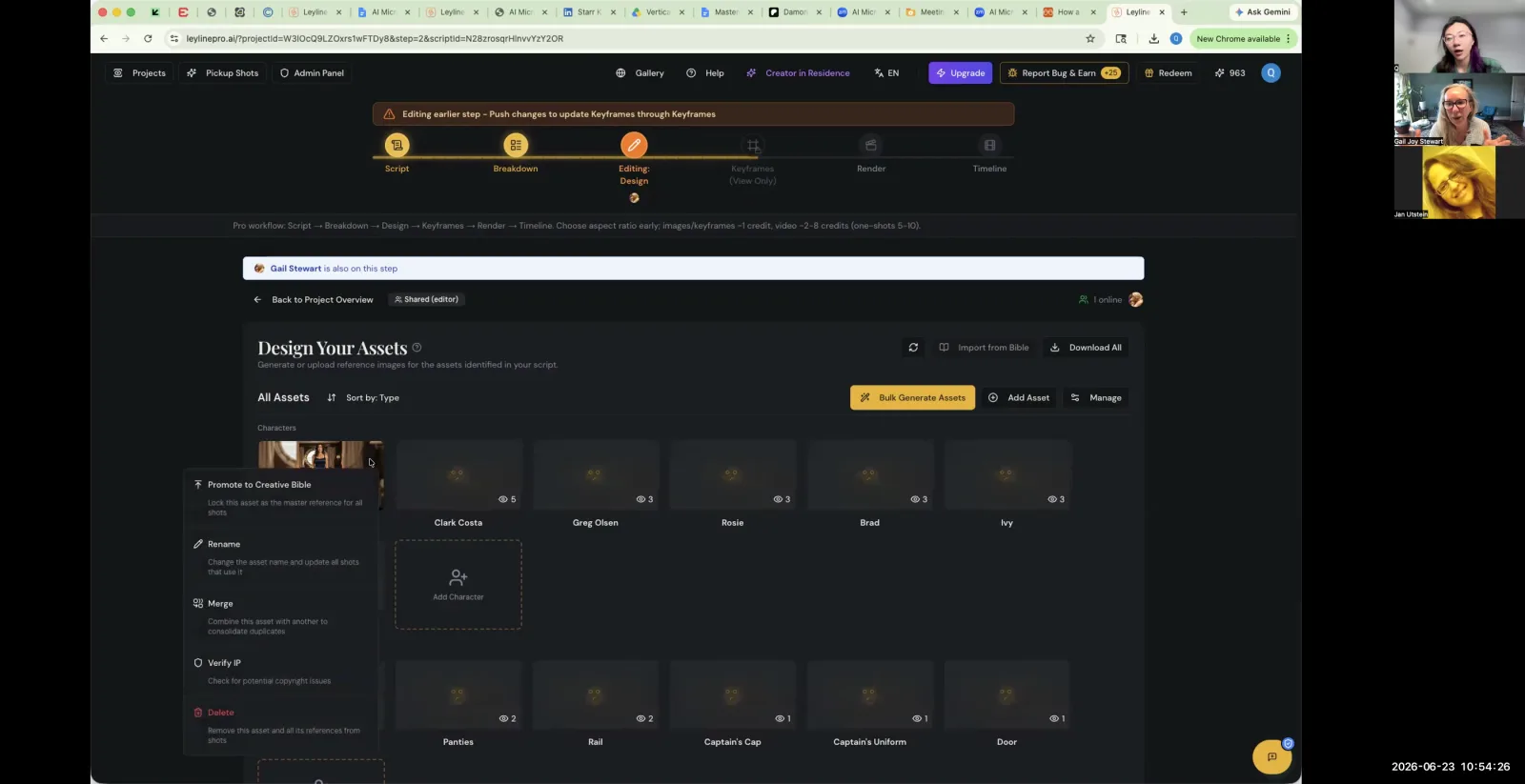
To lock in a character design, hover over the asset and select 'Promote to Creative Bible'.
Managing and Organizing Project Assets
Learn how to keep your project tidy by merging duplicate assets and correctly organizing characters, locations, and props for an efficient production process.
Step 1. Review the list of assets (characters, locations, etc.) generated during the script breakdown.
Step 2. If the AI created duplicate assets for the same character, merge them into a single asset.
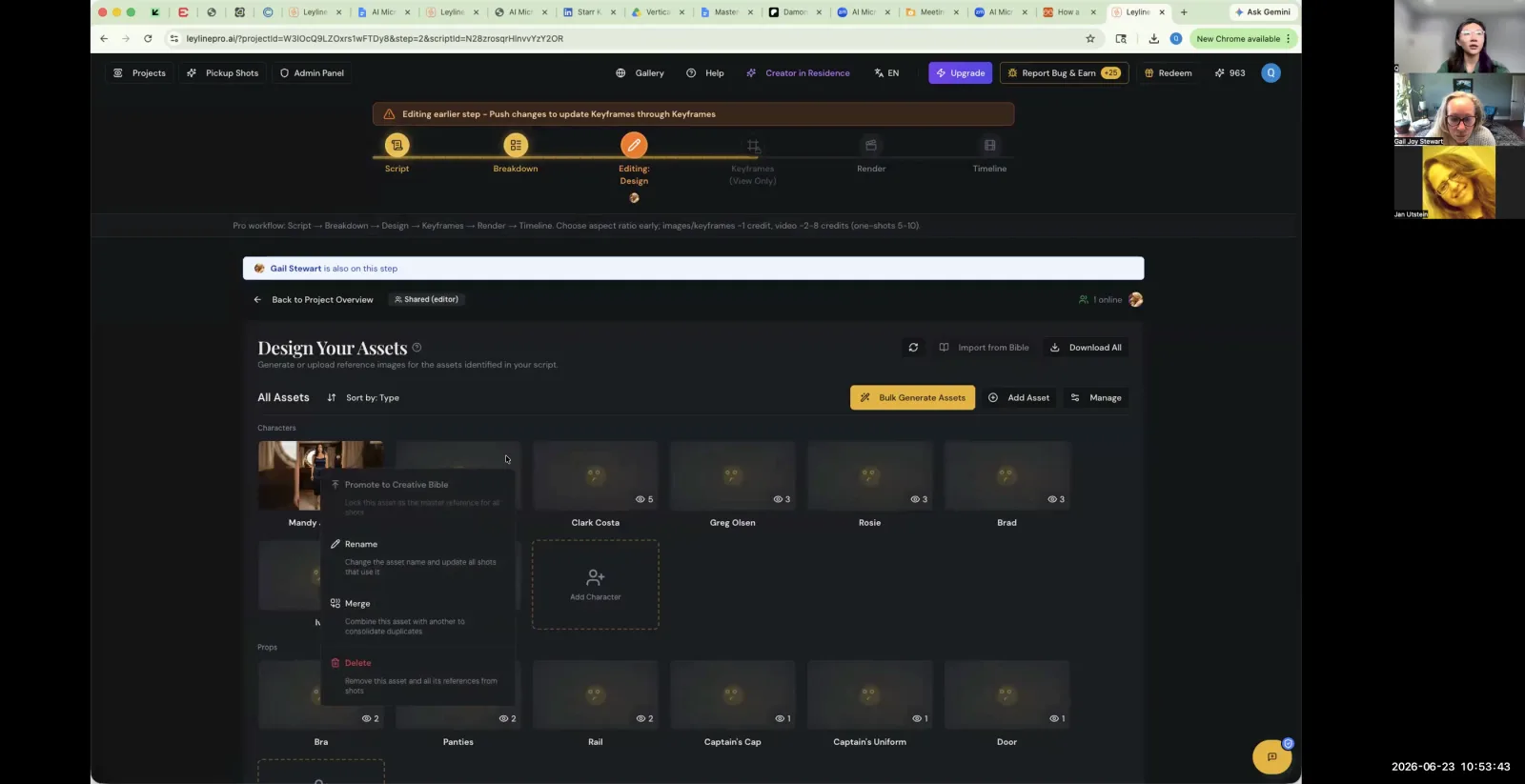
Use the 'Merge' option to combine duplicate assets for the same character or prop.
Step 3. For each asset card (character, location, prop), upload the corresponding reference images one by one.
The system does not currently support bulk uploading images to a general library for later sorting.
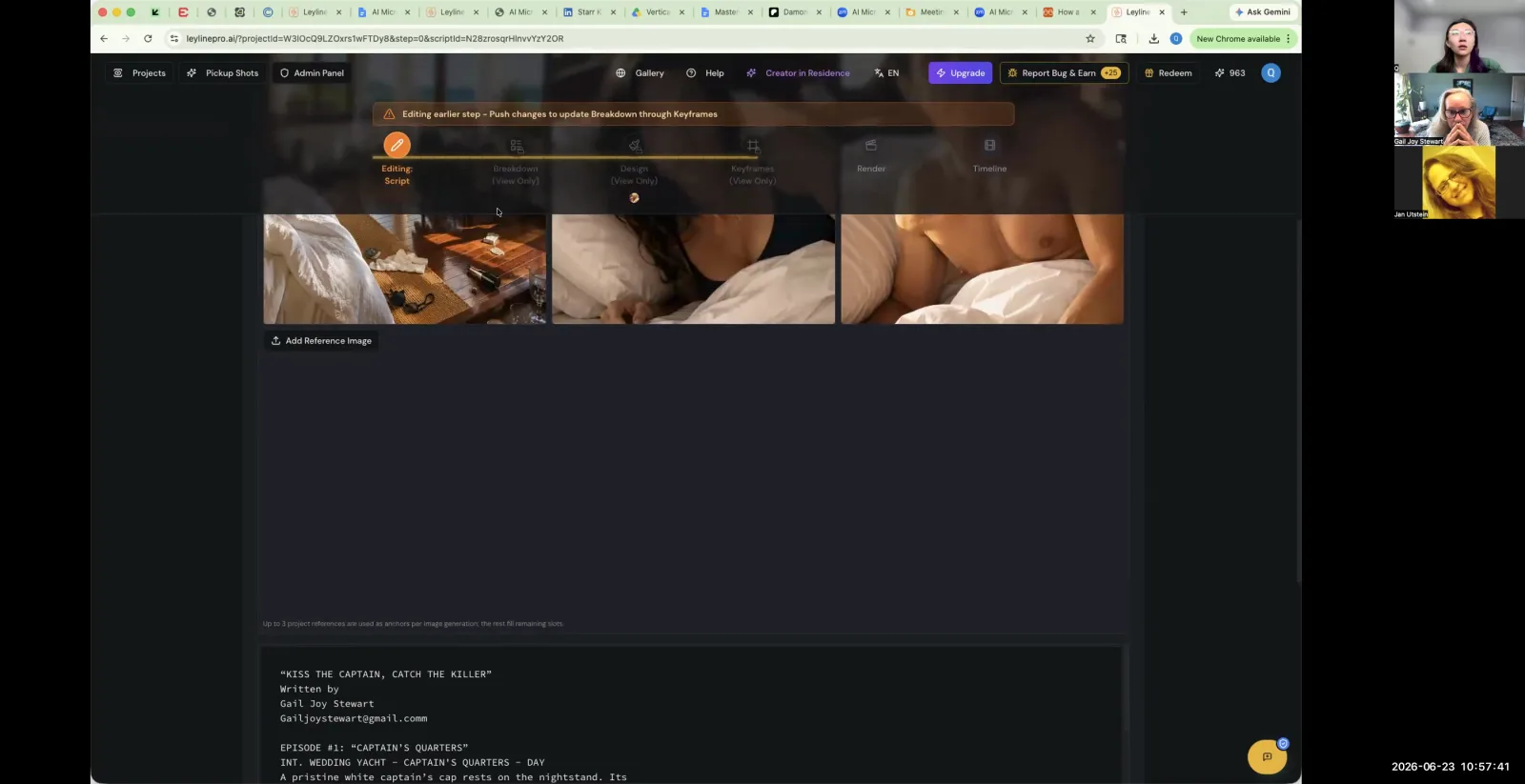
Add reference images for your project to help guide the AI's visual generation.
Setting Up a Multi-Episode Project
This final section explains how to structure a project for episodic content using the 'Creative Bible' to ensure asset consistency across multiple episodes.
Step 1. Create a text-only version of your project bible (Word or PDF), removing all images.
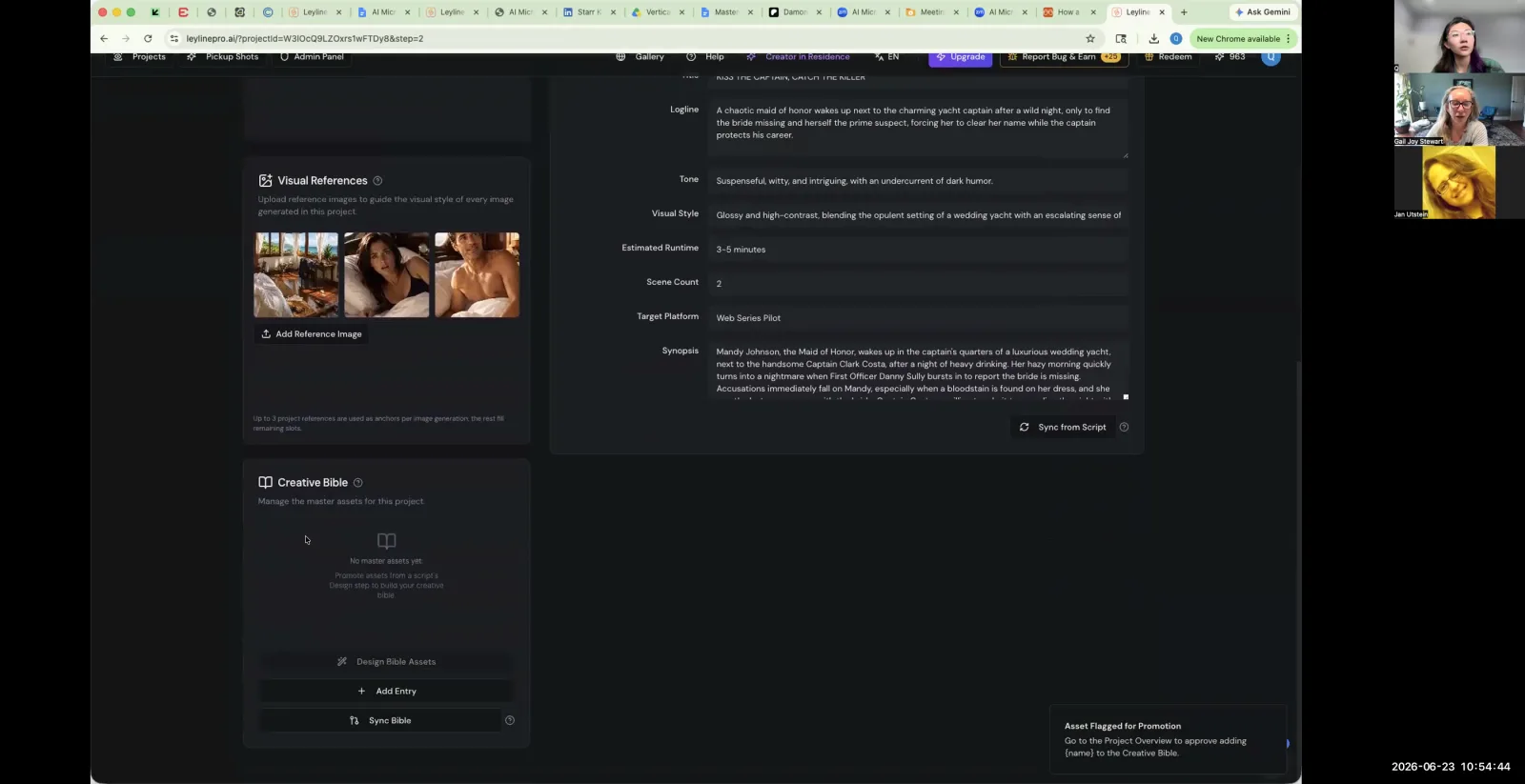
The "Sync Bible" feature allows you to import all established assets for subsequent episodes.
Step 2. Start a new project using the "Vertical Shorts" template for access to multi-script generation features.
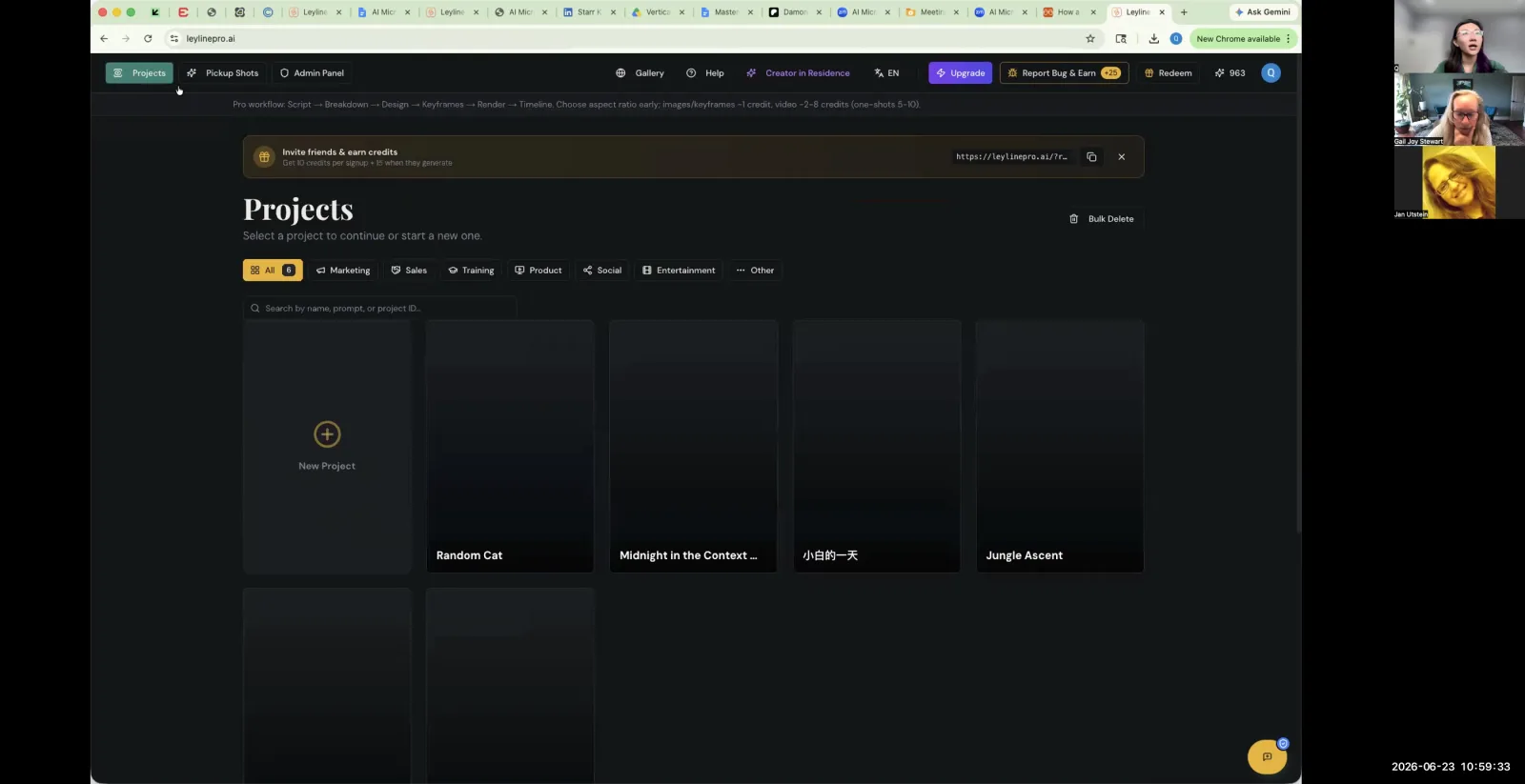
From the Projects dashboard, click 'New Project' to begin creating your vertical short.
Step 3. Upload the text-only bible to the new project.
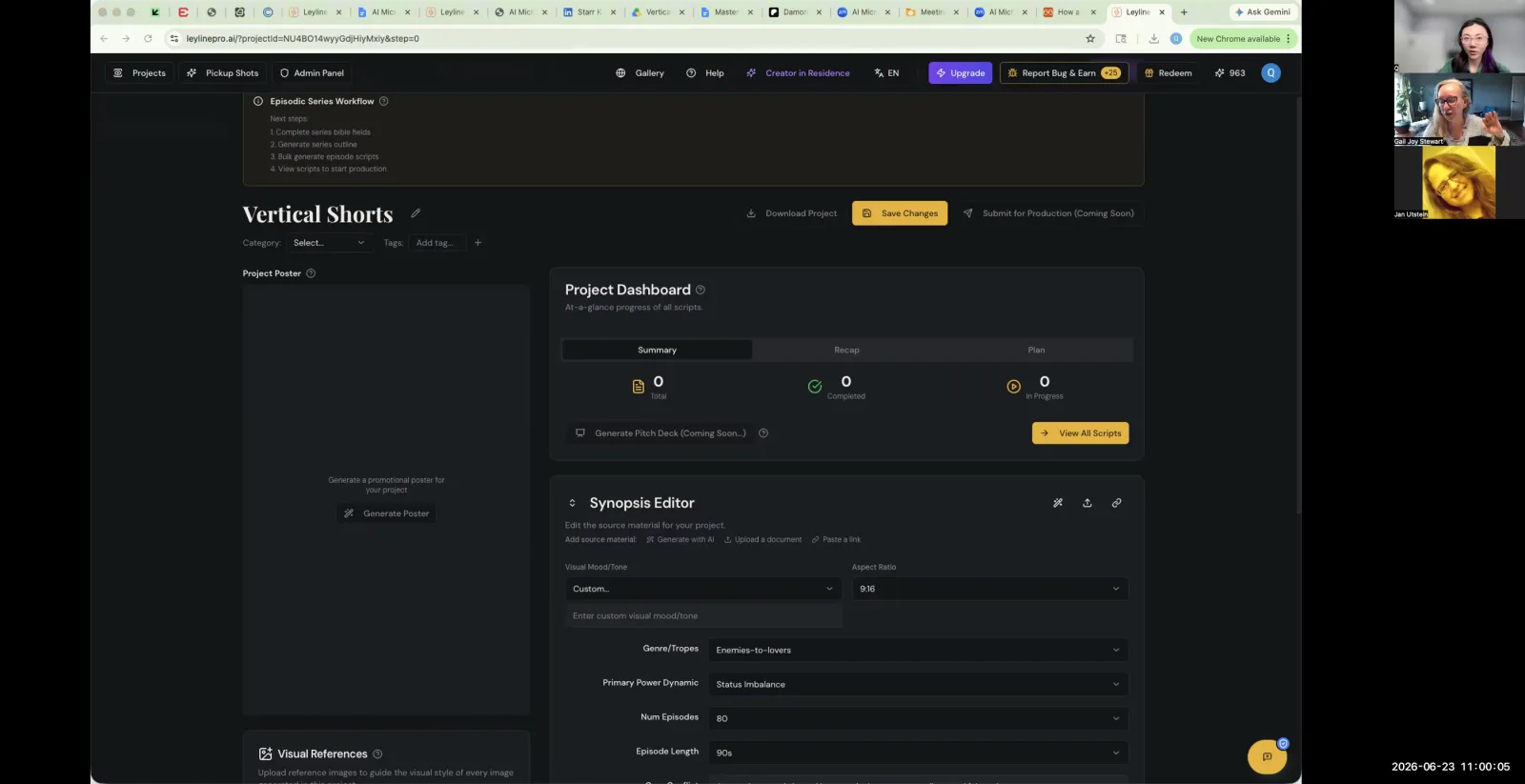
In the Synopsis Editor, upload your source material, such as a series bible, to begin.
Step 4. For Episode 1, define your characters and locations and "Promote" them to the Creative Bible.
Step 5. For subsequent episodes, use the "Sync the Bible" feature to import all the established assets.
Key terms
Script Breakdown. The process of analyzing a script to identify all the elements (shots, characters, props, locations) needed for production. The AI automates this, but it often requires manual correction.
Merge with Previous Shot. A function in the software to combine two adjacent shots from the script breakdown into a single shot, simplifying the sequence.
CSV File. A comma-separated values file format used here to export and import the script breakdown, allowing users to save versions of their shot list.
Version Control. A system for managing multiple revisions of a file or project. The instructor mentions they are adding this feature for script breakdowns.
Generate AI Suggestion. A feature that creates a new image prompt after shots have been merged, reflecting the combined action or description.
Key Frames. Specific frames in an animated sequence that define the starting and ending points of a smooth transition. The software generates these in the 'Design' phase.
Visual References. Images uploaded by the user to guide the AI's generation process for characters, locations, or props.
Character Sheet. A collection of images showing a character from various angles and in different poses (front view, side view, etc.) to ensure consistency.
Bulk Generate. A feature that allows the user to generate multiple character images or shots at once, rather than one by one.
Line Producer / First AD. Traditional film roles responsible for logistics and on-set management. The instructor notes that the user of this AI tool must perform these roles, such as cleaning up the asset list.
Creative Bible. A central document or feature within the software that stores key creative elements like character designs, locations, and lore for a project, ensuring consistency across episodes.
Promote to Creative Bible. An action that saves a specific asset (like a finalized character design) to the project's Creative Bible.
Sync the Bible. A function that applies the assets stored in the Creative Bible to the current episode or project, importing established characters and settings.
Vertical Short Template. A specific project preset designed for creating content in a vertical aspect ratio, which includes unique script generation functions.
Common mistakes to avoid
- Using a script that is too long, causing the AI to make strange choices like cutting dialogue or missing key scenes at the end.
- Accepting the AI's initial script breakdown without manually merging or deleting unnecessary shots.
- Uploading a project bible (PDF) that contains images, which confuses the AI parser.
- Not creating a complete character sheet with multiple views, leading to inconsistent character generation.
- Failing to merge duplicate assets created by the AI during the breakdown phase.
- Creating a new project using the default "empty project" template instead of the "Vertical Shorts" template, which has more features for episodic content.
- Uploading all reference images in a single batch instead of assigning them to their specific character, location, or prop cards.
- Getting confused by the UI, such as not knowing that "Create a script" is also the button to upload an existing script.
Frequently asked questions
How do I fix an AI-generated script breakdown?
To fix an AI-generated script breakdown, you must manually review the shot list. Use features like "Merge with Previous Shot" to combine unnecessary shots or delete them entirely. This process ensures the breakdown accurately reflects your script's pacing and removes redundant visuals generated by the AI.
Why is my AI video generator cutting off the end of my story?
If your AI video generator cuts off the end of your story, your script is likely too long for the tool to process completely. The AI can make strange choices with long scripts, including missing key scenes or dialogue at the end. Shorten your script to ensure a full breakdown.
How do I create a consistent character in AI-generated video?
To create a consistent character, first generate a base design using AI suggestions or your own visual references. Then, create a complete character sheet showing multiple views. This sheet provides a stable reference for the AI, helping it generate the character accurately across different shots and episodes.
What is a 'Creative Bible' in AI filmmaking?
A 'Creative Bible' is a central repository for key project assets like characters, locations, and props. It ensures consistency across multiple episodes in a series. You can promote assets to the bible and then sync it with new episodes to reuse the same established designs and elements.
Why won't my AI tool accept my project bible PDF with images?
An AI tool may reject a project bible PDF with images because its text parser can get confused by embedded visuals. For best results, your uploaded bible should contain only text. Upload all visual references as separate image files directly to their specific character, location, or prop cards.
In the instructor’s words
“Anything that is asking the AI to do more complex things is also leaving liberty to it. That's why there's a manual adjustment option in in in this program.”
“If you had a line producer, the line producer and assistant directors will do. But right now, since it's just yourself. So that's not really the program. This is not really the program. It's what you need to do for the job of a line producer and also first AD.”
“Promote it to the creative Bible, so you lock this character.”
This tutorial was produced from the Leyline Masterclass recording (Cohort 9, Session 1, 2026-06-23). Screenshots are captured directly from the session.