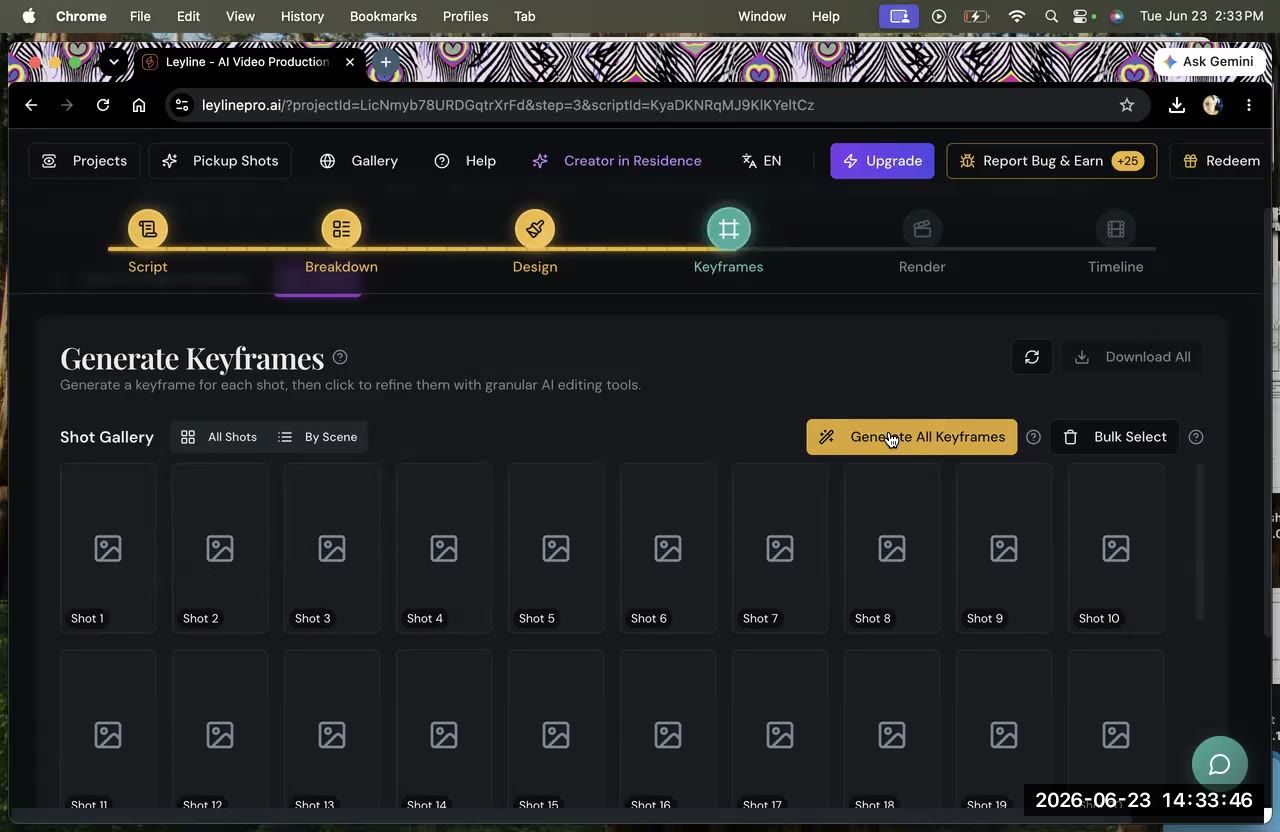
The right AI video model depends on the job in front of you — not the hype. Use Nano Banana for image editing and controlled changes, and use a dedicated video model like Seedance, Veo 3, or Kling when you need to animate a still into a moving shot. Below is a practical breakdown so you can choose without burning a week of trial and error.
Match the model to the task
Think in terms of the specific job:
- Editing or changing an existing image — reach for Nano Banana. It's the strongest at taking an image you already have and modifying it (swap a detail, adjust a look, keep the subject) while holding the rest steady. This is why it's wired into the design and keyframe steps.
- Generating video / motion from a still — this is where dedicated video models like Seedance, Veo 3, and Kling come in. They animate a keyframe into a shot. They differ in motion quality, prompt adherence, and how they handle complex action.
- Establishing a look — for your first images and style references, any of the included image models will get you a usable starting point; lock the look, then stay consistent.
The models, in practice
Nano Banana is the workhorse for assets and keyframes. It handles image editing and controlled changes better than any of the video models, so use it whenever you want to modify a reference image rather than animate it.
Seedance is a video model that renders motion from your source images. It handles subtle motion and naturalistic camera moves well, making it a strong default when you already have a keyframe you like and want to bring it to life.
Veo 3 is Google's video model. It excels at general-purpose video generation with strong prompt adherence, and handles complex scene descriptions with more reliability than most models.
Kling is another capable video model with distinct motion characteristics — some filmmakers prefer its feel for action-heavy or stylized shots.
The differences between video models are real but situational. Rather than memorize spec sheets, test the same shot across two models and keep the one that nails the motion you're after. For a deeper look at how Seedance and Veo 3 compare head-to-head, see the Seedance vs Veo 3 breakdown.
How to choose without wasting credits
- Lock the image first. Get the keyframe right — composition, character, lighting direction — before you animate. A strong still is half the battle. If you're new to building keyframes, the keyframes explained guide walks through the full process.
- Render low-res to test motion. Generate a cheap, low-resolution pass to check that the movement is what you want, then re-render the same shot at full quality. Every version is kept, so you lose nothing. More on this in how to save credits on AI video.
- Expect a couple of attempts. AI video isn't perfectly consistent on every try. Two or three draws per difficult shot is normal — budget for it.
- Give the model more to work with. The more detail and intent you put in the prompt, the better and faster you'll land the shot. See how to write AI video prompts for a practical prompt-writing workflow.
What about character consistency?
Model choice matters a lot when you need the same character to appear across multiple shots. Seedance and Veo 3 both accept image references, but their handling of facial fidelity differs shot to shot. The character consistency guide covers which approaches work across each model and where the gaps still are.
What if the clip looks glitchy?
Glitchy or warped frames aren't always a model problem — they often come from the source keyframe, a conflicting prompt, or motion that's too extreme for the clip length. The fix glitchy AI video clips guide walks through the most common causes and how to solve them before you burn more credits re-rendering.
Frequently asked questions
Is there a single best AI video model?
No. The best model depends on the task — image editing favors Nano Banana, while motion comes from video models like Seedance, Veo 3, or Kling. Test on your own shot and keep what works.
Why is Nano Banana used for images instead of video models?
It's the strongest at editing and changing an existing image while keeping the subject consistent, which is exactly what asset design and keyframes need. Video models are optimized to animate, not to hold image fidelity during edits.
How do I avoid wasting credits comparing models?
Render a low-resolution test to judge motion, then re-render the chosen shot at full quality. Keep every version in the library so you can compare without losing work.
How many tries does a shot take?
Often two or three for a tricky shot. AI video generation is iterative — that's expected, not a mistake. If you're regularly exceeding five attempts, the source keyframe or the prompt usually needs adjustment before you re-generate.
Keep learning
Pick the model by the job, lock your keyframes first, and test cheaply. To see how these models fit into a full production, read the AI filmmaking workflow or explore what AI filmmaking is if you're just getting started.
Comments
Sign in with your Leyline account to join the conversation.